

Our Top Picks
- Top Pick: Samsung 870 EVO 1TB SATA SSD
- Runner-up: Crucial MX500 1TB SATA SSD
- Also consider: Samsung 970 EVO Plus 1TB NVMe SSD
An old laptop with a spinning hard drive feels slow in ways that add up fast. Boot times stretch out and apps take their time opening. Swapping the hard drive for a solid-state drive is the single most noticeable upgrade most older laptops can receive, and it often costs far less than buying a new machine.
The choice comes down to two interfaces: SATA and NVMe. SATA drives use the 2.5-inch form factor and the SATA connector found in nearly every laptop made in the last decade. NVMe drives use a small M.2 stick and the PCIe bus, and they run far faster on paper. Many older laptops only support one of the two, so the slot decides first.
As an Amazon Associate, we earn from qualifying purchases.
Quick answer
For most old laptops, a 2.5-inch SATA SSD is the safe upgrade because nearly every laptop from the last ten years has a SATA bay. NVMe is the better pick only when the laptop has an M.2 slot that supports PCIe, where it delivers several times the sequential speed. Check the slot first, then choose capacity, endurance, and warranty.
SATA vs NVMe at a Glance
SATA SSDs connect through the SATA III interface, which tops out near 600 MB/s of theoretical bandwidth. In practice, good SATA drives deliver sequential reads near 560 MB/s and writes near 510 to 530 MB/s, roughly five times faster than a typical spinning hard drive. SATA drives come in the familiar 2.5-inch shape, about 7 mm thick, and slide into the same bay that held the old hard drive.
NVMe SSDs connect through PCIe lanes instead. A PCIe 3.0 drive can reach sequential reads near 3,500 MB/s, while a PCIe 4.0 drive can pass 5,000 MB/s. Those numbers dwarf SATA, but they only matter if the laptop has an M.2 slot wired for PCIe. Some laptops have an M.2 slot that only supports SATA, so an NVMe drive will not work in it at all. Others support PCIe 3.0 but not PCIe 4.0, so a Gen4 drive still works but runs at Gen3 speeds.
Compatibility: The Deciding Factor
Compatibility is where most upgrade mistakes happen. Check the laptop model and its service manual, which usually lists the storage interface in plain terms. A laptop with a 2.5-inch drive bay almost always supports SATA, and swapping a drive takes only a few screws and a clone.
An M.2 slot needs more investigation. Some laptops from the mid-2010s have an M.2 slot that only accepts SATA drives, which means a 2.5-inch SATA SSD or an M.2 SATA SSD is the only option. Newer laptops often have a PCIe slot, sometimes with a second SATA bay as well. Drive length matters too: most laptops accept 2280 M.2 drives, 22 mm wide and 80 mm long, but a few compact models only fit shorter 2242 drives.
Speed in Daily Use
The raw speed gap between SATA and NVMe looks enormous on a spec sheet, but everyday use tells a more nuanced story. Booting an operating system, opening a browser, and launching office apps are mostly random read operations at small queue depths, and SATA drives handle those tasks well. A laptop that boots quickly with a SATA SSD will boot only slightly faster with an NVMe drive.
Where NVMe pulls ahead is in sustained transfers of large files. Copying a folder full of video clips, installing a large application, or exporting a video project all benefit from the extra bandwidth. For everyday email, documents, and browsing, a SATA SSD already feels fast. The jump from a hard drive to any SSD is the dramatic one; the jump from SATA to NVMe is real but smaller.
Installation: Two Different Jobs
Installing a 2.5-inch SATA SSD is the friendliest upgrade in laptop repair. The drive bay is usually accessible through a small panel on the underside, held by a few screws. The old drive slides out, the new one slides in, and the same screws hold it in place. No adapter is needed, and the drive is easy to remove later if the laptop is retired.
Installing an M.2 NVMe drive is also simple, but it has a few quirks. The drive slides into the slot at a shallow angle and is held down by a single small screw, which some laptops ship without, so it is worth checking the box in advance. Cloning is the same either way: back up important files first, clone the old drive to the new one, swap the drives, and boot.
Endurance and Longevity
Endurance is measured in terabytes written, or TBW, and it tells how much data a drive is rated to write over its life. A 1TB drive rated at 600 TBW can absorb a large amount of writing before reaching its rated limit, and typical laptop use writes far less than that in a year. Warranty length is the more useful signal, and the drives in this guide all carry five-year warranties.
NAND type also plays a role. TLC NAND balances speed, endurance, and capacity well. QLC NAND costs less per terabyte but usually has a lower endurance rating and can slow down during very long writes. For everyday work, either type is fine; for heavy video work or constant large writes, a TLC drive with a higher TBW rating is the safer pick.
The Five SSDs to Consider
Samsung 870 EVO 1TB SATA SSD
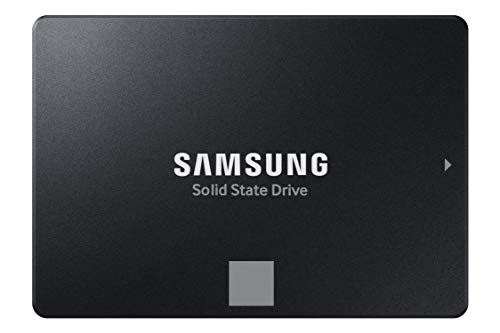
The Samsung 870 EVO is the reference SATA drive, delivering sequential reads up to 560 MB/s and writes up to 530 MB/s, essentially the SATA maximum. The 1TB capacity holds an operating system, a full set of applications, and a large file library with room to spare. A DRAM cache keeps random performance strong, and the drive carries a 600 TBW endurance rating with a five-year warranty. For any old laptop with a 2.5-inch bay, this is the default safe choice.
Crucial MX500 1TB SATA SSD

The Crucial MX500 is the long-running alternative to the 870 EVO. Sequential reads reach up to 560 MB/s and writes up to 510 MB/s, and the drive includes a DRAM cache that keeps everyday responsiveness high. The 1TB model uses 3D NAND, carries a five-year warranty, and ships with Crucial’s own cloning software. It is a strong pick for owners who want proven SATA performance and a simple upgrade.
Samsung 970 EVO Plus 1TB NVMe SSD

For laptops with a PCIe 3.0 M.2 slot, the Samsung 970 EVO Plus reads at up to 3,500 MB/s and writes at up to 3,300 MB/s, roughly six times the speed of a SATA drive in sequential transfers. The 1TB model carries a 600 TBW endurance rating and a five-year warranty, and it includes a DRAM cache.
WD Blue SN580 1TB NVMe SSD

The WD Blue SN580 is a PCIe Gen4 NVMe drive for everyday users and creators, reading and writing at up to 4,150 MB/s, a large step up from Gen3 drives and a dramatic jump from SATA. The 1TB model is rated at 600 TBW and carries a five-year warranty. It uses TLC NAND and a host memory buffer design rather than a DRAM cache, which keeps it slim and power-efficient. It also works in Gen3 slots, where it simply runs at Gen3 speeds.
Crucial P3 Plus 2TB NVMe SSD

The Crucial P3 Plus is the capacity pick, offering 2TB of Gen4 NVMe storage in a single M.2 stick. It reads at up to 5,000 MB/s and writes at up to 4,200 MB/s, with a five-year warranty and a 220 TBW endurance rating. The extra capacity is the real story: a 2TB drive can hold an operating system, a large application library, and a full photo or video archive without constant cleanup.
How to choose
Start with the slot. If the laptop has only a 2.5-inch bay, buy a SATA SSD and choose between the 870 EVO and the MX500 based on availability and capacity needs. If it has an M.2 slot, confirm whether it supports PCIe and which generation, then pick an NVMe drive that matches. A Gen3 slot pairs well with the 970 EVO Plus, while a Gen4 slot can use the SN580 or the P3 Plus.
Next, pick a capacity. A 1TB drive suits most laptops, covering the operating system, applications, and a healthy file library. A 2TB drive suits large photo collections, video libraries, or many games. Finally, weigh endurance and warranty: a five-year warranty is a good baseline, and a higher TBW rating matters more for heavy writers.
Who should skip
Owners of laptops with only a SATA bay should skip NVMe entirely, because the drive will not fit and no adapter makes it work. The same applies in reverse: a laptop with only an M.2 slot cannot take a 2.5-inch drive. Anyone short on memory should upgrade that too, since a memory-starved machine will still feel slow.
The Crucial P3 Plus is not the best pick for owners who write huge files all day, every day, because its QLC NAND and lower TBW rating are built for capacity rather than constant heavy writes. The WD Blue SN580 is not the best pick for a laptop with only a Gen3 slot if the goal is to use its full speed, since the slot will cap it.
FAQ
Can I install an NVMe SSD in any old laptop?
No. The laptop needs an M.2 slot that supports PCIe. Many laptops from the mid-2010s have an M.2 slot that only supports SATA, and some have no M.2 slot at all. Check the service manual for the exact slot type before buying, and measure the slot to confirm it fits a 2280 drive.
Will a Gen4 NVMe drive work in a Gen3 slot?
Yes. PCIe is backward compatible, so a Gen4 drive will work in a Gen3 slot and run at Gen3 speeds. The drive is still much faster than a SATA drive in that configuration.
Is cloning my old drive safe?
Cloning is a standard upgrade method, and the tools included with most SSDs are built for it. Back up important files first, because any drive operation carries a small risk. After cloning, boot from the new drive before wiping the old one.
How long will an SSD last in an old laptop?
For typical use, an SSD will outlast the laptop. Endurance ratings like 600 TBW are far above what most owners write in a year, and the five-year warranties on the drives in this guide reflect that.
Final verdict
The right SSD for an old laptop is the one that fits the machine and matches how it is used. A SATA drive like the Samsung 870 EVO or the Crucial MX500 is the safe, proven upgrade for nearly any laptop with a 2.5-inch bay, and it transforms a slow machine into a responsive one. An NVMe drive like the Samsung 970 EVO Plus, the WD Blue SN580, or the Crucial P3 Plus is the better pick when the laptop has a PCIe M.2 slot and the workload involves large files. Check the slot, pick a capacity that leaves room to grow, and choose a drive with a five-year warranty. Any of the five drives here will make an old laptop feel new again.
More from Amazon
Programs that pair well with the guide above. Offers and eligibility are set by Amazon and may change.
A free business account with business pricing and bulk-buying tools for work, shop or home office.
Create a business accountFree shipping on eligible items, Prime Video and more. Eligible new members can start with a free trial.
Start a Prime free trialAudiobooks and podcasts to listen to on the go. Eligible new members can start with a free trial.
Try Audible freeAd-free music streaming. Eligible new subscribers can start with a free trial.
Try Music Unlimited freeAs an Amazon Associate we earn from qualifying purchases.






Write Your Review
No reviews yet. Be the first to share your experience!