

Key takeaways
- Portable (2.5-inch): pocket-sized, powered over the USB cable, and limited to roughly 6TB at the top end. They tolerate being moved, but the spinning platters are still vulnerable to drops while running.
- Desktop (3.5-inch): need a power adapter, are larger and louder, but reach far higher capacities and cost less per terabyte. They are meant to sit on a shelf and stay there.
The best external hard drive for most people in 2026 is a portable WD My Passport for everyday backups, with a Seagate Expansion Desktop as the pick when you need the most terabytes for the least money. Choose a LaCie Rugged if the drive travels in a camera bag, and step up to a portable SSD such as the Samsung T7 Shield only when speed or shock resistance matters more than capacity. Everything below is based on manufacturer spec sheets and published reviews, so use it to narrow the field and then confirm the exact model and capacity before you buy.
Our top picks


As an Amazon Associate we earn from qualifying purchases at no extra cost to you.
Quick comparison of the top external hard drives
| Pick | Best for | Type and interface | Typical capacities | Price tier |
|---|---|---|---|---|
| WD My Passport | Everyday portable backup | 2.5-inch HDD, USB 3.2 Gen 1, bus-powered | 1TB to 6TB | Mid-range |
| Seagate Expansion Desktop | Largest capacity per dollar | 3.5-inch HDD, USB 3.0, wall power | Up to 24TB depending on model | Budget per TB |
| LaCie Rugged | Travel and field work | 2.5-inch HDD in rubber sleeve, USB-C | 1TB to 5TB | Upper-mid |
| Seagate Portable | Lowest entry price | 2.5-inch HDD, USB 3.0, bus-powered | 1TB to 5TB | Budget |
| WD My Book | Desktop home archive | 3.5-inch HDD, USB 3.0, wall power | Multi-terabyte, up to double-digit TB | Mid-range |
| Samsung T7 Shield | Fast, drop-tolerant SSD | Portable SSD, USB 3.2 Gen 2, up to about 1,050 MB/s read | 1TB to 4TB | Upper-mid to premium |
| SanDisk Extreme Portable SSD | Fast SSD for creators on the move | Portable SSD, USB 3.2 Gen 2, IP65 rating | 500GB to 4TB | Upper-mid to premium |
Desktop or portable: the decision that matters most
Most buying mistakes happen before a brand is chosen. External hard drives come in two physical formats, and they behave differently in daily use.
- Portable (2.5-inch): pocket-sized, powered over the USB cable, and limited to roughly 6TB at the top end. They tolerate being moved, but the spinning platters are still vulnerable to drops while running.
- Desktop (3.5-inch): need a power adapter, are larger and louder, but reach far higher capacities and cost less per terabyte. They are meant to sit on a shelf and stay there.
If the drive will never leave your desk, a desktop model is almost always the better value. If you plan to carry it, a portable model or a rugged one is the realistic choice.
Best overall: WD My Passport
The WD My Passport is the default recommendation in most 2026 roundups because it balances price, size and features. It is a 2.5-inch drive that draws power from the USB port, so there is no adapter to lose. Western Digital lists hardware-based 256-bit AES encryption with password protection through its companion software, plus a three-year limited warranty, per the manufacturer’s spec sheet.
Who it suits: students, remote workers and anyone who wants a plug-in backup for a laptop. The larger 4TB and 5TB versions work well as a full-system backup target.
Main trade-off: the encryption and backup tools depend on WD software, and the plastic shell is not designed for rough handling. Some models use a USB-C adapter cable on a micro-B drive port, which is fine for speed but means one more connector to keep track of.
Best for capacity: Seagate Expansion Desktop
The Seagate Expansion Desktop line is where you go when you measure your data in many terabytes. It is a simple 3.5-inch enclosure with a USB 3.0 connection and an external power brick. Several reviewers put it among the lowest cost-per-terabyte options on the market, and the largest versions reach 20TB or more depending on the generation.
Who it suits: photographers and video shooters with large archives, families consolidating photo libraries, and anyone keeping a second copy of a NAS.
Main trade-off: it is bulky, it needs wall power, and the bundled software is minimal. A single large drive also means a single large point of failure, so keep a second copy of anything irreplaceable.
Best rugged pick: LaCie Rugged
The LaCie Rugged is the orange-bumpered drive you see on location shoots. LaCie rates the Rugged line for drops from about three meters and for resistance to rain and dust, per its product literature, and the USB-C interface suits modern laptops directly.
Who it suits: field photographers, journalists and anyone who has already killed a plain portable drive.
Main trade-off: you pay more per terabyte for the protection, and it is still a spinning disk. Drop resistance ratings apply to a drive that is powered off or idle, not one in the middle of a write.
Best budget: Seagate Portable
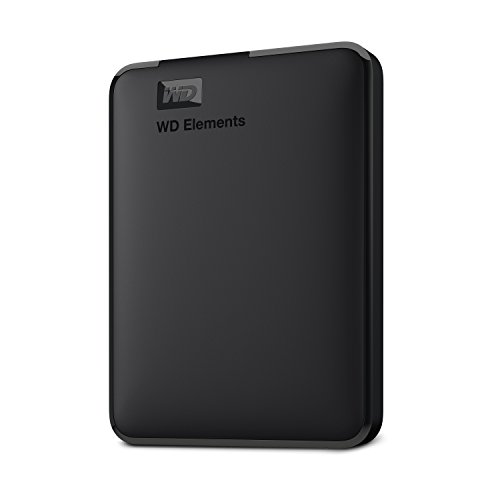
The Seagate Portable is the cheapest sensible entry into portable backup. It is a bus-powered 2.5-inch drive with a USB 3.0 connection and capacities from 1TB up to about 5TB. The WD Elements Portable is its closest rival and is similarly basic.
Who it suits: first-time buyers, occasional file transfers and cold-storage copies that rarely get touched.
Main trade-off: minimal features and a plain plastic case. It does the job, but do not expect hardware encryption or much shock tolerance.
Best desktop archive: WD My Book
The WD My Book sits between the cheapest desktop drives and a full NAS. It offers large capacities in a book-style 3.5-inch case, USB 3.0 connectivity, and WD’s backup and password tools. It is a tidy choice if you want a bigger drive than any portable and a slightly more polished package than the basic Seagate desktop model.
Main trade-off: like every single-disk enclosure, there is no redundancy. If it matters, mirror it to a second drive.
Best SSD upgrades: Samsung T7 Shield and SanDisk Extreme Portable SSD
Hard drives top out around 100 to 200 MB/s in everyday transfers, while the portable SSDs here are specified at up to roughly 1,050 MB/s over USB 3.2 Gen 2. The Samsung T7 Shield adds a rubberized shell and an IP65 rating for dust and water resistance, and the SanDisk Extreme Portable SSD offers a similar dust and splash rating with an aluminum body. Both are noticeably faster when moving large video folders or running a game library from external storage.
Main trade-off: cost per terabyte is several times higher than a hard drive, and capacities above 2TB become expensive. For cold backups that you rarely open, a hard drive is still the smarter spend.
Worked example: what a hard drive really costs per terabyte
Cost per terabyte is the cleanest way to compare drives, and it often reverses your first impression. Suppose a 2TB portable drive costs one unit, a 5TB portable costs 1.7 units, and a 16TB desktop costs 3.2 units.
- 2TB portable: 1.0 / 2 = 0.50 units per TB
- 5TB portable: 1.7 / 5 = 0.34 units per TB
- 16TB desktop: 3.2 / 16 = 0.20 units per TB
The big desktop drive is only about three times the sticker price of the small one, yet it stores eight times the data. If you need that much space and do not travel, the maths settles the choice. If you need only 1TB, buying the bigger drive wastes money you could use on a second backup copy.
How to choose the right capacity
- Add up your current data including phone photos, a laptop’s internal drive and any cloud-only files you want local copies of.
- Multiply by two or three. Backup software such as Windows File History or macOS Time Machine keeps older versions, so a drive the same size as your computer fills quickly.
- Add growth. Video and RAW photos grow faster than most people expect; plan for at least two years of additions.
- Round up to the next common size such as 2TB, 4TB or 8TB.
Durability and ownership realities
- Handling is the main killer. A portable hard drive that falls while spinning can lose its read heads. Park it on a flat surface and eject it before you move it.
- Cables fail first. Micro-B connectors on older portable drives wear out. Keep a spare cable and avoid yanking the drive by the cord.
- Heat shortens life. Keep desktop enclosures ventilated and away from sunlight.
- Check health occasionally. SMART utilities and the manufacturer’s diagnostic tools can reveal growing bad sectors before data is lost.
- Plan for 3 to 5 years. Warranties on consumer external drives are commonly two to three years, which is a realistic planning horizon for replacement.
Decision matrix by situation
| Your situation | Choose | Why |
|---|---|---|
| Laptop backup, rarely moved | WD My Passport 2TB to 4TB | Bus-powered, encryption option, sensible price |
| Large photo or video archive at a desk | Seagate Expansion Desktop | Lowest cost per TB |
| Frequent travel or outdoor work | LaCie Rugged or a rugged SSD | Drop and weather resistance |
| Tight budget, small backup | Seagate Portable 1TB to 2TB | Cheapest dependable entry |
| Editing video straight from the drive | Samsung T7 Shield or SanDisk Extreme | Speed far above any hard drive |
Frequently Asked Questions
Are external hard drives still worth buying in 2026?
Yes, for bulk storage and backups. Hard drives remain far cheaper per terabyte than SSDs, so they suit archives, system backups and cold storage. SSDs only make sense when you need speed or physical toughness.
How long does an external hard drive last?
Many last between three and five years of regular use, though some run longer and some fail early. Treat any single drive as temporary and keep your important files in at least two places.
Can an external hard drive be used for both Windows and Mac?
Yes, if you format it as exFAT, which both systems read and write. Time Machine needs a macOS format such as APFS, and File History on Windows prefers NTFS, so choose based on your main backup tool.
Is a portable or desktop drive better for backups?
Desktop drives are better for permanent home backups because they offer more space for the money and sit safely in one spot. Portable drives are better when you need to carry data between locations.
What should I do if my external drive stops being recognized?
Try a different cable and port first, then check Disk Management on Windows or Disk Utility on macOS. If you hear clicking, power the drive off at once and consider a professional recovery service rather than repeated attempts.








Write Your Review
No reviews yet. Be the first to share your experience!