

Key takeaways
- Capacity: two to three times your data, rounded up to the next common size.
- Power: desktop drives need an outlet; portable drives draw power from the port, so a weak USB hub can cause dropouts.
- Interface: USB 3.0 and USB-C are plenty for a hard drive, since the mechanism, not the port, limits speed.
- Security: prefer encryption for anything portable, and confirm how the password is recovered, if at all.
- Warranty: a three-year term costs little more and signals a longer expected service life.
- Format: match it to your computers, or plan to reformat before first use.
The best external hard drive for backup in 2026 is a desktop-class powered drive such as the WD My Book if you keep it on a desk, or a portable drive such as the WD My Passport or Seagate One Touch if you travel. Pick capacity at least two to three times the size of the data you protect, and treat any single external drive as one copy, not a complete backup plan.
Hard drives still make sense for backup because the price per terabyte is far below solid-state drives and a backup drive spends most of its life idle, so the speed advantage of flash rarely matters. What does matter is encryption, warranty, software, how the drive handles being unplugged and whether you can restore from it when something goes wrong. The picks below are real, current product families, and the sections after them explain how to size and use a backup drive well.
Our top picks


As an Amazon Associate we earn from qualifying purchases at no extra cost to you.
Quick comparison of backup drive picks
| Pick | Best for | Type | Capacities | Interface and speed | Security and software | Warranty |
|---|---|---|---|---|---|---|
| WD My Book | Desktop backup with encryption | Powered desktop | Up to about 8TB and beyond in some models | USB 3.0 at 5 Gbps | 256-bit AES hardware encryption, backup software | Typically 3 years |
| WD Elements Desktop | Lowest cost per terabyte | Powered desktop | Large capacities | USB 3.0 | No bundled encryption | Typically 2 years |
| Seagate Expansion Desktop | Biggest capacity | Powered desktop | Up to 28TB, per Seagate | About 280 MB/s on high-capacity units | None built in | Check model |
| WD My Passport | Portable backup | Bus-powered portable | Up to 6TB | USB-C, around 105 to 110 MB/s | Password protection and software | Check model |
| Seagate One Touch | Portable with password | Bus-powered portable | 1TB to 5TB | USB 3.0 | Password protection, Seagate Toolkit | 3 years |
| Toshiba Canvio Flex | Mac and PC flexibility | Bus-powered portable | 1TB to 4TB | USB-A and USB-C cables included | exFAT preformatted | 3 years |
| Toshiba Canvio Basics | Budget portable | Bus-powered portable | 1TB to 4TB | USB 3.0, 5,400 RPM | None | 2 years |
Figures come from manufacturer pages and 2026 roundups. Sources occasionally differ on capacity ranges and warranty length, so check the retail model before you buy.
Best desktop backup drive: WD My Book
The My Book is a powered desktop drive that bundles WD backup software and 256-bit AES hardware encryption, connecting over USB 3.0 at 5 Gbps. Because it uses a full-size 3.5-inch drive and its own power supply, it offers large capacities, better sustained speed than portable drives and a steadier thermal profile. One 2026 roundup picked the 6TB model as its overall choice for desktop reliability.
Who it suits: a home office that wants an always-on or scheduled backup of a desktop PC or laptop, with encryption for privacy.
Pros: hardware encryption, large capacity, bundled software, stable operation.
Cons: needs a wall outlet, is not portable, and the bundled software is optional rather than essential since built-in operating system tools work too.
Best value per terabyte: WD Elements Desktop
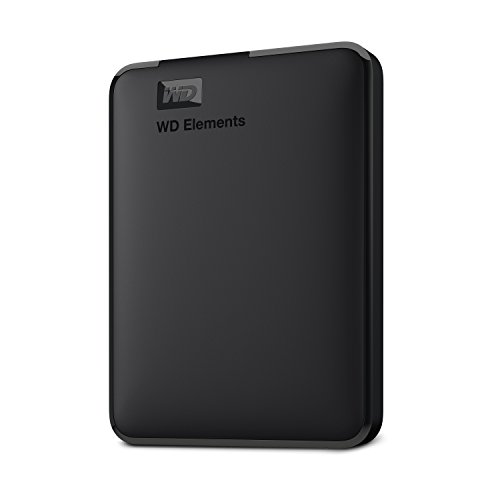
The Elements Desktop strips out the extras and sells capacity. In one 2026 ranking it received the highest overall score because of price per terabyte. It has no bundled encryption or software, which is fine if you use BitLocker, VeraCrypt or macOS encryption yourself.
Who it suits: buyers who care most about capacity per unit of cost and who are comfortable with operating system backup tools.
Pros: low cost per terabyte, simple, large sizes.
Cons: no built-in security and typically a shorter warranty.
Best for large archives: Seagate Expansion Desktop
The Seagate Expansion Desktop is available in capacities up to 28TB, according to Seagate, and PCWorld reported speeds near 280 MB/s on higher-capacity units. Reviewers describe the cost at about 16 per terabyte in the 8 to 12TB range. It needs external power and is not portable.
Who it suits: photographers, video shooters and families consolidating years of files onto one large volume.
Pros: very large sizes, good sequential speed, competitive pricing.
Cons: no encryption, a single large drive is a large single point of failure, and rebuild or restore after a failure takes a long time.
Best portable backup: WD My Passport
The My Passport is a bus-powered portable drive available up to 6TB. It uses a USB-C connection with sustained speeds around 105 to 110 MB/s in reviews. It comes with password protection and WD software, and its compact design suits laptop users who back up between desk and travel.
Who it suits: students, travellers and professionals who back up a laptop on the move.
Pros: portable, USB-C, good capacities, password protection.
Cons: speed trails desktop drives, and a drive that is carried around is more exposed to drops and bumps.
Best portable with software: Seagate One Touch
The One Touch portable drive comes in 1TB to 5TB sizes, connects over USB 3.0, offers password protection and carries a three-year warranty. Reviewers rate Seagate’s Toolkit software highly for scheduled backups, and one ranking put its price at about 23 per terabyte. It is a strong pick for those who want a guided, scheduled backup setup.
Who it suits: people who want automatic backup scheduling without configuring operating system tools.
Pros: password protection, helpful software, three-year warranty.
Cons: higher cost per terabyte than desktop drives, and the encryption is software-level, not hardware-level, so lost passwords can mean lost data.
Best for mixed computers: Toshiba Canvio Flex
The Canvio Flex ships preformatted as exFAT and includes both USB-A and USB-C cables, so it works with Windows and macOS out of the box. It comes in 1TB to 4TB sizes with a three-year warranty. The 4TB model weighs about 7.41 oz and is 0.77 inches thick, according to reviews.
Who it suits: households with a Mac and a Windows PC that share one backup or transfer drive.
Pros: both cable types, cross-platform format, three-year warranty.
Cons: exFAT does not support macOS Time Machine directly (Time Machine requires reformatting to APFS) and lacks journaling, so an unsafe removal can corrupt data more readily.
Best budget portable: Toshiba Canvio Basics
The Canvio Basics is a simple 5,400 RPM portable drive in 1TB to 4TB sizes with USB 3.0 and a two-year warranty. One roundup listed it at about 22 per terabyte. It has no bundled software or encryption, so it works best as a plain, low-cost second copy.
Who it suits: anyone who wants a cheap secondary backup drive.
Pros: light, low cost, simple.
Cons: slow, short warranty, no security features.
How much capacity do you need?
Backup size depends on what you protect and how long you keep versions. A simple rule is to buy at least two to three times the size of the data you are backing up, so the drive can hold multiple versions as files change. A worked example: a laptop with 512 GB of used space needs roughly 1 to 1.5 TB for several months of versions, so a 2TB portable drive is comfortable. A family with 1.2 TB of photos and documents across two computers should consider 4TB to 6TB. A video editor with 8 TB of footage needs a 16TB to 24TB desktop drive, preferably with a second copy.
| Data to protect | Suggested minimum drive | Suggested type |
|---|---|---|
| 250 GB laptop | 1TB | Portable |
| 500 GB laptop | 2TB | Portable |
| 1 TB of family photos and files | 4TB | Portable or desktop |
| 2 TB workstation | 6TB to 8TB | Desktop |
| 8 TB video library | 16TB to 24TB, plus a second drive | Desktop |
Cost per terabyte differs by size. If a 4TB drive costs 80 and a 2TB drive costs 55 (illustrative numbers), the larger drive costs 20 per terabyte against 27.50, which is why buying one size up is often better value.
Speed and restore time: a worked calculation
Backup speed matters more for the first full copy and for restoring than for daily incremental runs. Take 1 TB of data. At a sustained 110 MB/s, typical of a portable drive, the first full backup takes about 1,000,000 MB divided by 110, or roughly 9,100 seconds, which is just over two and a half hours. At 280 MB/s on a large desktop drive the same job takes about one hour. Restoring a full 4 TB laptop from a 110 MB/s portable drive takes around ten hours, so a desktop drive or an SSD for the primary copy shortens recovery after a failure. Real transfers are slower with many small files, because each file adds overhead, so a photo library of 200,000 small images may take noticeably longer than a single large video of the same total size.
The same arithmetic helps you pick a schedule. If a nightly incremental backup changes 5 GB, even a slow drive finishes in a minute or two, so the cheapest drive is perfectly adequate for daily protection. Spend extra only if you regularly restore large volumes or back up a big media library.
Operating system tools that work with these drives
You do not need vendor software to run a reliable backup. Windows includes File History for personal folders and an older image backup option for whole-system copies, and many users also schedule copy jobs with built-in command-line tools. macOS includes Time Machine, which keeps hourly, daily and weekly versions until the drive fills and then removes the oldest. Both approaches work with any of the drives above. Vendor tools such as WD Backup or Seagate Toolkit add scheduling wizards and sometimes encryption setup, which is convenient, though it ties the backup format to that software; with the operating system tools, you can restore on any compatible computer without installing anything first.
Buying checklist for a backup drive
- Capacity: two to three times your data, rounded up to the next common size.
- Power: desktop drives need an outlet; portable drives draw power from the port, so a weak USB hub can cause dropouts.
- Interface: USB 3.0 and USB-C are plenty for a hard drive, since the mechanism, not the port, limits speed.
- Security: prefer encryption for anything portable, and confirm how the password is recovered, if at all.
- Warranty: a three-year term costs little more and signals a longer expected service life.
- Format: match it to your computers, or plan to reformat before first use.
The 3-2-1 rule and why one drive is not enough
The 3-2-1 rule says keep three copies of your data, on two different types of media, with one copy off site. An external drive covers one of those copies. The original on your computer is the first, the external drive is the second and a cloud service or a second drive stored somewhere else is the third. A fire, flood, theft or power surge can destroy a computer and the drive next to it together. Ransomware can also encrypt a drive that is permanently connected, so disconnect the backup drive when it is not in use, or use a service with versioning that lets you roll back.
Setting up a backup: steps and reasons
- Format correctly. Use NTFS on Windows-only drives, APFS for macOS Time Machine and exFAT only for sharing between systems. The wrong format stops the built-in tools from working.
- Enable encryption. Use the drive’s hardware encryption, BitLocker or macOS FileVault-style encryption. Store the password in a password manager, because a lost key can make backups unreadable.
- Turn on automatic backup. Windows File History, macOS Time Machine or the vendor’s software removes the need to remember.
- Run a test restore. Restore a few files and a folder to confirm the backup is readable. Many people discover a failed backup only when they need it.
- Verify regularly. Check the backup log every month and replace the drive before it ages out.
- Safely eject. Always eject the drive before unplugging. Pulling it during a write is a common cause of corruption.
Portable versus desktop: which fits you?
Portable drives are bus-powered, light and easy to store in a drawer or take to another location. They use 2.5-inch drives, which top out at lower capacities and are more sensitive to shock. Desktop drives use 3.5-inch mechanisms with a power adapter, offer far more capacity per unit of cost and tend to be faster. If your backup lives on a desk, buy the desktop type. If you want to swap drives and keep one off site, portable is easier to carry. Many households buy a desktop drive for primary backup and a small portable one to rotate off site.
Ownership realities: wear, failure and recovery
External drives fail in a few predictable ways. The most common is mechanical wear, especially in portable drives that are dropped or moved while spinning. The next is cable or enclosure failure, where the drive is fine but the USB bridge dies. The third is logical damage from unsafe removal or power loss. A clicking sound, a drive that spins but does not appear, or files that suddenly become unreadable are warning signs. If a drive shows these symptoms and holds your only copy, stop using it and avoid repair utilities that write to it, because they can overwrite recoverable data. Professional recovery services can often retrieve data from a failing mechanical drive, but the cost is high and success depends on how little the drive was used after the fault. A second backup is much cheaper.
Drives also age even when unused. Plan to replace a backup drive after about four to five years, rotate in a fresh one before the old one fails and keep the previous drive as an extra copy for a while. Store drives in a cool, dry place, away from magnets and heavy vibration.
One last habit pays off: label each drive with the purchase date and the computer it protects. When a drive reaches four years old, or when the backup log shows repeated errors, retire it to secondary duty and start a new primary. Rotating drives this way means a surprise failure never removes your only copy.
Frequently Asked Questions
Is an external hard drive or an SSD better for backup?
For most backups, a hard drive is better value because it costs far less per terabyte and backups are written slowly in the background. An external SSD is worth it for speed, portability and shock resistance when you carry the drive daily.
How long does an external hard drive last?
Typically three to five years under normal use, though some last longer. Failure risk rises with age, heat and physical shocks, so replace it on a schedule and keep more than one copy.
Should I encrypt my backup drive?
Yes, especially for a portable drive that could be lost or stolen. Use hardware encryption or your operating system’s tools, and keep the password somewhere safe, since a lost password usually means the data cannot be recovered.
Can I use one drive for both Time Machine and Windows files?
You can partition the drive into an APFS section for Time Machine and an exFAT or NTFS section for Windows. Partitioning works, but a single hardware failure affects both, so it is a convenience rather than extra protection.
Why does my backup drive disconnect or sleep?
Power saving settings, a weak USB port, a worn cable or an unpowered hub are common causes. Use a short, good cable, connect directly to the computer and, for desktop drives, check the power adapter. Frequent disconnections can also signal a failing drive, so check SMART health.


Write Your Review
No reviews yet. Be the first to share your experience!