

M.2 is not a type of SSD speed, it is a shape. An M.2 drive is a small stick that plugs straight into a motherboard slot, and it can use either the fast NVMe protocol or the slower SATA protocol. A “regular” SSD in the 2.5-inch case always uses SATA. So when you compare M.2 with an SSD, the real comparison is M.2 NVMe (roughly 3,500 to 7,000 MB/s on common drives) against SATA (about 550 MB/s), and the correct choice depends on what your computer supports.
Many buyers see “M.2” and “SSD” listed as separate categories and assume one is faster by name alone. That confusion causes wrong purchases, such as an M.2 SATA drive in a slot that only accepts NVMe, or a fast NVMe drive in a laptop that cannot use its speed. This guide explains the difference, shows the numbers, and helps you pick by device, workload and risk, with real drive examples for each case.
Our top picks


As an Amazon Associate we earn from qualifying purchases at no extra cost to you.
M.2 vs SSD at a glance
| Feature | 2.5-inch SATA SSD | M.2 SATA SSD | M.2 NVMe SSD |
|---|---|---|---|
| Shape | 2.5-inch case, 7mm thick | Gumstick, usually 22mm x 80mm (2280) | Gumstick, 2230, 2242, 2260 or 2280 |
| Interface | SATA III cable and power | M.2 slot, SATA lanes | M.2 slot, PCIe lanes |
| Typical max speed | About 550 MB/s | About 550 MB/s | 3,500 MB/s (Gen3), 7,000 MB/s (Gen4), 10,000+ MB/s (Gen5) |
| Cables needed | Two | None | None |
| Typical key | Not applicable | B+M or B | M |
| Heat | Low | Low | Moderate to high on fast drives |
| Best for | Older PCs, bulk storage, cheap upgrades | Small builds with SATA-only M.2 slots | Modern PCs, laptops, game and video work |
What M.2 really is
M.2 is a form factor standard for small expansion cards. The numbers in names such as 2280 describe size: 22mm wide and 80mm long. Other common sizes are 2230 for handheld consoles and ultrabooks, 2242 and 2260 for some laptops, and 2280 for most desktops. The same slot shape can carry Wi-Fi cards, SSDs and other devices, which is why checking the slot’s supported protocol matters.
The connector has notches called keys. M-key drives, typically NVMe, support up to four PCIe lanes. B-key drives support SATA and up to two PCIe lanes. A B+M key drive has both notches and fits either socket, but it is limited to SATA or two lanes. A drive that physically fits is not guaranteed to work, because a slot can be wired for SATA only, NVMe only or both. Your motherboard or laptop manual lists the supported mode for each slot.
What SATA SSD means
SATA SSDs use the same Serial ATA interface that older hard drives used. The interface limit is 600 MB/s, which in practice means about 550 MB/s real transfers. That is still about four to five times faster than a typical 7,200 RPM hard drive in sequential reads and far faster in random access, which is why a SATA SSD transforms an old laptop. The weakness is that the interface cannot go further, no matter how good the flash chips are.
What NVMe changes
NVMe is a protocol designed for flash memory. It runs over PCIe lanes, and a drive usually uses four. PCIe 3.0 x4 reaches about 3,500 MB/s, PCIe 4.0 x4 about 7,000 MB/s, and PCIe 5.0 x4 can reach about 14,000 MB/s in the best drives. NVMe also supports up to 64,000 command queues, each up to 64,000 commands deep, while the older AHCI protocol used by SATA has a single queue 32 commands deep. That matters most for heavy multitasking, database work and game loading with many small files.
In everyday desktop use the difference is smaller than the numbers suggest. Booting Windows, opening a browser or launching an office app feels almost the same on SATA and NVMe, because those tasks are limited by CPU and software start-up, not raw drive bandwidth. The gap becomes obvious when you copy large files, edit 4K video from the drive, load huge game levels or work with large datasets.
Worked example: copying a 100GB project
| Drive type | Sustained speed | Time for 100GB |
|---|---|---|
| 7,200 RPM hard drive | About 150 MB/s | About 11 minutes |
| SATA SSD | About 500 MB/s | About 3.3 minutes |
| PCIe 3.0 NVMe | About 2,000 MB/s sustained | About 50 seconds |
| PCIe 4.0 NVMe | About 4,500 MB/s sustained | About 22 seconds |
The table uses sustained, not peak, speeds because large copies often exceed a drive’s fast cache. The savings from SATA to NVMe are real but modest for a once-a-week job. For someone who moves 100GB several times a day, the time adds up quickly.
Real drives to consider in each category
Model lineups change often, so confirm the current version and capacity on the manufacturer’s page before you buy. The examples below are established product lines that show what each category looks like.
SATA SSDs in 2.5-inch form
The Samsung 870 EVO is a long-running 2.5-inch SATA SSD with sequential speeds near the SATA ceiling of about 560 MB/s read and 530 MB/s write, and capacities up to 4TB. It suits older laptops and desktops and is a common recommendation for replacing a hard drive. The Kingston A400 is a budget SATA option with lower endurance, fine for light use or a first upgrade. Pros of the category are compatibility with almost any computer made in the last fifteen years, low heat and simple installation. Cons are the speed cap and the need for a cable and drive bay in desktops.
M.2 SATA SSDs
The WD Blue SA510 is offered in an M.2 2280 SATA version as well as 2.5-inch. It reaches SATA speeds only, so it is not faster than a 2.5-inch drive of the same family. Its value is cable-free installation in small PCs and laptops whose M.2 slot is SATA-capable. Check the slot before buying, because a slot wired for PCIe only will not accept it, and a SATA drive in an NVMe-only slot will not be detected.
PCIe 3.0 and budget PCIe 4.0 NVMe
The Kingston NV-series and similar entry drives bring NVMe speeds at the lowest cost and are common in office desktops and mainstream laptops. The Samsung 990 EVO Plus sits one step above, with PCIe 4.0 x4 or PCIe 5.0 x2 capability and sequential reads reaching about 7,250 MB/s for the PCIe 4.0 mode, a good balance of price, efficiency and speed. Pros are strong everyday performance and low power draw. Cons are slower sustained writes once the cache fills on cheaper models.
High-end PCIe 4.0 NVMe
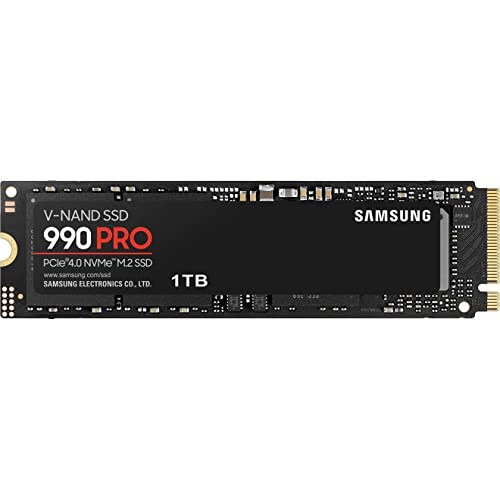
The Samsung 990 Pro and WD_BLACK SN850X both read near 7,000 MB/s, and the SN850X can use a Game Mode setting aimed at fast game loading. The Lexar NM790 is a well-regarded value drive in the same speed class. These drives suit gaming PCs, video editing and creative work. They run warmer than SATA, so a heatsink is recommended for sustained loads, and some laptops and consoles require a low-profile cooler.
PCIe 5.0 NVMe
PCIe 5.0 drives reach 10,000 to 14,000 MB/s on paper, but they need a motherboard with a Gen5 M.2 slot and strong cooling. For most people the gain over a good Gen4 drive is invisible in games and everyday apps. They are only worth it for heavy workstation tasks such as large video scrubbing, scientific data and similar jobs where bandwidth is the limit.
Which one fits your device
| Your device or need | Best choice | Why |
|---|---|---|
| Old laptop with a hard drive | 2.5-inch SATA SSD | Fits the existing bay and gives a major speed jump |
| Modern laptop with an M.2 slot | M.2 NVMe, PCIe 3.0 or 4.0 | Small, fast, low power |
| Desktop gaming PC | PCIe 4.0 NVMe | Fast loads at a sensible price |
| Video editing workstation | PCIe 4.0 NVMe, optionally Gen5 for scratch | High sustained write for large files |
| Small PC with SATA-only M.2 slot | M.2 SATA | Cable-free, but only SATA speed |
| Bulk storage for media | SATA SSD or hard drive | Lowest cost per terabyte |
| Handheld console or ultrabook | 2230 NVMe | Only the short form factor fits |
| PS5 expansion | PCIe 4.0 NVMe with heatsink | Console requirements call for fast drives with cooling |
How to check what your computer supports
- Find the exact model. Use the laptop or motherboard model number from the sticker or system information screen.
- Read the storage section of the manual or spec sheet. It lists the M.2 slots, their length (2242, 2260, 2280), and whether each supports SATA, NVMe or both.
- Check the PCIe generation. A Gen3 slot limits a Gen4 drive to Gen3 speed. It still works, but you will not get the full rating.
- Look at the physical space. Some boards share bandwidth between an M.2 slot and SATA ports, so using one can disable the other.
- Check for heat room. A fast drive under a tight laptop cover may throttle without airflow.
- Back up first. Clone or copy your data before swapping drives so you can recover from a failed install.
Reliability, endurance and data safety
Speed gets the attention, but reliability matters more when your files are on the line. Every SSD has an endurance rating, usually expressed as terabytes written. Consumer drives at 1TB typically carry ratings in the hundreds of terabytes, far more than most users write in the warranty period. Both SATA and NVMe drives use the same flash technology, so the interface does not change how long they last. Differences come from the controller, the cache design and the quality of the NAND chips.
NVMe drives run hotter and may throttle under long writes, which lowers speed but does not damage data when the drive manages its own temperature. SATA drives stay cooler but are limited by the interface. Neither type protects you from accidental deletion, malware, power loss during writes or a sudden controller failure, which is why backups remain essential.
If a drive stops appearing in your system, avoid repeated reformatting or running repair tools blindly. Writing to a failing drive can reduce what a recovery tool can find. Power down, connect the drive to another computer or an enclosure if possible, and use read-only recovery software. For a drive that is not detected at all, a professional recovery service is the safest route, and it is far easier when you have not overwritten the data.
Common mistakes when choosing between M.2 and SSD
- Assuming M.2 means NVMe. Some M.2 drives are SATA and perform like a 2.5-inch SSD. Check the product description for NVMe or PCIe.
- Ignoring the slot generation. A Gen4 drive in a Gen3 slot is limited to roughly half its rated speed.
- Buying the fastest drive for a light workload. A budget NVMe drive feels the same in email and web browsing, and costs less.
- Skipping the heatsink on fast drives. A long copy on an uncooled Gen4 drive can trigger throttling.
- Choosing very low endurance QLC drives for heavy writing. Drives with less cache slow sharply when the cache fills. Look at sustained write behavior for video or large-file work.
- Forgetting the length. A 2280 drive does not fit a 2230 slot.
Installing an M.2 drive step by step
- Power off and unplug. Remove the battery in laptops where the manual says to, so no power reaches the board while you work.
- Ground yourself. Touch bare metal on the case before handling the drive, because static discharge can damage the controller.
- Locate the slot and standoff. M.2 drives are held by a single screw at the far end. Move the standoff to match the drive length, such as 2242 or 2280.
- Insert at an angle. Slide the drive into the connector at roughly 30 degrees. It seats only one way because of the key notch.
- Press down and fasten. Push the free end flat and tighten the screw until snug, without forcing it.
- Add the heatsink. Remove the plastic film from the thermal pad and fit the cover if your board or the drive provides one.
- Initialize in the operating system. A new drive appears as unallocated space. Create a partition table, format it, and then migrate or reinstall the system.
A 2.5-inch SATA drive installs differently: it slides into a drive bay and connects with a SATA data cable and a power cable, or into a laptop bay with a built-in connector. Both types are easy for a first-time builder, but the M.2 route has fewer cables and less clutter.
Cloning versus a clean install
When you replace a drive, you can either clone the old drive or install the operating system fresh. Cloning copies everything to the new drive and is quick, but it also copies old problems. A clean install gives the best performance and a clean start, though you must reinstall your apps and restore files from a backup. For a laptop moving from a hard drive to an SSD, many people clone to save time, then do a clean install later if the system feels sluggish. Whichever method you choose, keep the old drive untouched until you have confirmed the new one boots and all important files are present.
The cost per terabyte angle
Capacity affects value more than interface. At 1TB, the gap between a SATA SSD and a mainstream NVMe drive is small, and NVMe often wins on value because production has shifted toward it. At 4TB and above, SATA and hard drives may still offer cheaper bulk storage per terabyte. A useful approach is to put your operating system and active projects on NVMe, then keep archives on a SATA SSD or hard drive. To compare any two drives, divide the price by the capacity in terabytes, then adjust for the warranty and endurance rating.
Frequently Asked Questions
Is M.2 faster than SSD?
Not by itself. M.2 is a shape, and an M.2 drive can be SATA or NVMe. An M.2 NVMe drive is much faster than a 2.5-inch SATA SSD, while an M.2 SATA drive is about the same speed. Check whether the product uses NVMe or PCIe to know its real speed.
Can I use an M.2 SSD in any computer?
No. Your computer needs an M.2 slot, and the slot must support the drive’s protocol and length. Older machines may have no M.2 slot at all, and some slots accept only SATA. Check your model’s specifications before buying, or use a PCIe adapter card or external enclosure when the motherboard lacks a suitable slot.
Will an NVMe drive make my games load faster than a SATA SSD?
Sometimes slightly. Most games load only a little faster on NVMe because CPU work and asset decompression limit the speed. Newer titles that use direct storage features can benefit more. The largest improvement usually comes from moving off a hard drive to any SSD.
Does an NVMe drive need a heatsink?
Fast PCIe 4.0 and 5.0 drives benefit from one under sustained load, and some laptops and consoles require a low-profile cooler. Many motherboards include M.2 heatsinks. For light everyday use, a drive with the board’s built-in cover is often enough.
Can I put a PCIe 4.0 SSD in a PCIe 3.0 slot?
Yes. PCIe is backward compatible, so the drive works but runs at the slower Gen3 speed, around 3,500 MB/s at best. If your slot is Gen3, a Gen3 or budget Gen4 drive gives similar results for less money.
Which should I buy for a laptop upgrade?
Check the laptop’s manual first. If it has an M.2 NVMe slot, a PCIe 3.0 or 4.0 drive in the right length is the best choice. If it only has a 2.5-inch bay, buy a SATA SSD. If it has an M.2 slot that is SATA-only, buy an M.2 SATA drive.




Write Your Review
No reviews yet. Be the first to share your experience!