

Key takeaways
- Eject before unplugging. Pulling a drive during a backup can corrupt the backup set.
- Keep a second copy. The 3-2-1 rule means three copies, two media types, one offsite. Rotate a second drive or use cloud storage.
- Hard drives wear in a few years. Replace backup drives every three to five years, before they fail.
- Test a restore. A backup you have never restored is only a hope. Try Migration Assistant or recover a single file once.
- Beware of hubs. Underpowered USB hubs can cause disconnects. Plug the drive directly into the Mac.
The best backup drive for a Mac in 2026 is a WD My Passport hard drive for cheap, roomy Time Machine backups, or a Samsung T7 or T9 portable SSD when you want faster backups and restores. Any drive works with Time Machine once it is formatted as APFS, so the real decision is capacity, speed and how much abuse the drive will take. Size it at two to three times your Mac’s used storage, and keep a second copy offsite because a single backup drive is not a full plan.
Our top picks


As an Amazon Associate we earn from qualifying purchases at no extra cost to you.
Quick comparison of backup drives for Mac
| Pick | Best for | Type and interface | Capacities | Notable spec | Price tier |
|---|---|---|---|---|---|
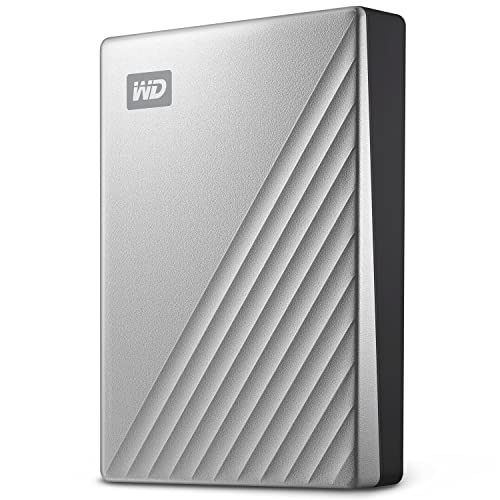
| WD My Passport | Best overall Time Machine drive | 2.5-inch HDD, USB 3.2 Gen 1 | 1TB to 6TB | Bus-powered, optional password encryption | Mid-range |
| Seagate Expansion Desktop | Biggest capacity for a desk Mac | 3.5-inch HDD, USB 3.0 | Large, up to double-digit TB | Needs wall power | Budget per TB |
| Samsung T7 Portable SSD | Fast, small SSD backups | Portable SSD, USB 3.2 Gen 2 | 500GB to 4TB | Up to about 1,050 MB/s read | Upper-mid |
| Samsung T9 Portable SSD | Fastest transfers | Portable SSD, USB 3.2 Gen 2×2 | 1TB to 4TB | Up to about 2,000 MB/s read on a supporting port | Premium |
| SanDisk Extreme Portable SSD | Travel and outdoor use | Portable SSD, USB 3.2 Gen 2 | 500GB to 4TB | IP65 water and dust rating | Upper-mid |
| LaCie Rugged | Drop and weather protection | 2.5-inch HDD in rubber bumper, USB-C | 1TB to 5TB | Drop resistance and IP rating per LaCie | Upper-mid |
| SanDisk Professional G-DRIVE | Desktop Mac with Thunderbolt or USB-C | 3.5-inch 7,200 RPM HDD | Multi-terabyte | Mac-ready, aluminum enclosure | Premium |
How Time Machine uses a drive
Time Machine keeps hourly backups for the past 24 hours, daily backups for the past month and weekly backups after that, until the drive fills. It then removes the oldest snapshots. That is why a drive only slightly bigger than your Mac’s storage gives you very little history. Apple recommends a backup drive with at least twice the capacity of the data you are backing up.
Best overall: WD My Passport
The WD My Passport is the standard recommendation for Time Machine because it is inexpensive, bus-powered and available up to about 6TB. It plugs into one USB port, so a MacBook needs no extra power supply.
Who it suits: MacBook owners who back up nightly at their desk and want long history for little money.
Main trade-off: the first backup can take a long time over a spinning disk, and the plastic body is not built for being dropped while running. Reformat as APFS in Disk Utility if it arrives formatted for Windows, and keep the encryption option on if the drive travels.
Best for desktop Macs: Seagate Expansion Desktop and SanDisk Professional G-DRIVE
If you use an iMac, Mac mini or Mac Studio, a 3.5-inch desktop drive gives the best price per terabyte. The Seagate Expansion Desktop is the budget route. The SanDisk Professional G-DRIVE is the premium route with a 7,200 RPM disk, an aluminum enclosure that passes heat out, and a Mac-ready setup.
Main trade-off: both need wall power and take up desk space. The Seagate needs to be formatted for Mac, and neither adds protection if the building burns down.
Best SSD for Macs: Samsung T7 and T9
An SSD backup shortens the first full backup from many hours to well under one hour for a typical laptop, and restores are far quicker. The T7 uses USB 3.2 Gen 2 with rated speeds up to about 1,050 MB/s. The T9 adds a faster interface rated at about 2,000 MB/s on a compatible port, which helps when the same drive is also used for video projects.
Main trade-off: SSDs cost several times more per terabyte than hard drives. For a plain Time Machine drive, a hard drive remains the thrifty choice, and the T9’s top speed needs a port that supports it.
Best tough SSD: SanDisk Extreme Portable SSD
With a rubberized shell and an IP65 rating from SanDisk, it handles bags, desks and the odd splash. It is also compact enough for a MacBook sleeve.
Main trade-off: a premium price for the toughness, and the cable is short on some versions.
Best rugged hard drive: LaCie Rugged
LaCie’s rubber-bumpered drive looks right at home next to a MacBook, and its USB-C connection works directly with modern Macs. It is the choice for editors and photographers whose backup drive lives in a camera bag.
Main trade-off: it costs more per terabyte than an ordinary portable drive.
Worked example: sizing a Time Machine drive
A MacBook Pro with a 1TB internal drive that is 60 percent full has 600GB of data. A good starting point is 2 x 600GB = 1.2TB, rounded up to a 2TB drive. If you work with large video projects that change daily, versions pile up faster, so move to 4TB. Compare two options: a 2TB drive stores 600GB of current data plus about 1.4TB of history, which is more than two full copies. A 1TB drive stores 600GB of data plus only 400GB of history, which means old versions disappear within weeks.
Setting up a drive for Time Machine
- Connect the drive, then open Disk Utility and choose the drive in the sidebar.
- Select Erase and pick APFS (or APFS Encrypted for privacy). This wipes the drive, so move any files off it first.
- Open System Settings, then General, then Time Machine, and add the drive as a backup disk.
- Enable encryption if you plan to carry the drive.
- Let the first backup finish before you disconnect the drive. Afterward, check that a backup completes every day.
Ownership realities
- Eject before unplugging. Pulling a drive during a backup can corrupt the backup set.
- Keep a second copy. The 3-2-1 rule means three copies, two media types, one offsite. Rotate a second drive or use cloud storage.
- Hard drives wear in a few years. Replace backup drives every three to five years, before they fail.
- Test a restore. A backup you have never restored is only a hope. Try Migration Assistant or recover a single file once.
- Beware of hubs. Underpowered USB hubs can cause disconnects. Plug the drive directly into the Mac.
Decision matrix
| Your Mac and habits | Choose |
|---|---|
| MacBook, nightly backups at home | WD My Passport 2TB to 4TB |
| iMac or Mac mini, lots of data | Seagate Expansion Desktop or SanDisk Professional G-DRIVE |
| Fast restores and video work | Samsung T7 or T9 |
| Frequent travel | SanDisk Extreme Portable SSD or LaCie Rugged |
| Tight budget | Seagate Portable 1TB to 2TB |
Frequently Asked Questions
Do I need a drive made for Mac?
No. Any external drive works once you format it as APFS in Disk Utility. Drives sold as Mac-ready simply arrive formatted that way and often include Mac-friendly cables.
How big should a Time Machine drive be?
Aim for at least two times the amount of data on your Mac, and three times if you want a long history. A Mac using 500GB should have a 1TB to 2TB backup drive.
Can I use one drive for both Time Machine and files?
Yes, by creating separate APFS volumes or partitions. Keep the Time Machine volume dedicated to backups and give it a size limit so it does not consume the other space.
Is an SSD or hard drive better for Time Machine?
A hard drive is cheaper and fine for nightly backups. An SSD is faster to back up and restore and tolerates movement better, but costs more per terabyte.
What if my backup drive stops working?
Try another cable and port first, then run First Aid in Disk Utility. If the drive is unreadable or clicking, stop using it and consider a professional recovery service, then replace the drive and start a new backup.






Write Your Review
No reviews yet. Be the first to share your experience!