

Key takeaways
- Looking for data recovery software for windows that finds deleted files? Compare five tools for Windows, learn how to choose, and recover files safely.
- Top Pick: Stellar Data Recovery Professional for Windows
- Runner-up: FileRestorePlus Data Recovery Software
- Also consider: Advanced File Recovery by Systweak
Deleting a file by mistake feels final, and formatting the wrong drive feels worse. In many cases the data is still on the disk, marked as free space and waiting to be overwritten. That gap between deletion and overwriting is where data recovery software for Windows earns its keep, scanning for traces of lost files and giving you a chance to bring them back.
Not every tool fits every loss. Some programs handle quick undeletes, others tackle formatted partitions or drives that no longer appear in File Explorer. This guide compares five data recovery software options for Windows, explains what each one does well, and covers the steps that protect your files before you scan.
As an Amazon Associate, we earn from qualifying purchases.
Quick answer
For most people, Stellar Data Recovery Professional is the strongest all-round choice because it handles deleted files, lost partitions, and encrypted drives in one package. If you want the simplest option, FileRestorePlus covers everyday deletions at a modest scope. Anyone who cannot install software on the affected PC should look at the Paraben Data Recovery Stick, which runs from its own USB drive.
Stellar Data Recovery Professional for Windows

Stellar Data Recovery Professional is the most complete tool in this guide. It recovers deleted documents, photos, videos, emails, and audio from Windows PCs and external storage such as hard drives, solid-state drives, USB flash drives, and memory cards. It works with NTFS, FAT16, FAT32, and exFAT, the formats found on most Windows machines and removable media.
Two features set it apart. The first is recovery from BitLocker-encrypted drives: with the password, the software can scan an encrypted drive and pull files from it. The second is the Can’t Find Drive option, which searches for partitions missing from File Explorer, then runs a deep scan once one is located. For a PC that will not boot, it can create bootable recovery media, letting you work from outside Windows.
The license covers one PC for one year and arrives as a keycard. This is the pick for serious losses: a formatted drive, a deleted partition, or an encrypted volume. Keep expectations realistic, since no software can promise that every file returns, and files overwritten after deletion are usually gone for good. Install on a different drive, and save recovered files to separate storage.
FileRestorePlus Data Recovery Software

FileRestorePlus is the simplest tool in this guide, and that is its appeal. It focuses on one job: finding files deleted from a Windows PC and putting them back. It works with Windows 11, 10, 8.1, and 7, and recovers images, photos, audio, video, and documents from hard drives, solid-state drives, and removable media.
The program supports FAT16, FAT32, and NTFS, along with IDE, ATA, and SCSI drives and solid-state drives. A Photo SmartScan mode helps when a folder of pictures was deleted from a memory card. The interface is straightforward: scan, review a list of found files, and recover, so there is little to learn before you begin.
This is the right pick when the loss is recent and simple, such as a file cleared from the Recycle Bin or photos deleted from a card. It is less suited to deeper problems such as a lost partition or a formatted drive, where a fuller tool such as Stellar makes more sense. Install on a drive other than the one holding your lost files, and recover to different storage.
Advanced File Recovery by Systweak

Advanced File Recovery, from Systweak, takes a two-scan approach that suits home users who want guidance rather than a wall of options. A Quick Scan looks for recently deleted files and finishes fast, while a Deep Scan searches the drive sector by sector for files a quick pass misses. You can preview found files before recovering them, to confirm the scan found the right ones.
The software runs on Windows 11, 10, 8.1, 8, and 7, in both 32-bit and 64-bit editions. It recovers deleted files, photos, documents, audio, and video from internal drives, external drives, USB sticks, and memory cards. The license covers one PC for one year, and the license key arrives by postal service rather than by email or download, with no disc included.
That delivery method is worth noting: a postal key takes time to arrive, so this fits someone who wants a recovery tool ready on the shelf better than an emergency. Choose it if you want a calm, guided tool for everyday deletions. If you need bootable media or encrypted-drive recovery, look at Stellar instead.
Paraben Data Recovery Stick for Windows
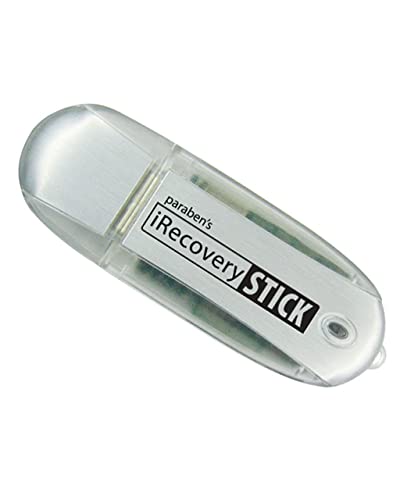
The Paraben Data Recovery Stick solves a problem the other tools in this guide cannot: it runs entirely from its own USB stick, with no installation on the host PC. That matters because installing software writes data to a drive, and writing to the affected drive can overwrite the files you are trying to save. Plug it in and scan without touching the host system.
The stick works with Windows Vista, 7, 8, 10, and 11. It recovers photos in formats such as JPG, BMP, PNG, and TIFF, along with Office documents, Open Office files, MP3 audio, PDF files, and AutoCAD files. It handles hard drives, USB drives, SD cards, and memory sticks that use FAT or NTFS, and a media reader is needed for micro SD cards and some other mass storage devices.
You can use the stick on as many computers as needed, clearing recovered data between uses. It comes from Paraben Consumer Software, a company with long experience in data recovery tools. This is the pick for emergencies and shared machines: a family PC, a work computer you cannot install software on, or a drive you want to touch as little as possible. Its scope is narrower than Stellar, but the no-install design is a genuine advantage for everyday deletions.
DoYourData Data Recovery Professional

DoYourData Data Recovery Professional is a download edition that covers the full range of logical data loss: deleted files, deleted folders, formatted drives, lost partitions, and drives that have become raw or inaccessible. It recovers hundreds of file types across hard drives, solid-state drives, USB flash drives, and memory cards.
The program offers several recovery modes. Quick Recovery handles recently deleted files with a fast scan, Deep Recovery searches the whole drive for files that are harder to reach, and Partition Recovery works on partitions that were deleted or lost. A preview step lets you look at found files before committing, and the software reads the drive without changing the original files.
For badly damaged drives, a disk imaging feature creates a copy of the drive first, so further attempts can run against the image instead of stressing failing hardware. This is a good fit if you want several recovery modes in one tool and you are comfortable choosing between them. Install it on a different drive, save results to separate storage, and remember that overwritten files may not return.
How to choose
Match the tool to the loss first. A recently deleted file needs only a simple undelete tool, while a formatted drive or a missing partition calls for deep scanning and partition search. A PC that will not boot needs bootable media, and an encrypted drive needs a tool that handles BitLocker.
Check compatibility before you buy. Confirm that the software supports your version of Windows and the file system on the affected drive, whether NTFS, FAT32, or exFAT. Check the license terms too: how many PCs it covers, how long it lasts, and how the key is delivered. A postal key suits a planned purchase, not an emergency. Look for a preview step as well, since seeing found files before you save tells you whether the scan worked.
Follow the golden rules whatever you choose. Stop using the affected drive the moment you notice the loss, and do not install anything on it. Install the recovery tool on a different drive, and save recovered files to separate storage. If the drive makes clicking or grinding sounds or is physically damaged, stop and contact a professional lab instead, because continued use can destroy what is left.
Who should skip
Skip recovery software entirely if the drive has physical damage. Clicking, grinding, or beeping sounds, a drive that gets very hot, or one that was dropped or soaked needs a clean-room lab, not a download. Software cannot fix broken hardware, and running scans on a failing drive can make the damage worse.
Skip it too if the files were overwritten many times over. Once new data has filled the space where deleted files lived, those files are effectively gone, so check your backups first. People who need phone-only recovery should look elsewhere, since these tools are built for Windows PCs and Windows storage. The same applies to RAID arrays and servers, which call for technician-grade editions. And if an encrypted drive is involved and the password is lost, recovery software will not help, because the encryption is doing its job.
Frequently Asked Questions
Can data recovery software recover files after formatting?
Often, yes, if the format was quick and little was written to the drive afterward. A quick format usually removes the file index rather than the data itself, so a deep scan can still find the files. A full format, or a drive heavily reused since formatting, is much harder. Stop using the drive and scan it soon for the best chance.
Should I install recovery software on the same drive as my lost files?
No. Installing software writes new data, and that data can land exactly where your deleted files are stored, overwriting them. Install the tool on a different drive or a USB stick, and save recovered files to separate storage as well. The Paraben Data Recovery Stick avoids this problem entirely by running from its own USB drive.
Why do some recovered files come back damaged?
A file is stored in pieces across a drive, and if some of those pieces were overwritten after deletion, the recovered file may be incomplete. Photos may show missing bands, documents may open with gaps, and videos may stop partway through. Previewing files before recovery shows which ones survived intact, and recovering to a different drive avoids further damage during the save.
How long does a scan take?
It depends on the size of the drive, the scan depth, and the health of the hardware. A quick scan of a small drive can finish in minutes, while a deep scan of a large drive can take hours, and a failing drive slows everything down. Let the scan finish rather than stopping it early.
Final verdict
Stellar Data Recovery Professional is the best data recovery software for Windows for most people, because it covers deleted files, lost partitions, encrypted drives, and unbootable PCs in one package. FileRestorePlus is the simplest choice for recent deletions, Advanced File Recovery suits anyone who wants a guided two-scan workflow, the Paraben Data Recovery Stick is the smart pick when you cannot install software on the affected PC, and DoYourData covers the widest range of logical losses.
Whichever tool you choose, the steps around it matter as much as the software. Stop writing to the affected drive, install on different storage, recover to a different drive, and keep a backup routine afterward.
More from Amazon
Programs that pair well with the guide above. Offers and eligibility are set by Amazon and may change.
A free business account with business pricing and bulk-buying tools for work, shop or home office.
Create a business accountFree shipping on eligible items, Prime Video and more. Eligible new members can start with a free trial.
Start a Prime free trialAudiobooks and podcasts to listen to on the go. Eligible new members can start with a free trial.
Try Audible freeAd-free music streaming. Eligible new subscribers can start with a free trial.
Try Music Unlimited freeAs an Amazon Associate we earn from qualifying purchases.





Write Your Review
No reviews yet. Be the first to share your experience!