

Key takeaways
- A wireless hard drive works by combining a storage drive with its own Wi-Fi radio and small computer, so phones.
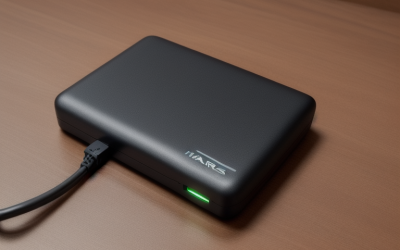
A wireless hard drive works by combining a storage drive with its own Wi-Fi radio and small computer, so phones, tablets and laptops connect to it directly instead of through a cable or your home router. For backup, that means you can copy photos, videos and documents to a drive over the air, then keep that copy separate from the device it came from.
This guide is for people who want a simple second copy of their files without building a full network storage setup. It explains how the connection, the app and the copy process work, where the limits are, and what a wireless drive cannot do. It is general information, and no wireless drive replaces a plan that includes more than one backup location.
What Is Inside a Wireless Drive
A wireless drive contains the same core parts as a normal portable drive: a hard disk or solid-state storage module and a controller. On top of that sits a Wi-Fi chip, a small processor running embedded software, and a rechargeable battery. The processor presents the storage as a network resource, much like a tiny file server. Because the drive is its own server, it can accept connections even when no internet is available.
Most models also keep a USB port for charging and wired transfers, which is useful for the first large copy. Wired speed is generally higher and steadier than wireless, so many owners load their initial library by cable and use Wi-Fi for everyday top-ups. The battery is a trade-off: it enables cable-free use, but a depleted battery means the drive cannot be reached until it is plugged in.
How the Backup Process Works Step by Step
Connecting Your Device
When powered on, the drive broadcasts its own Wi-Fi network, much like a mini router. Your phone or laptop joins that network, opens the maker’s app or a browser page, and logs in. While connected this way, the device usually cannot reach the internet unless the drive supports a bridge mode that connects to your home Wi-Fi at the same time. Bridge mode is handy at home, but a direct connection is more reliable when traveling.
Copying Files
Inside the app, you choose what to back up: the camera roll, selected folders, contacts or documents. The first copy can take a long time when it includes thousands of photos and videos. After that, the app compares what is already on the drive with what is on the device and copies only new items. Many apps can also run an automatic backup when the phone is near the drive, though background limits on mobile operating systems sometimes require the app to be open.
Streaming and Sharing
The same wireless link lets several devices read files at once, so a family can watch a stored video or browse photos without copying them to a phone first. The number of simultaneous users depends on the drive’s hardware, and heavy streaming slows backups. That is useful for travel, but backup and streaming compete for the same radio, so avoid doing both at full tilt.
What a Wireless Drive Does and Does Not Protect
A wireless backup protects against a lost, stolen or broken phone, accidental deletion on one device and a full phone that needs space. It does not protect against fire, theft or flooding if the drive sits next to the computer. It also does not protect you from the drive itself failing, since a single drive is a single point of failure.
The common guidance is the 3-2-1 approach: three copies of important data, on two kinds of storage, with one copy kept off-site. A wireless drive can serve as one of the local copies, but it works best alongside a cloud service or a second drive stored elsewhere. If the drive’s contents are also the only copy of the originals you deleted to save phone space, that is a risk, not a backup.
Security also matters. A drive that creates its own network should have a password set on first use, and the firmware should be updated when the maker releases fixes. Leaving the default credentials makes it easy for a stranger nearby to join. If the drive supports encryption of stored files, enable it and keep the password somewhere safe, because lost passwords can make the data unreachable.
Wireless Drive Compared With Other Backup Methods
| Method | Convenience | Speed for large copies | Protection against local disaster | Setup effort |
|---|---|---|---|---|
| Wireless portable drive | High, no cable needed for phones | Moderate, slower than wired | Low unless stored elsewhere | Low |
| Wired portable drive | Medium, needs a cable and port | High | Low unless stored elsewhere | Low |
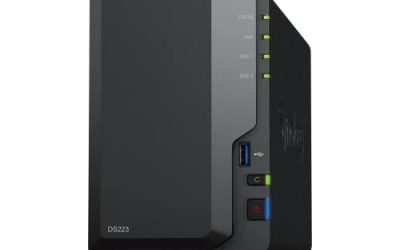
| Home network storage device | High for the whole household | Moderate to high | Low unless paired with off-site copy | Medium to high |
| Cloud backup service | High, automatic | Depends on internet upload speed | High | Low, ongoing subscription |
Before You Start Checklist
- Estimate how much data you have and add room for several years of growth.
- Decide whether you need Wi-Fi bridge mode so the internet stays available.
- Do the first full copy by cable if the drive allows it.
- Set a strong password and enable encryption if offered.
- Check the app supports your phone and computer operating systems.
- Keep a second copy of irreplaceable files in a different location.
- Charge the drive before travel and carry a short cable as a fallback.
- Restore a few test files to confirm the backup is usable.
Practical Limits Worth Knowing
Wi-Fi speed varies with distance, walls and nearby networks, so a backup that feels instant in the same room may crawl through a wall. Battery life shortens during heavy transfers, and drives that spin a hard disk use more power than solid-state ones. Hard disk models are sensitive to drops while spinning; solid-state ones handle bumps better, though they usually give less storage per unit of cost.
App quality matters as much as the hardware. A drive is only as convenient as the software that talks to it, so read about how the app handles automatic backups, duplicate detection and file formats. If the maker stops updating the app, the drive may still work through a browser or a standard file connection, but it can become harder to use as phone systems change. In 2026, check that the app is still maintained before you commit to a model.
A Simple Routine That Actually Works
Backups fail most often because people forget to run them. A short routine fixes that: pick one day a week, plug the drive in, open the app and let it copy new photos and files while you do something else. Once a month, open a handful of older files directly from the drive to confirm they still play and open. Once a quarter, copy the full contents to a second location, such as another drive kept at a relative’s house or a cloud folder.
Also keep an eye on free space. When the drive passes roughly three quarters full, performance can drop and the app may start skipping files. Delete duplicates, move finished projects into an archive folder, and replace the drive before it is completely full rather than after a backup quietly stops working.
Related guides
- How To Connect An Old Ide Hard Drive To A Modern Computer
- Signs Your Hard Drive Is Failing And How To Back Up Fast
- How To Securely Erase An Old Hard Drive Before Selling
Frequently Asked Questions
Do wireless hard drives need internet to work?
No. The drive creates its own local network, so your device can connect and copy files without internet. You only need the internet for firmware updates or if the drive supports a bridge mode that shares your home connection.
Is wireless backup slower than using a cable?
Usually yes. Wi-Fi speeds fluctuate with distance and interference, while a cable gives a steady rate. Many people use a cable for the first big copy and wireless for later top-ups.
Can a wireless hard drive be my only backup?
It is better not to rely on it alone. A single drive can fail, be lost or be damaged in the same event as your device. Keep a second copy in another place, such as a cloud service or a drive stored elsewhere.
How secure is a wireless drive?
Security depends on setup. Change the default password, use encryption if available and install firmware updates. A drive left on its defaults is easier for nearby people to access than one that is locked down.
More from Amazon
Programs that pair well with the guide above. Offers and eligibility are set by Amazon and may change.
A free business account with business pricing and bulk-buying tools for work, shop or home office.
Create a business accountFree shipping on eligible items, Prime Video and more. Eligible new members can start with a free trial.
Start a Prime free trialAudiobooks and podcasts to listen to on the go. Eligible new members can start with a free trial.
Try Audible freeAd-free music streaming. Eligible new subscribers can start with a free trial.
Try Music Unlimited freeAs an Amazon Associate we earn from qualifying purchases.




Write Your Review
No reviews yet. Be the first to share your experience!