

Key takeaways
- To securely erase an old hard drive before selling it, back up what you want to keep, sign out of every account tied to the machine.
To securely erase an old hard drive before selling it, back up what you want to keep, sign out of every account tied to the machine, then run a full overwrite or built-in secure erase that wipes the entire drive, not just the files. A quick format or dragging files to the trash leaves data that free recovery tools can often bring back.
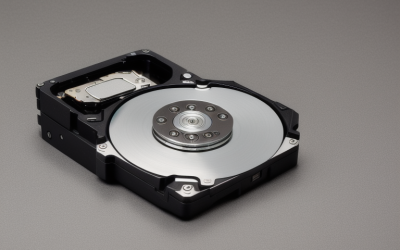
The right method depends on the type of drive. A spinning hard disk and a solid-state drive handle deletion differently, and a method that works on one can be pointless on the other. Below is how to pick the right approach, how to confirm the wipe worked, and when it is smarter to keep or destroy a drive than to sell it.
Why Deleting Files Is Not Enough
When you delete a file or run a quick format, the operating system only removes the index entry that tells it where the file lives. The actual bits stay on the disk until something else writes over them. Recovery software scans for those leftover bits and rebuilds files, which is useful when you delete something by accident and dangerous when a stranger buys your drive.
Think about what could be on an old drive: tax returns, scanned IDs, saved browser logins, email archives, photos, and client files. Even a drive you believe is empty may hold cached documents or old backups tucked into system folders. A proper wipe overwrites the whole surface so none of that survives.
Step One: Preparation
Back up what you still need
Copy photos, documents, and project folders to a different drive first, then open a few files from the copy to confirm they work. Erasing is permanent, so this is the moment to be sure.
Sign out and deauthorize
Log out of cloud storage, password managers, and any software with a limited number of device licenses. Turn off any device-finding or locking feature linked to your account, because a locked drive is hard for the buyer to use and may cause disputes.
Decide whether to sell the drive or the whole computer
If you are selling a laptop or desktop with the drive inside, the operating system’s reset option may handle everything, provided you choose the setting that fully cleans the drive. If you are selling the drive on its own, you will wipe it from another computer.
Choosing a Method by Drive Type
| Drive type | Reliable approach | What to avoid |
|---|---|---|
| Spinning hard disk (HDD) | One full overwrite pass of the whole disk, or the reset option labeled to clean the drive fully | Quick format, deleting folders, emptying the trash |
| Solid-state drive (SSD) | The manufacturer’s secure erase tool, the drive’s built-in secure erase command, or encryption plus key removal | Repeated multi-pass overwrites, which add wear without extra benefit |
| External USB drive | Full wipe from a computer using the same method as the drive inside the case | Assuming the enclosure’s software wipes everything |
| Failing or damaged drive | Keep it or destroy it instead of selling | Selling something you cannot verify |
How to Wipe Each Type
Spinning hard disks
For a modern spinning disk, a single full overwrite pass is generally considered sufficient for personal data. Older guidance recommended seven or more passes, but those numbers come from drives with much lower data density. Use your operating system’s disk tool or a reputable wiping utility and choose the option that writes to every sector. Expect the process to take hours on a large drive.
Solid-state drives
SSDs spread data across memory cells and hide some areas from the operating system, so a normal overwrite can miss data. The better route is the manufacturer’s own utility or the drive’s secure erase function, which resets all the cells at once. If the drive was already encrypted, deleting the encryption key also renders the data unreadable.
Wiping while the operating system is installed
If you are running from the same drive you want to erase, you cannot overwrite it fully while it is in use. Boot from a separate installer or a bootable utility, then wipe the drive from there.
Verify the Result
After the wipe, check that the drive shows as one block of unallocated space or a fresh empty volume. Run a file recovery scan in read-only mode if you want extra peace of mind. If recognizable files appear, the wipe was incomplete and should be repeated using a full-drive option.
Once verified, you can format the drive with a standard file system so the buyer gets something that works right away, and leave a note in the listing explaining that the drive has been fully erased.
When Not to Sell the Drive
- The drive has clicking sounds, bad sector warnings, or fails to complete a full overwrite, since you cannot confirm the data is gone.
- It stored highly sensitive business, medical, or legal records, where a company policy or regulation may require specific destruction methods.
- The resale value is low compared with the risk, as with very small or very old drives.
In those cases, physical destruction through a shredding service, or keeping the drive stored securely, can be a better call. If your data falls under professional regulations, consult an IT professional or compliance officer before disposing of the hardware.
Before You Sell Checklist
- Copy needed files to another drive and confirm they open.
- Sign out of cloud accounts and licensed software.
- Identify whether the drive is a spinning disk or SSD.
- Run a full wipe, not a quick format.
- Check the drive afterward for leftover data.
- Photograph the clean drive and describe the wipe method in the listing.
Related guides
- How To Connect An Old Ide Hard Drive To A Modern Computer
- Signs Your Hard Drive Is Failing And How To Back Up Fast
- Hardware Encrypted External Hard Drives
Frequently Asked Questions
Is a factory reset enough?
It depends on the setting. Many resets only reinstall the operating system and leave old data recoverable. Choose the option that cleans the entire drive, or wipe it separately afterward.
How long does a secure wipe take?
A spinning disk can take several hours for a large capacity, because every sector must be written. An SSD secure erase often finishes in minutes since it resets cells instead of writing every one.
Do I need to do multiple passes?
For current drives, one full pass is usually enough for personal use. Multiple passes mostly add time, and on SSDs they add unnecessary wear.
Should I smash the drive instead?
Physical destruction is effective but removes any resale value and can be hazardous if done carelessly. For a drive you plan to sell, a verified full wipe is the practical choice, and a certified shredding service is the better route for destruction.
More from Amazon
Programs that pair well with the guide above. Offers and eligibility are set by Amazon and may change.
A free business account with business pricing and bulk-buying tools for work, shop or home office.
Create a business accountFree shipping on eligible items, Prime Video and more. Eligible new members can start with a free trial.
Start a Prime free trialAudiobooks and podcasts to listen to on the go. Eligible new members can start with a free trial.
Try Audible freeAd-free music streaming. Eligible new subscribers can start with a free trial.
Try Music Unlimited freeAs an Amazon Associate we earn from qualifying purchases.




Write Your Review
No reviews yet. Be the first to share your experience!