

Key takeaways
- Formatting when asked. A prompt to format does not mean the drive is empty.
- Trying dozens of ports and cables. Repeated power cycles stress a failing disk.
- Running repair tools first. Copy the data first whenever you can.
- Ignoring warning signs earlier. Slow transfers and random disconnects often come before failure.
When an external drive is not detected, the cause is usually a bad cable, a weak port or a missing drive letter, not a dead disk. Work through simple fixes first, avoid formatting or running repair tools blindly, and stop the moment you hear clicking or grinding. Your goal is to protect the data, not to make the drive appear at any cost.
Handy Gear for Troubleshooting
| Pick | Best for | Key feature |
|---|---|---|
| Anker 4-Port USB 3.0 Powered Hub | Drives that need more power | External power supply, multiple ports |
| UGREEN USB 3.0 Cable | Ruling out a cable fault | Spare replacement lead |
| StarTech USB312SAT3 SATA Adapter | Testing a bare internal drive | Direct SATA to USB connection |
| Sabrent Dual Bay Dock | Testing in a different enclosure | Bypasses a failed USB board |
First, Rule Out the Obvious
Before any software steps, change the physical setup. Unplug the drive, wait ten seconds and plug it back in. Try another USB port, preferably on the back of a desktop. Try another computer. If the drive works elsewhere, the issue is your computer, not the disk. If it fails everywhere, move to the steps below. Throughout, do not initialize or format the drive when prompted, because that can erase the data.
1. Swap the Cable
Cables are the most frequent culprit. They bend, fray and loosen where the connector meets the cable. Use a short, good-quality lead, such as a UGREEN USB 3.0 cable, to test. Make sure the plug seats firmly in the drive. If the drive then appears, throw the old cable away so it does not trick you again.
2. Provide Enough Power
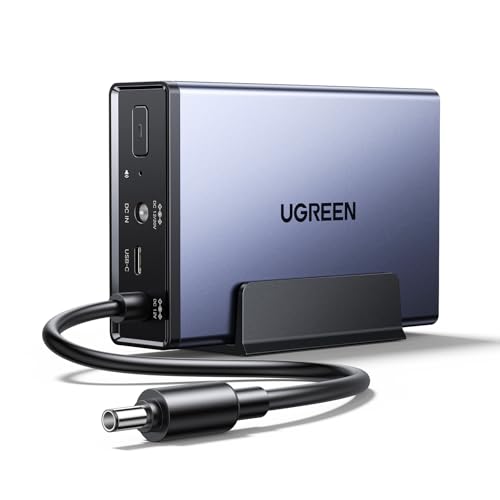
Some bus-powered drives need more current than an unpowered hub or front-panel port supplies. Signs include a drive that spins up briefly and stops, or clicks lightly. A powered USB hub such as the Anker 4-port USB 3.0 hub can steady the supply. Desktop drives need their own power adapter, so check that the adapter is plugged in and the light is on.
3. Check Disk Management or Disk Utility
On Windows, right-click Start and open Disk Management. If the drive appears but has no letter, assign one. If it shows as “unallocated” or “RAW”, do not format it. On a Mac, open Disk Utility and look for the drive in the sidebar, even if it is not mounted. If it is visible but greyed out, try the Mount button. Seeing the drive here means the hardware is likely communicating, which is encouraging.
4. Update or Reinstall the USB Drivers
On Windows, open Device Manager, find the drive under Disk drives or Universal Serial Bus controllers, and uninstall it. Then unplug the drive, restart the computer and reconnect. Windows will reinstall the drivers. It is a quick fix for glitches after an update.
5. Disable USB Power Saving
Power management can cut power to USB ports to save energy. In Device Manager, open each USB Root Hub and untick the option allowing the computer to turn off the device. Laptop owners should also check the power plan for selective suspend settings.
6. Test the Drive in a Different Enclosure
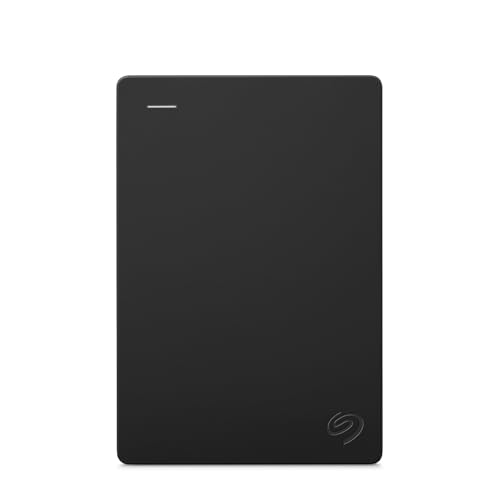
Many portable drives are a bare disk with a small USB board. If the board fails, the disk can still be fine. With care, you can take the disk out and connect it with a StarTech USB312SAT3 SATA adapter or place it in a Sabrent dual bay dock. Note that some modern portable drives have the USB connection built into the disk, and opening them voids the warranty, so check before taking anything apart.
Bonus: Rule Out the Port Itself
If every drive you plug into one port misbehaves, the port may be the problem. A Anker USB-C to USB-A adapter lets you try a different kind of port on a modern laptop, which is useful when a drive with an older plug refuses to connect through a flaky hub or dock. Remember that adapters should be good quality, since a poor one can introduce its own problems. Also try a different USB generation, such as a USB 2.0 port, because some older drives behave better there.
7. Look at the File System
A drive formatted for one system may not be readable on another. A Mac-formatted drive will not mount normally on Windows, and a drive using Linux formats needs extra tools. If the drive appears with a different file system than expected, use software that reads that format rather than reformatting.
8. Run a Read-Only Check
If the drive mounts but shows errors, run a check that only reads and reports. Avoid options that “fix” errors until you have copied your data elsewhere. Repair tools write to the disk and can make a bad situation worse.
9. Know When to Stop
Stop immediately and avoid more attempts if you hear repeated clicking, beeping, grinding or scraping, or if the drive is very hot, was dropped, or got wet. These are signs of physical failure, and each power-on can cause more damage. If the data matters, contact a professional recovery lab and describe what happened. Avoid freezing the drive, opening it, or running consumer recovery software on a mechanically failing disk.
Write Down What You Tried
When troubleshooting, it is easy to lose track of the steps you took. Keep a short note: which cable, which port, which computer, what the drive light did, and whether any noise was present. If you eventually contact a recovery service or the manufacturer’s support, that note speeds things up and helps them judge whether the failure is logical or physical. It also stops you from repeating the same fruitless attempts, which is important when each power-on adds stress to a weak disk.
Also think about the data you can recreate. If the drive holds only a copy of files you still have elsewhere, you can afford to be adventurous and reformat. If it holds the only copy of your photos, behave as though every attempt costs something, and move slowly.
Common Mistakes
- Formatting when asked. A prompt to format does not mean the drive is empty.
- Trying dozens of ports and cables. Repeated power cycles stress a failing disk.
- Running repair tools first. Copy the data first whenever you can.
- Ignoring warning signs earlier. Slow transfers and random disconnects often come before failure.
FAQ
Why does my drive light up but not appear?
The drive has power, but the computer cannot read the file system or the data connection is poor. Check Disk Management or Disk Utility, and try another cable.
Can data be recovered from a drive that is not detected?
Often yes, especially for cable, controller or file system problems. Mechanical failures need a professional lab and are not always successful.
Is it safe to open the drive case?
Opening the outer enclosure of a portable drive is sometimes fine, but opening the sealed disk itself will ruin it. If the case is glued shut, consult the warranty first.
Should I buy recovery software?
For logical problems like deleted files on a healthy disk, it can help. Never use it on a drive that clicks or is physically damaged.
Conclusion
Most undetected drives respond to better cables, stronger power or a quick look in the disk tools. Be patient, avoid formatting, and quit while you are ahead if the drive makes noise. Then keep a second copy of your files, so the next scare is only an inconvenience.
As an Amazon Associate we earn from qualifying purchases.
More from Amazon
Programs that pair well with the guide above. Offers and eligibility are set by Amazon and may change.
A free business account with business pricing and bulk-buying tools for work, shop or home office.
Create a business accountFree shipping on eligible items, Prime Video and more. Eligible new members can start with a free trial.
Start a Prime free trialAudiobooks and podcasts to listen to on the go. Eligible new members can start with a free trial.
Try Audible freeAd-free music streaming. Eligible new subscribers can start with a free trial.
Try Music Unlimited freeAs an Amazon Associate we earn from qualifying purchases.




Write Your Review
No reviews yet. Be the first to share your experience!