

Key takeaways
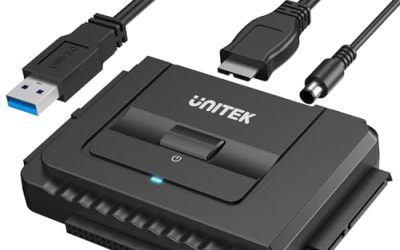
- The easiest way to connect an old IDE hard drive to a modern computer is a USB-to-IDE adapter cable or a drive dock that supplies its own power.
The easiest way to connect an old IDE hard drive to a modern computer is a USB-to-IDE adapter cable or a drive dock that supplies its own power, because current motherboards no longer include the 40-pin IDE socket these drives need. Plug the drive into the adapter, power it from the adapter’s supply, connect the USB end, and the drive shows up like any other external disk.
That sounds simple, but old drives come with quirks: two different connector sizes, jumper settings, power plugs that no longer exist on new power supplies, and file systems from another era. This guide walks through each piece so you can read the drive safely, copy off what matters, and avoid damaging a disk that may not have many spin-ups left in it.
Identify What You Are Holding
IDE, also called PATA or ATA, is a parallel interface used in desktops and laptops until roughly the late 2000s. Before buying anything, confirm that the drive really is IDE and not an early SATA model, because the adapters are not interchangeable.
Check the data connector
A desktop IDE drive has a wide rectangular socket with 40 pins in two rows, often with one pin missing or a notch in the plastic shroud. Newer SATA drives have a thin, flat L-shaped data connector instead. If you see the wide pin block, you have IDE.
Check the drive size
Desktop drives are 3.5 inches wide and use a separate four-pin power plug. Laptop drives are 2.5 inches wide and use a smaller 44-pin connector that carries both data and power. Many adapter kits include a small converter for the laptop style, but not all do, so confirm before you order.
Read the label and jumpers
The label usually lists capacity and sometimes a jumper diagram. IDE drives use jumpers to mark themselves as master, slave, or cable select. When a drive is the only device on an adapter, master or cable select normally works. If the drive is not recognized, the jumper position is the first thing to change.
Your Connection Options
There are four realistic ways to get the drive talking to a modern machine. They differ in cost, convenience, and how gentle they are on an aging disk.
| Method | Best for | Main drawback |
|---|---|---|
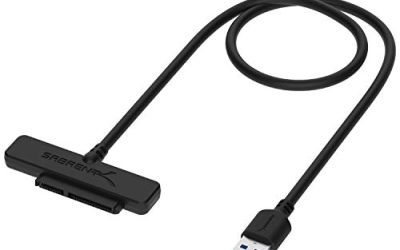
| USB-to-IDE adapter cable with power supply | One-off recovery, laptops without internal bays | Cheap kits vary in build quality and USB speed is limited |
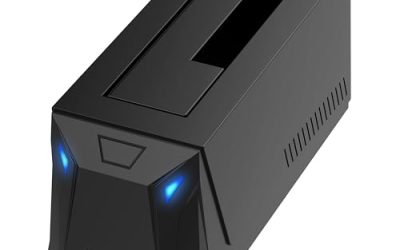
| Docking station with an IDE slot | Several drives, repeated use | Fewer models today, some only take one drive size |
| PCI or PCIe IDE controller card | Desktop owners who want an internal connection | Needs a free slot and driver support for your operating system |
| Older computer with an IDE port | Drives that fail to appear on adapters | You need space, time, and a working legacy machine |
Step-by-Step: Using a USB Adapter
For most people this is the path that makes sense. Work calmly and keep the drive on a flat, non-conductive surface rather than balanced on a keyboard.
- Set the drive’s jumper to master or cable select, matching the diagram on the label.
- Attach the adapter’s 40-pin or 44-pin connector, lining up the notch or missing pin so nothing is forced.
- Connect the power lead from the adapter’s own supply to the drive. Do not run old drives from a weak USB-only source.
- Plug the adapter into the computer and then switch the adapter’s power on.
- Open the operating system’s disk tool and look for a new drive, even if it has no letter or name yet.
Troubleshooting a Drive That Will Not Show Up
Nothing spins
If you hear and feel nothing, check the power plug orientation and try another outlet. A silent drive can mean a failed power supply on the adapter, a bad cable, or a dead drive. Swapping the power adapter is cheaper than guessing.
It spins but is not detected
Try the other jumper setting, reseat the ribbon cable, and try a different USB port directly on the computer instead of through a hub. Some adapters work better on USB 2.0 ports than USB 3.0 ports.
It appears but shows as unformatted or asks to be formatted
Do not accept the format prompt. Old drives may use FAT32, NTFS from early Windows, or file systems from other operating systems that your current computer cannot read natively. The disk can be intact even when the folder tree is not visible, and formatting overwrites the structure you need. Use a file recovery or disk-reading utility instead and copy files to a different drive.
You hear clicking, grinding, or repeated spin-up
Switch it off right away. Repeated power cycling on a mechanically failing drive can make damage worse. At that point a professional recovery service is the safer path, especially if the data is irreplaceable.
Copying Your Data Safely
Once the drive is visible, treat it as read-only. Do not defragment, scan for errors with repair options turned on, or run cleanup utilities. Instead, copy the important folders first, such as documents, photos, and project files, and leave bulky items like installers and system files for later.
Copy to a drive with plenty of free space, then confirm a few files open correctly before you call the job finished. If the drive stalls on a specific file, skip it and come back at the end. Long copies can heat an old disk, so allow breaks if the case feels hot.
When the transfer is complete, make a second copy in another location. A single copy on a new drive is still a single point of failure, and the old IDE drive may not spin up the same way next year.
Before You Start Checklist
- Confirm the drive is IDE with a 40-pin or 44-pin connector, not SATA.
- Choose an adapter that includes its own power supply and covers your drive size.
- Set the jumper to master or cable select before connecting.
- Prepare a destination drive with enough empty space.
- Decide ahead of time to skip any format or repair prompt.
- If the drive makes unusual noises, stop and consider professional help.
Related guides
- Signs Your Hard Drive Is Failing And How To Back Up Fast
- How To Securely Erase An Old Hard Drive Before Selling
- Hardware Encrypted External Hard Drives
Frequently Asked Questions
Can I plug an IDE drive directly into a modern motherboard?
Almost never. Most boards released in the last decade have SATA ports only and no IDE header. You need an adapter, a dock, or a controller card to bridge the connection.
Will an IDE-to-SATA adapter work instead?
There are adapters that let an IDE drive connect to a SATA port, and the reverse. Check the direction carefully, because one type converts an IDE drive to SATA and the other converts a SATA drive to an IDE socket, and they are not interchangeable.
Why does my old drive not show a drive letter?
The operating system may detect the disk but be unable to mount a partition it does not understand. Look in the disk management tool for an unassigned or unrecognized volume, and use a recovery utility rather than initializing it.
Is it worth recovering data from a drive that old?
If the files are photos, tax records, or work you cannot recreate, yes. Many old drives still read fine for a while, and a careful single copy pass is usually all that is needed. In 2026, the goal is simply to move the files onto a modern drive and a second backup.
More from Amazon
Programs that pair well with the guide above. Offers and eligibility are set by Amazon and may change.
A free business account with business pricing and bulk-buying tools for work, shop or home office.
Create a business accountFree shipping on eligible items, Prime Video and more. Eligible new members can start with a free trial.
Start a Prime free trialAudiobooks and podcasts to listen to on the go. Eligible new members can start with a free trial.
Try Audible freeAd-free music streaming. Eligible new subscribers can start with a free trial.
Try Music Unlimited freeAs an Amazon Associate we earn from qualifying purchases.

Write Your Review
No reviews yet. Be the first to share your experience!