

If you want lots of storage for little money and the drive will stay on your desk, a desktop external hard drive beats a portable one. The WD My Book and Seagate Expansion Desktop lead the pack for simple capacity, while the WD Elements Desktop and Seagate Backup Plus Hub add convenience. They use a 3.5-inch disk and external power, which gives larger capacities than pocket drives.
Compare the Picks
| Pick | Best for | Key feature |
|---|---|---|
| WD My Book Desktop | Home backups with security | Hardware encryption and backup software |
| Seagate Expansion Desktop | Plain, large capacity storage | Plug-and-play USB 3.0, no extras |
| WD Elements Desktop | Cost-conscious media storage | Simple design, high capacities |
| Seagate Backup Plus Hub | Desks short on USB ports | Built-in USB hub ports |
| Toshiba Canvio Desk | Small desks and shelves | Compact vertical or horizontal design |
1. WD My Book Desktop Hard Drive
The WD My Book desktop hard drive has a book-like shape that stands neatly beside a monitor. It includes backup software and password protection with hardware encryption, which is a bonus for tax records and client files. It is a good option for a household that wants one central backup. Its weaknesses include the fact that it needs a wall outlet, and it can run warm in a closed cabinet. If you want fewer features and a lower price, compare it with the Elements.
2. Seagate Expansion Desktop Drive
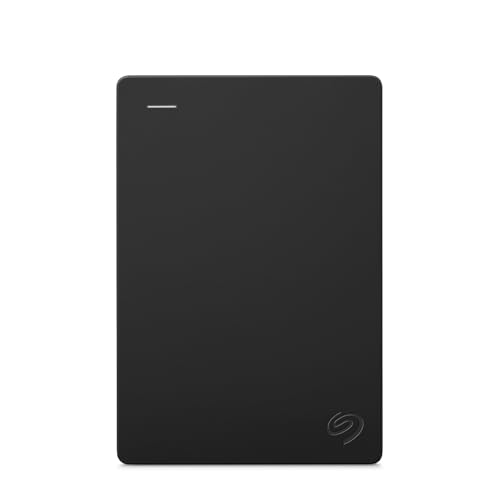
The Seagate Expansion desktop drive is a no-frills workhorse. You attach the power adapter and the USB cable, and it appears as a regular drive. It is a fit for people building a media library or storing years of family videos. The downside is that there is no bundled encryption or backup tool, and the plastic body is plain. It is also louder than an SSD, so avoid placing it right next to your pillow.
3. WD Elements Desktop Hard Drive
The WD Elements desktop hard drive sits in a similar space to the Seagate. It delivers high capacities at a fair price, and WD’s long history in disk manufacturing is reassuring. It suits students and small offices that just need spare space. It has fewer features than the My Book, and the compact box means limited ventilation. Add a bit of airflow and do not stack other devices on top of it.
4. Seagate Backup Plus Hub
The Seagate Backup Plus Hub desktop drive doubles as a USB hub, giving you two extra ports on the front of the drive. That is helpful for laptops with limited connections, because you can charge a phone or plug in a flash drive without a separate hub. It also includes backup software. The disadvantage is the higher price compared with a basic Expansion drive, and the hub ports are not a replacement for a good powered hub. Still, it makes a tidy desk centerpiece.
5. Toshiba Canvio Desk
The Toshiba Canvio Desk external hard drive is a compact alternative that can sit flat or stand on its side. It is quiet in normal use and comes with simple management software. It is a decent selection for a minimalist workspace. It is less widely stocked than the WD and Seagate options, and its capacities can be limited. If you want a spare, mainstream choice, compare the retail listings before committing.
Desktop Drive or NAS?
A desktop external drive is attached to one computer by cable. A network-attached storage device, or NAS, is a small server that every device in your home can reach and often protects data across two or more disks. If you only have one or two computers and want the lowest cost, the desktop drive is fine. If several people need to back up wirelessly, or you want redundancy, look at a NAS instead. Even then, a desktop drive remains an excellent place for a separate offline copy.
How to Choose
- Capacity first. Desktop drives start large. Pick a size that lets you keep several versions of your backups.
- Power and noise. They are not silent. Keep them in a spot with airflow and tolerable noise levels.
- Software and encryption. If you handle sensitive data, hardware encryption is worth paying for. Otherwise the plain model is fine.
- Ports. Look for USB 3.0 or newer, and check that you have a free port. A hub-style drive helps if ports are scarce.
- Warranty. Compare warranty length across the options, because they differ between lines.
Setting Up a Desktop Drive the Right Way
A little setup effort makes the drive far more useful. Start by connecting it directly to a port on your computer rather than through a crowded hub, because hubs share bandwidth and sometimes power. Next, format the drive for your operating system and give it a clear name, such as “Home Backup”. Turn on the built-in tool your computer already offers, Windows File History or macOS Time Machine, or use the maker’s software if you prefer scheduling options. Run the first backup overnight, since the initial copy is the longest. After that, backups only copy changes and finish quickly.
Place the drive on a flat, stable surface with a few centimeters of clearance on every side. Do not put it on carpet, where fibers can block vents, and keep it away from windows that heat up in the afternoon sun. Finally, put a reminder in your calendar every few months to open a few files from the drive. It takes two minutes and tells you the backup is actually readable.
If the drive will hold a growing media library, think about how you will organize it. A simple folder structure with year and project names saves hours of searching later. Avoid filling it past roughly ninety percent, because performance drops and you lose room for new versions.
Common Mistakes
- Using it as your only copy. A desktop drive can still fail, and it sits right beside the computer it protects, so fire or theft takes both.
- Cutting power during a write. Sudden outages can corrupt files. Consider a small surge protector.
- Hiding it in a cabinet. Poor airflow raises temperature and shortens lifespan.
- Forgetting to test restores. A backup you have never restored from is a theory, not a plan.
FAQ
Can I use a desktop drive with a laptop?
Yes, as long as you have a free power outlet nearby. It is not designed to be carried, but it works well as a docked backup target.
Are desktop drives faster than portable ones?
Often slightly, because 3.5-inch disks can spin and read data a bit more quickly. They are still limited by USB and by the mechanical disk, so an SSD will be much faster.
How long should I keep one running?
Many people leave them on only when backing up, which reduces wear. Check the drive’s power-saving settings so it spins down when idle.
Do I need to format a new desktop drive?
Most arrive ready for Windows. For Mac or cross-platform use, reformat to the file system that suits your devices before copying files.
Conclusion
For bulk capacity at a sensible price, a desktop external drive is hard to beat. Choose the My Book if you want security extras, the Expansion or Elements for plain value, and the Hub if you need extra ports. Keep it ventilated, protect it from power surges, and pair it with a second backup elsewhere.
As an Amazon Associate we earn from qualifying purchases.
More from Amazon
Programs that pair well with the guide above. Offers and eligibility are set by Amazon and may change.
A free business account with business pricing and bulk-buying tools for work, shop or home office.
Create a business accountFree shipping on eligible items, Prime Video and more. Eligible new members can start with a free trial.
Start a Prime free trialAudiobooks and podcasts to listen to on the go. Eligible new members can start with a free trial.
Try Audible freeAd-free music streaming. Eligible new subscribers can start with a free trial.
Try Music Unlimited freeAs an Amazon Associate we earn from qualifying purchases.


Write Your Review
No reviews yet. Be the first to share your experience!