

Key takeaways
- Pros: strong all-round speed, efficient power use, good thermals, long warranty, single-sided design in common capacities.
- Cons: no onboard DRAM, so sustained heavy writes are slower than on flagship drives.
The best SSD for most laptop upgrades in 2026 is a single-sided M.2 2280 PCIe 4.0 drive such as the Samsung 990 EVO Plus or the WD_BLACK SN7100, because both pair near-top Gen4 speeds with low power draw and cooler running than flagship drives. Before you buy anything, open your laptop’s spec sheet and confirm whether it uses an M.2 2280 slot or an older 2.5-inch SATA bay, since that single fact decides which drives will physically work.
Our top picks


As an Amazon Associate we earn from qualifying purchases at no extra cost to you.
Quick Comparison of the Best Laptop SSDs
| Pick | Best for | Interface | Rated sequential read / write | Capacities | Price tier |
|---|---|---|---|---|---|
| Samsung 990 EVO Plus | Best overall | PCIe 4.0 x4 / 5.0 x2, M.2 2280 | Up to 7,250 / 6,300 MB/s | 500GB to 4TB | Mid-range |
| WD_BLACK SN7100 | Best efficiency | PCIe 4.0 x4, M.2 2280 | Up to 7,250 / 6,900 MB/s | 500GB to 4TB | Mid-range |
| Crucial P310 | Best value | PCIe 4.0 x4, M.2 2280 (2230 also offered) | Up to 7,100 / 6,000 MB/s | 250GB to 2TB | Budget to mid-range |
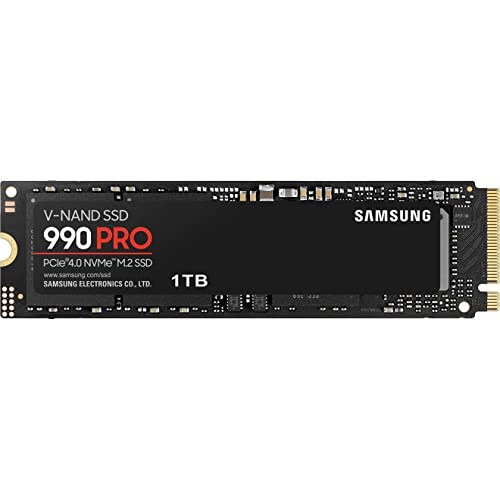
| Samsung 990 PRO | Best sustained performance | PCIe 4.0 x4, M.2 2280 | Up to 7,450 / 6,900 MB/s | 1TB to 4TB | Premium |
| Crucial T500 | Best with onboard DRAM | PCIe 4.0 x4, M.2 2280 | Up to 7,300 / 6,800 MB/s | 500GB to 2TB | Mid-range to premium |
| Kingston NV3 | Best budget | PCIe 4.0 x4, M.2 2280 | Up to 6,000 / 5,000 MB/s | 500GB to 4TB | Budget |
| Samsung 870 EVO | Best for SATA laptops | SATA III, 2.5-inch | Up to 560 / 530 MB/s | 250GB to 4TB | Budget to mid-range |
The figures are the manufacturers’ headline ratings, usually for the larger capacity. Smaller sizes often write slower, and the numbers are best-case sequential speeds, not the day-to-day experience.
Step One: Check What Your Laptop Can Actually Use
Most compatibility problems come from skipping this step. Work through the checks in order.
- Find the exact model number. It is on the underside label or in the system information screen. Search for the model’s service manual, which lists the storage slot type.
- Identify the slot. An M.2 2280 slot is a thin gumstick-shaped connector; a 2.5-inch bay is a bracket that holds a drive about the size of a deck of cards. Older ultrabooks may have a soldered drive with no upgrade option at all.
- Check the key and protocol. Some M.2 slots accept only SATA drives, not NVMe. The service manual states which. Plugging an NVMe drive into a SATA-only slot will not work.
- Check the physical length and thickness. Most thin laptops take a 2280 drive that is single-sided. Double-sided drives with chips on both faces may not fit under a slim cover or heat spreader.
- Check the PCIe generation. A Gen4 drive works in a Gen3 slot at Gen3 speeds, so you do not need to match generation. But paying for Gen5 speed in a Gen3 laptop is wasted money.
Gaming handhelds and ultra-compact laptops sometimes use the shorter M.2 2230 size. The Crucial P310 is offered in that format, and other makers sell similar drives, but a 2230 slot will not accept a 2280 drive.
Best Overall: Samsung 990 EVO Plus
The Samsung 990 EVO Plus is the most balanced laptop drive in 2026. Samsung rates the 2TB model at up to 7,250 MB/s read and 6,300 MB/s write, and the 1TB at around 7,150 MB/s read. The interface is a hybrid design that uses two PCIe 5.0 lanes or four PCIe 4.0 lanes, so it reaches Gen4-class speeds on most laptops. It is a DRAM-less drive that borrows a slice of system memory through the Host Memory Buffer feature, and Samsung covers it with a five-year limited warranty.
Who it suits: students, office users, and creators who want a fast, cool, dependable upgrade with Samsung’s Magician software for health monitoring.
- Pros: strong all-round speed, efficient power use, good thermals, long warranty, single-sided design in common capacities.
- Cons: no onboard DRAM, so sustained heavy writes are slower than on flagship drives.
Best Efficiency: WD_BLACK SN7100
The WD_BLACK SN7100 is a PCIe 4.0 drive with a rated 7,250 MB/s read and up to 6,900 MB/s write for the 2TB size. It is praised in 2026 roundups for low power draw, which helps battery life and heat in thin laptops. Note that SanDisk now sells some products in this family under a new brand name, so check the label on the exact drive you buy and confirm its warranty terms from the seller.
Who it suits: ultrabook and travel laptop owners who care about battery life and cool operation.
- Pros: excellent efficiency, high speeds, single-sided layout in typical capacities, solid reputation.
- Cons: warranty length varies by region and branding, and no Gen5 headroom.
Best Value: Crucial P310
The Crucial P310 is listed at up to 7,100 MB/s read and 6,000 MB/s write for the 2TB model on PCIe 4.0. It is available in the standard 2280 size and in a compact 2230 size that fits many handheld PCs and small laptops, and it comes with Acronis-based cloning software for migrating an existing installation. A few online listings misreport it as a Gen5 drive; it is a Gen4 drive.
Who it suits: anyone who wants a big speed jump from an old drive without paying flagship rates.
- Pros: strong value, cloning software, 2230 option, efficient.
- Cons: uses quad-level cell memory, so sustained writes slow once its cache fills.
Best Sustained Performance: Samsung 990 PRO
The Samsung 990 PRO is the heavyweight Gen4 option with onboard DRAM and a rated 7,450 MB/s read speed. It holds its performance during long writes better than DRAM-less alternatives, which matters when exporting video or copying large project folders. The downside is higher power use and heat, so check that your laptop’s slot has airflow or a thermal pad before choosing it.
Who it suits: video editors, developers compiling large projects, and mobile workstation users.
- Pros: consistent sustained speeds, DRAM cache, premium endurance.
- Cons: premium price tier and higher heat.
Best With Onboard DRAM: Crucial T500
The Crucial T500 is a Gen4 drive with DRAM and rated speeds around 7,300 MB/s read and 6,800 MB/s write at 2TB. It sits between the P310 and the 990 PRO in both price and sustained behavior. Models with a heatsink exist for desktops, but a laptop needs the bare version.
Who it suits: users who want a DRAM drive without paying the top brand premium.
- Pros: DRAM cache, strong sustained writes, five-year warranty on most models.
- Cons: warmer than efficiency-focused drives, and not the cheapest option.
Best Budget Pick: Kingston NV3
The Kingston NV3 is a DRAM-less PCIe 4.0 drive rated at up to 6,000 MB/s read and 5,000 MB/s write on the 1TB size. It is the slowest drive in this guide but still many times faster than any hard drive or SATA SSD, and it fits tight budgets well. Warranty terms are shorter than Samsung’s.
Who it suits: budget upgraders moving from a hard drive or an old SATA SSD.
- Pros: lowest price tier of the NVMe picks, wide capacity range.
- Cons: slower sustained writes, and component choices can change between production batches.
Best for SATA Laptops: Samsung 870 EVO
If your laptop has a 2.5-inch bay and no M.2 slot, an NVMe drive is useless. The Samsung 870 EVO is a long-established SATA drive that reads at up to about 560 MB/s and writes at up to about 530 MB/s, the ceiling of the SATA III interface. That is still a night-and-day improvement over a spinning drive, and you can often save the old drive in an external enclosure for backups.
Who it suits: owners of older laptops who want to extend their life.
- Pros: trusted reliability, easy installation, good warranty.
- Cons: limited by SATA speed, and the 7mm height may need a spacer in some bays.
Decision Matrix by Laptop and Use
| Your laptop and use | Slot | Recommended drive | Reason |
|---|---|---|---|
| Thin ultrabook, office and study | M.2 2280, single-sided | WD_BLACK SN7100 | Cool, efficient, long battery |
| Mainstream laptop, general upgrade | M.2 2280 | Samsung 990 EVO Plus | Best balance and warranty |
| Video editing laptop | M.2 2280 with airflow | Samsung 990 PRO or Crucial T500 | DRAM cache, steady writes |
| Budget refresh of an old machine | M.2 2280 NVMe | Crucial P310 or Kingston NV3 | Low cost, large speed gain |
| Handheld or compact PC | M.2 2230 | Crucial P310 2230 | Only 2230 fits |
| Older laptop, 2.5-inch bay | SATA | Samsung 870 EVO | NVMe will not work |
How Much Capacity Do You Need? A Worked Example
A drive’s advertised capacity is higher than what the operating system shows, because manufacturers count in decimal gigabytes. A 1TB drive shows about 931GB, and the system, apps, and updates use a chunk of that. Plan to keep at least 15 to 20 percent free, since SSDs slow down and wear faster when nearly full.
- Typical user: operating system 40GB, apps 80GB, documents and photos 150GB, plus 20 percent free space. Total need is about 340GB, so a 500GB drive is tight and 1TB is comfortable.
- Creator: add a 300GB video library and 100GB of project cache, giving roughly 700GB with headroom. Choose 2TB.
- Gamer: modern games often exceed 100GB each. Five installed titles plus the system needs 700GB or more. Choose 2TB.
Cost per terabyte usually falls as capacity rises, so 2TB often costs less per gigabyte than 500GB. If you plan to keep the laptop for years, the larger drive is usually the better deal.
Installing and Migrating: The Safe Order of Steps
- Back up first. Copy your documents and photos to an external drive or cloud service. A failed clone can cost you data.
- Update the firmware and BIOS. Some laptops need a recent BIOS to recognize new drives properly.
- Power off, unplug, and remove the battery if possible. This prevents electrical damage during installation.
- Ground yourself. Touch a bare metal part of the chassis before handling the drive, and avoid touching the connector.
- Seat the drive at an angle and press down. Secure it with the screw and move any thermal pad or shield from the old drive.
- Clone or reinstall. Use the manufacturer’s cloning tool, or install the operating system fresh from a USB installer for the cleanest result.
- Verify and keep the old drive. Boot from the new drive, confirm everything works, and keep the old drive as a backup until you are sure.
Ownership Realities: Endurance, Heat, and Mistakes to Avoid
Every SSD has a rated endurance in terabytes written. A 1TB consumer drive is typically rated around 600 terabytes written, which is roughly 330GB of writes per day for five years. Ordinary laptop use writes a small fraction of that, so endurance is rarely the limit.
Heat is more of a concern. Thin laptops give the SSD little airflow, and Gen4 drives throttle when they get hot. Efficient drives like the SN7100 and the 990 EVO Plus run cooler, which helps both performance and battery life. Avoid fitting a bulky heatsink in a laptop unless the maker explicitly approves it.
Common mistakes include buying a drive with chips on both sides for a slim slot, forgetting to enable the drive in firmware, skipping the cloning tool, and filling the drive completely. Also remember that an SSD is not a backup. When it fails, it often fails suddenly, and recovery from a dead SSD is far harder than from a hard drive, so keep a separate copy of important files.
Sequential Speed Is Not the Whole Story
Headline megabytes per second describe one narrow situation: copying one large file. Day-to-day laptop responsiveness depends more on random read and write performance at low queue depth, which is the pattern of launching apps, opening documents, and loading a game level. Here nearly every modern NVMe drive feels the same, and the gap between a budget Gen4 drive and a flagship is much smaller than the spec sheet suggests. Where drives truly differ is under sustained load. A drive with a large dynamic cache can absorb 100GB or more of writes at full speed and then drop to a fraction of that once the cache is exhausted. If you rarely move more than a few gigabytes at a time, you will never notice. If you ingest hours of video, pick a drive known for steady sustained writes, and leave free space so the cache can recover.
Power, Battery Life, and Thermals in Thin Laptops
A fast drive that runs hot costs you in two ways. First, the laptop’s fan spins up sooner. Second, the drive reduces its own speed to protect itself, which erases the advantage you paid for. Efficiency matters most for ultrabooks and long-battery machines, where the drive may draw several watts under load and a fraction of a watt at idle. Look for drives that support deep idle power states, and keep the laptop’s power management drivers up to date. If your laptop ships with a thin thermal pad or a metal shield over the SSD, move it to the new drive rather than leaving it behind.
Plan for Data Safety Before and After the Upgrade
An upgrade is the moment when people lose files, usually through a rushed clone or a wiped drive. Make two copies of anything you cannot replace before touching hardware: one on an external drive and one in a cloud service or second device. After the upgrade, schedule automatic backups so the new drive is never your only copy. If a drive stops showing up, stop writing to it, power the laptop down, and consult a recovery professional or a reputable recovery tool before attempting repairs, because repeated power cycles and reformatting reduce what can be recovered.
Frequently Asked Questions
Will an NVMe SSD work in any laptop?
No. It works only if the laptop has an M.2 slot that supports NVMe. Some slots accept only SATA M.2 drives, and many older laptops have only a 2.5-inch SATA bay. Check the service manual for the exact model before buying.
Is a Gen5 SSD worth it for a laptop?
Rarely. Gen5 drives run hotter and draw more power, and few laptops have a Gen5 slot or the cooling to use it. A good Gen4 drive gives nearly identical everyday performance and is far easier on battery life.
Does a DRAM-less SSD hurt performance?
For everyday tasks, barely. Modern DRAM-less drives use system memory for mapping data, and they feel fast in normal use. The difference appears during long, heavy writes, where drives with DRAM and good caches stay faster.
How do I move Windows to the new SSD?
Use a cloning tool such as the one supplied by the drive maker, or perform a clean install from a USB installer. Cloning needs a way to connect both drives at once, such as a USB enclosure. Always back up first, and boot from the new drive to confirm it works.
How long will a laptop SSD last?
Most last many years. Typical consumer drives carry a three to five year warranty and endurance ratings far above normal use. Monitor health through the maker’s software and replace a drive that reports warnings.
Should I keep my old drive after upgrading?
Yes, for a short time. Keep it as a backup until you are sure the new drive works, then put it in an external enclosure for extra storage or erase it securely before disposal.


Write Your Review
No reviews yet. Be the first to share your experience!