

Key takeaways
- Pros: inexpensive, compact, no software, supports big drives.
- Cons: one bay only, no cloning, USB-A cable.
The best hard drive docking station for bare drives depends on whether you need to read one drive, copy between two, or work through a stack. For most people, a dual-bay dock with offline cloning, such as the Sabrent EC-HD2B or the Inateck SA02003, is the most useful: it accepts both 2.5-inch and 3.5-inch SATA drives and can copy one disk to another without a computer. For a single quick read of an old drive, a lay-flat single-bay dock like the Sabrent EC-DFLT is simpler and cheaper. For fast SSD cloning or big batches, step up to a 10 Gbps dock such as the StarTech SDOCK2U313R or a four-bay unit.
This guide covers seven docks for bare SATA drives in 2026, how to choose by interface speed, bay count, and cloning, and how to use a dock safely when the drive holds data you cannot lose. A dock reads a healthy drive; it does not repair a failing one, and the data recovery section explains the difference. Specifications come from manufacturer pages and product listings; check the current revision before buying.
Our top picks


As an Amazon Associate we earn from qualifying purchases at no extra cost to you.
Quick Comparison of the Best Docks for Bare Drives
| Pick | Bays | Best for | Key specs | Price tier |
|---|---|---|---|---|
| Sabrent EC-DFLT | 1 | Simple single-drive access | USB 3.0 with UASP, 2.5-inch and 3.5-inch, drives up to 20 TB, about 130 MB/s with an HDD | Budget |
| Sabrent EC-HD2B | 2 | Best overall, offline cloning | USB 3.0, 2.5-inch and 3.5-inch, no drivers, offline clone | Budget to mid |
| Inateck SA02003 | 2 | Reliable cloning with extras | USB 3.0 5 Gbps with UASP, up to 10 TB per bay, 12V/3A adapter, sleeps after 30 minutes | Mid |
| StarTech SDOCK2U313R | 2 | Fast SSD cloning | USB 3.2 Gen 2 10 Gbps, UASP, 4Kn support, standalone clone | High |
| Orico 6629US3-C-V1 | 2 | Value dual-bay with clone | USB 3.0 with USB-C cable option, offline clone, about 10 TB per bay | Budget to mid |
| Plugable USBC-SATA-V | 1 | USB-C laptops, single drives | USB 3.1 Gen 2 10 Gbps, no clone button | Mid |
| StarTech SDOCK4U313 | 4 | Batch access to many drives | Four bays, USB 3.2 Gen 2, no standalone clone | High |
What a Docking Station Does and Does Not Do
A drive dock is an open-top SATA-to-USB adapter. You drop a bare 2.5-inch or 3.5-inch drive into a slot, power on, and it mounts like any external disk. There is no screwdriver, no case, and no cables to unscrew from a PC. That makes docks ideal for people who handle many drives: photographers working through an archive, IT staff recovering files from retired computers, and anyone who keeps spare drives on a shelf.
A dock does not repair a damaged drive. If the drive makes clicking or grinding noises, is not detected, or repeatedly disconnects, repeated insertion attempts can make damage worse. Stop and consider a professional service. A dock is for drives that are healthy or only have logical problems like a deleted partition, and it is a safe way to make a copy before experimenting with recovery software.
How to Choose a Dock for Bare Drives
Bay count
Single-bay docks are the cheapest and smallest. Dual-bay docks let you copy from one drive to another, and offline cloning in those models works without a computer. Four-bay docks suit anyone who processes many drives, such as technicians and archivists, but they take more desk space and usually lack cloning.
Interface speed
Most docks use USB 3.0, which is 5 Gbps. Real transfer rates with a hard drive are about 100 to 200 MB/s because the drive is the limit, not the cable. If you often dock SATA SSDs, a 10 Gbps USB 3.2 Gen 2 dock can reach roughly 500 MB/s or more, matching the SATA III ceiling. A worked example: copying a 1 TB drive at 150 MB/s takes about 1 hour and 50 minutes, while copying a 1 TB SATA SSD at 450 MB/s takes about 37 minutes. If you only handle hard drives, a 10 Gbps dock offers little benefit.
Offline clone
Offline cloning lets you duplicate one drive to another by pressing a button on the dock, with no computer attached. It is quick and ideal for field backups or upgrading a drive. The destination must be the same size or larger than the source in most docks, and cloning typically overwrites the target completely. Offline clone speed is commonly lower than computer-attached copy speed. One listing cites rates near 60 MB/s on a popular Sabrent model, so a 1 TB clone can take several hours.
Drive size support and drive types
Check the maximum per-bay capacity (often 10 TB to 20 TB in current models) and confirm 2.5-inch and 3.5-inch support. Some docks support 4Kn sector drives and some do not; this matters for certain enterprise disks. Note that SATA docks do not read IDE drives, and NVMe or M.2 drives need a different dock.
Power and cooling
Docks use a wall adapter, often 12V with 2 A or 3 A. Look for auto-sleep, since a spinning drive left idle in an open dock gathers dust and heat. Drives sit exposed, so avoid placing a dock on a surface that blocks the bottom vents.
Best Single-Bay Dock: Sabrent EC-DFLT
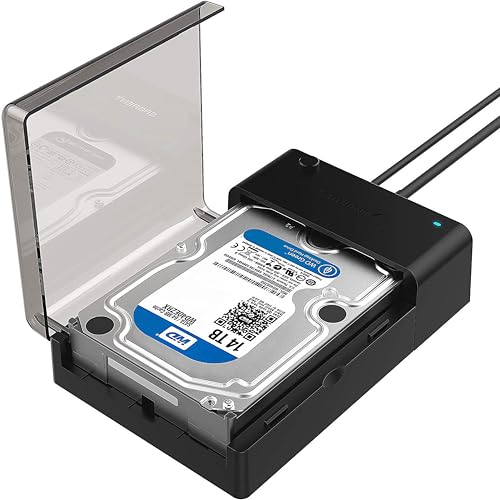
The EC-DFLT is a simple lay-flat dock that supports 2.5-inch and 3.5-inch SATA hard drives and SSDs. Per roundup reports it uses USB 3.0 with UASP, reaching about 130 MB/s with a mechanical drive, and supports drives up to 20 TB. There are no drivers to install, and it is a simple way to read an old disk. The included cable is USB-A, so a USB-C-only laptop will need an adapter.
Who it is for: someone with a single old drive to read, or a technician who wants a cheap spare.
- Pros: inexpensive, compact, no software, supports big drives.
- Cons: one bay only, no cloning, USB-A cable.
Best Overall: Sabrent EC-HD2B
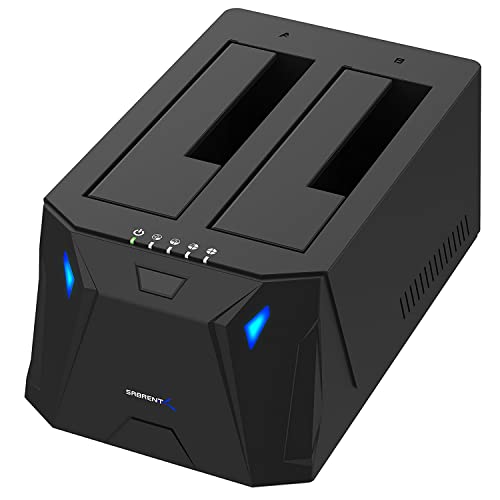
The EC-HD2B is a dual-bay USB 3.0 dock that appears at the top of many roundups. It handles 2.5-inch and 3.5-inch SATA HDDs and SSDs, needs no drivers, and offers offline cloning from one bay to the other at roughly 60 MB/s according to published reports. Each bay can also mount as its own drive when connected to a computer. Owners in data-hoarding communities describe it as dependable over years of daily use.
- Pros: dual bays, offline cloning, simple, wide compatibility, good value.
- Cons: USB 3.0 only, clone speed is modest, plastic build.
Best Dual-Bay With Extras: Inateck SA02003
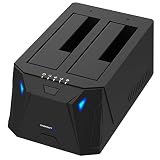
Inateck’s SA02003 is a dual-bay dock with RGB lighting and offline cloning. Per Inateck, it accepts 2.5-inch and 3.5-inch SATA I, II, and III drives up to 10 TB per bay, runs over USB 3.0 at 5 Gbps with UASP support, and needs no drivers. It ships with a 12V/3A power adapter and a USB 3.0 cable, and goes to sleep after 30 minutes of inactivity. One review measured around 380 MB/s read speeds on a PC with a fast drive in a UASP-capable port.
- Pros: UASP, per-bay capacity of 10 TB, sleep timer, strong power adapter, offline clone.
- Cons: slightly higher cost than basic docks, USB-A style connection, LED lighting is a matter of taste.
Best for Fast Cloning: StarTech SDOCK2U313R
StarTech’s SDOCK2U313R is the professional-grade pick: a dual-bay dock with USB 3.2 Gen 2 at 10 Gbps, UASP, 4Kn drive support, and standalone cloning. StarTech advertises cloning of up to 28 GB per minute with SSDs, a major improvement over budget docks when you handle SATA SSDs. With hard drives, the mechanical limit still applies. It is the better choice for IT teams and anyone who clones SSDs regularly.
- Pros: 10 Gbps, fast cloning, 4Kn support, trusted business brand.
- Cons: higher price, overkill for a single old hard drive.
Best Budget Dual-Bay: Orico 6629US3-C-V1
Orico’s dual-bay dock is a value alternative with offline clone support and roughly 10 TB per slot. It supports 2.5-inch and 3.5-inch SATA drives and connects over USB 3.0. Orico also sells single-bay lay-flat docks with tool-free design and capacity support well above 20 TB for budget buyers. Build quality is functional rather than premium, but for occasional use it covers the essentials.
- Pros: low price, clone function, good capacity per bay.
- Cons: less polished build, support and documentation vary, may not match Sabrent or Inateck for long-term reliability reports.
Best for USB-C Laptops: Plugable USBC-SATA-V
Plugable’s single-bay dock uses a USB 3.1 Gen 2 interface at 10 Gbps with a USB-C connection, which suits newer laptops without USB-A ports. It supports 2.5-inch and 3.5-inch SATA drives and gets the most from an SSD. It has no clone button, so copying requires a computer and software. Choose it if you mostly dock one SATA SSD or HDD at a time and want to skip adapters.
- Pros: native USB-C, fast interface, simple and compact.
- Cons: single bay, no offline clone, pricier than basic single-bay docks.
Best Multi-Drive Dock: StarTech SDOCK4U313
When a pile of drives needs checking, the four-bay SDOCK4U313 gives each its own slot and USB 3.2 Gen 2 link. It does not clone on its own, but it lets you mount several drives at once and move data between them through your computer. It suits a workshop or archive where drives rotate in and out all day.
- Pros: four bays, fast interface, ideal for batch work.
- Cons: large footprint, no standalone clone, highest cost of the group.
Decision Matrix by Situation
| Your situation | Choose | Why |
|---|---|---|
| Read one old drive, rarely | Sabrent EC-DFLT | Cheapest and simplest |
| Copy between two drives, no computer | Sabrent EC-HD2B or Inateck SA02003 | Offline clone |
| Clone SATA SSDs regularly | StarTech SDOCK2U313R | 10 Gbps, fast clone |
| Tight budget, dual-bay | Orico 6629US3-C-V1 | Clone feature at lower cost |
| Laptop with only USB-C | Plugable USBC-SATA-V | Native USB-C, 10 Gbps |
| Process many drives daily | StarTech SDOCK4U313 | Four independent bays |
Worked Example: Choosing a Dock for a Small Office Archive
Imagine a small office with twelve retired desktop drives, a mix of 3.5-inch 1 TB disks and 2.5-inch laptop drives, and a goal of copying their useful files to one new 8 TB drive. The work is mostly sequential reading from hard drives at about 120 MB/s. Twelve drives averaging 600 GB of used data is about 7.2 TB, so the copying alone takes roughly 7,200,000 MB divided by 120 MB/s, or about 16.7 hours of pure transfer. Spread over several days, that is manageable with one dual-bay dock, and the second bay lets you stage the next drive while the first copies.
A 10 Gbps dock would not shorten this job, because the old drives cannot go faster than their own platters. A four-bay unit would let you load several drives at once, but the computer would still be copying one stream at a time unless the destination can keep up. In this case the sensible buy is a mid-priced dual-bay dock, and the savings go toward a second destination drive so the consolidated archive exists in two places.
Now change the scenario: a photographer upgrading four SATA SSDs of 1 TB each. At roughly 450 MB/s through a 10 Gbps dock, each takes about 37 minutes to copy, so the full set finishes in a bit over two and a half hours. On a 5 Gbps dock with a USB 3.0 link, real-world SSD speeds of about 380 MB/s stretch each copy to roughly 44 minutes. The gap is modest, which is why many buyers are fine with a 5 Gbps dock unless cloning SSDs is a daily activity.
Finally, before wiping any source drive in either scenario, keep it for a few weeks after the copy is verified. Time is cheap compared with discovering a missing folder after the original is gone.
Using a Dock Safely When the Data Matters
- Check the drive condition. If it clicks, grinds, or has been dropped, stop. A dock cannot help, and continued power-on can cause further damage. Consult a recovery service.
- Connect the dock to power first, then insert the drive gently with the connectors aligned. Never force a drive into the slot.
- Mount read-only if possible. On Windows, avoid prompts to format or initialize the disk. On macOS, mount read-only through Disk Utility or the terminal if the volume is questionable.
- Copy data off before running repair tools. Running repair utilities on the only copy can alter the data. Make an image or copy files to a healthy disk first.
- Eject safely through the operating system, wait for the activity light to stop, and then power down the dock before removing the drive.
- Verify the copy by opening a few files, or by comparing checksums on important folders, before wiping the source.
When cloning offline, label source and destination. Most clone mistakes happen because the wrong drive sits in the wrong bay, and cloning overwrites the destination without recovery.
Durability and Ownership Realities
Docks themselves rarely fail, but the contact points wear. The SATA connector inside the slot takes physical stress from repeated insertions, so insert straight and seat firmly. Dust is the other enemy; keep a cover over the open slot or store the dock in a bag. Power adapters are the most common failure point, so keep a spare if you rely on the dock for work.
Bare drives are vulnerable to static and bumps. Handle them by the edges, place them on an anti-static surface, and store them in protective sleeves. Never move a dock while a hard drive is spinning, and wait for platters to stop before lifting a drive out. Heat builds in an open dock, so avoid leaving a drive running for days; use the sleep timer if the dock has one.
Lastly, understand the limits of offline clone. It copies sector by sector or file by file depending on the model, and it will not skip bad sectors gracefully. A drive with read errors may stall or produce a partial clone, in which case a dedicated imaging tool run from a computer gives better control.
Common Mistakes to Avoid
- Using a dock to try to fix a clicking or undetected drive.
- Cloning in the wrong direction and overwriting the source data.
- Buying a 10 Gbps dock for a hard drive that cannot use the speed.
- Trying to dock an IDE, M.2, or NVMe drive in a SATA-only dock.
- Accepting an operating system prompt to format a disk you meant to read.
Frequently Asked Questions
Can a docking station recover data from a failed drive?
Not by itself. It provides a connection so the computer can read the drive. If the drive is mechanically failing, a dock cannot fix it, and extra power-on time may reduce the chance of recovery. A healthy drive with deleted files can be scanned with recovery software through a dock.
Does a dock support both 2.5-inch and 3.5-inch drives?
Most do. Open-top docks like those above fit both sizes in the same slot. Always confirm the maximum capacity per bay, because older models may be limited to smaller drives.
Is offline cloning reliable?
For healthy drives, yes. It copies one disk to another without a computer. It overwrites the destination fully, and speeds are modest, so allow several hours for large drives. Verify the result by opening files.
Do I need USB-C or is USB-A fine?
Either works for hard drives, since the drive limits speed. USB-C docks with 10 Gbps help SSDs and avoid adapters on new laptops. For older machines, a USB-A cable is perfectly fine.
Can I leave a drive in the dock all the time?
You can, but it is not ideal. Open slots collect dust and heat, and the drive has no protection from knocks. For permanent storage use an enclosure, and use the dock for occasional access.
What about NVMe SSDs?
SATA docks do not support them. NVMe drives need an M.2 or NVMe dock or enclosure. Make sure the dock you choose lists the interface you need.



Write Your Review
No reviews yet. Be the first to share your experience!