

Key takeaways
- Hardware RAID means a controller chip inside the enclosure builds and manages the array. The computer sees one disk. You can move the box between a Mac, a Windows PC and a Linux machine without installing software, and the array survives an operating system reinstall. The Promise Pegasus32 R4 and the QNAP TR-004 (when its disk-mode switch is set to hardware) work this way.
- Software RAID means the host computer’s software does the work, for example SoftRAID bundled with OWC enclosures. It is flexible and often exposes more levels, such as RAID 6, but the array depends on the software and the host being healthy.
- JBOD or single-disk mode presents each drive as its own volume. This is not RAID at all. It is useful for docking four drives at once, but there is no redundancy and no speed gain from striping.
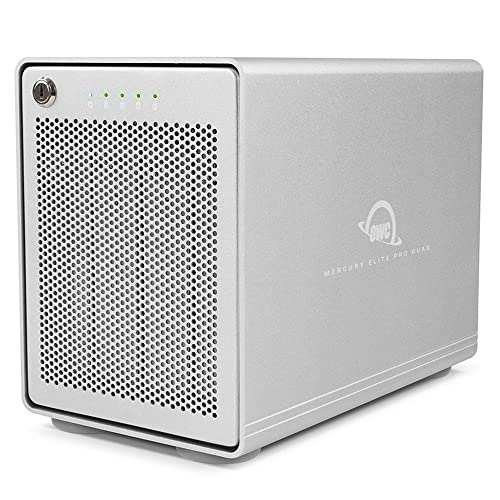
The best RAID enclosure for most people in 2026 is a four-bay unit that matches your computer’s port: the OWC ThunderBay 4 for Thunderbolt Macs and fast editing, the OWC Mercury Elite Pro Quad or QNAP TR-004 for USB-C simplicity, and the Promise Pegasus32 R4 when you want a true hardware RAID controller at Thunderbolt speed. The TerraMaster D4-320 and Sabrent DS-SC4B are cheaper four-bay options, but they present drives individually rather than as a hardware array, so they suit a different job.
A RAID enclosure is a direct-attached storage box (DAS). It plugs into one computer over USB or Thunderbolt and combines several drives into one volume, either with a controller inside the box or with software on the host. It is not a NAS: there is no network, no operating system on the box, and no file sharing for other devices unless you share it from the computer it is attached to. That makes it faster per dollar of hardware and simpler to run, but it also means one computer is the single point of access. This guide explains what separates the models, how much capacity you really get, and how to avoid the mistake that costs people data: treating RAID as a backup.
Our top picks


As an Amazon Associate we earn from qualifying purchases at no extra cost to you.
Quick comparison of the best RAID enclosures
| Pick | Best for | Bays | Host link | RAID modes | Speed figure (maker rating) |
|---|---|---|---|---|---|
| OWC ThunderBay 4 | Mac video and photo editing | 4 x 2.5/3.5 in SATA | 2x Thunderbolt 3 (40 Gb/s) | Software (SoftRAID): 0, 1, 4, 5, 6, 10 | Up to about 1,550 MB/s with SSDs |
| Promise Pegasus32 R4 | Hardware RAID 5/6 at Thunderbolt speed | 4 x 3.5 in SATA III | 2x Thunderbolt 3 plus USB 3.2 Gen 2 fallback | Hardware: 0, 1, 1E, 5, 6, 10 | Up to about 2,800 MB/s with SSDs |
| OWC Mercury Elite Pro Quad | USB-C editors and photographers | 4 x 2.5/3.5 in SATA | USB-C 10 Gb/s | SoftRAID: 0, 1, 4, 5, 10, JBOD | Up to about 947 MB/s in RAID arrays |
| QNAP TR-004 | Cheap, simple hardware RAID for hard drives | 4 x 2.5/3.5 in SATA | USB 3.2 Gen 1 (5 Gb/s) | Hardware or software: 0, 1, 5, 10, JBOD | Up to about 227 MB/s |
| OWC ThunderBay Flex 8 | Studios needing eight bays plus NVMe | 8 SATA/SAS bays, or up to 4 U.2 NVMe | 2x Thunderbolt 3 plus USB ports | Hardware or SoftRAID versions | Up to about 2,750 MB/s |
| TerraMaster D4-320 | Budget four-drive expansion, single-disk mode | 4 x 2.5/3.5 in SATA | USB 3.2 Gen 2 (10 Gb/s) | Single disk (no hardware RAID per the maker) | Up to about 1,016 MB/s read |
Speed figures are the manufacturers’ maximums, usually reached with solid-state drives in a striped configuration. Hard drives will land well below these numbers, which is covered in the calculation section below.
Hardware RAID vs software RAID vs JBOD
Three terms decide which enclosure you buy, and they are easy to mix up.
- Hardware RAID means a controller chip inside the enclosure builds and manages the array. The computer sees one disk. You can move the box between a Mac, a Windows PC and a Linux machine without installing software, and the array survives an operating system reinstall. The Promise Pegasus32 R4 and the QNAP TR-004 (when its disk-mode switch is set to hardware) work this way.
- Software RAID means the host computer’s software does the work, for example SoftRAID bundled with OWC enclosures. It is flexible and often exposes more levels, such as RAID 6, but the array depends on the software and the host being healthy.
- JBOD or single-disk mode presents each drive as its own volume. This is not RAID at all. It is useful for docking four drives at once, but there is no redundancy and no speed gain from striping.
The practical difference: if you want to plug the box into any computer and have it just work, favor hardware RAID. If you live inside one operating system and want more RAID levels and monitoring tools, software RAID is a good fit. If you only need many separate drives attached, a JBOD enclosure is cheaper and simpler.
Best for Thunderbolt editing: OWC ThunderBay 4
The ThunderBay 4 is the default recommendation for Mac-based photo and video work. According to OWC, it holds four 2.5-inch or 3.5-inch SATA drives, connects over two Thunderbolt 3 ports at 40 Gb/s, and adds a DisplayPort output so a 4K monitor can sit at the end of the chain. OWC rates sustained throughput at up to about 1,550 MB/s in the best configuration, with RAID 5 on hard drives quoted far lower, around 770 MB/s. The chassis is aluminum, uses a single 92 mm fan, and holds up to 96 TB according to the maker.
The unit uses SoftRAID, which OWC bundles with a multi-year premium access period. SoftRAID supports RAID 0, 1, 4, 5 and 10, and OWC lists RAID 6 on supported macOS versions. The upside is flexibility and good health monitoring; the trade-off is that the array is tied to SoftRAID being installed on the computer you connect to.
- Who it is for: Mac editors, photographers with large catalogs, anyone daisy-chaining Thunderbolt devices.
- Pros: Very high speed with SSDs, two Thunderbolt ports for chaining, tool-free drive access, strong software.
- Cons: Thunderbolt 3 rather than newer generations, software RAID dependency, higher cost than USB boxes.
Best hardware RAID: Promise Pegasus32 R4
The Pegasus32 R4 is the pick when you want a real controller. Promise lists four 3.5-inch SATA III hot-swap bays, hardware RAID levels 0, 1, 1E, 5, 6 and 10, two Thunderbolt 3 ports, USB 3.2 Gen 2 compatibility and a DisplayPort connector. Retail listings quote a maximum around 2,700 to 2,800 MB/s with solid-state drives, though that figure comes from the maker’s own conditions. It ships preconfigured for RAID 5 on many bundles, comes with a three-year limited warranty, and is formatted for macOS but can be reformatted for Windows.
- Who it is for: Studios and professionals who want RAID 5 or 6 handled in hardware and a box that behaves the same on any host.
- Pros: Controller-based arrays, RAID 6 for two-drive tolerance, high ceiling speed, USB fallback.
- Cons: Heavier and costlier than USB enclosures, 3.5-inch bays only, overkill for casual backup.
Best USB-C quad bay: OWC Mercury Elite Pro Quad
If your computer has a 10 Gb/s USB-C port and no Thunderbolt, the Mercury Elite Pro Quad is a well-built option. OWC lists four SATA bays for 2.5-inch and 3.5-inch drives, RAID 0, 1, 4, 5, 10 and JBOD through SoftRAID, a temperature-controlled fan, a lockable bay door and a Kensington lock slot. The USB-C 3.2 Gen 2 link is rated near 1,250 MB/s at the interface level, while the maker quotes about 947 MB/s for arrays, and it also works on Thunderbolt 3 hosts.
- Who it is for: Photographers and video editors on USB-C laptops who need more speed than a single portable drive.
- Pros: Solid metal build, good airflow, flexible RAID through software, works with Mac and Windows.
- Cons: Software RAID again; no daisy-chain port; hard drives will not come close to the interface limit.
Best budget hardware RAID: QNAP TR-004
The TR-004 is a four-bay enclosure that connects over USB 3.2 Gen 1 Type-C at 5 Gb/s. It supports RAID 0, 1, 5 and 10 plus individual disk and JBOD modes. A disk-mode switch on the unit selects hardware control or software control, the latter managed from a QNAP NAS or the QNAP External RAID Manager utility for Windows and Mac. QNAP rates it at up to 227 MB/s, which is realistic for a RAID 5 array of hard drives and perfectly adequate for photo archives, family backups and a home media library. It uses a 120 mm fan, lockable trays, and takes both 3.5-inch and 2.5-inch drives.
- Who it is for: Home and small-office users who want hardware RAID 5 for hard drives without paying for Thunderbolt.
- Pros: Hardware RAID option, low cost, works as expansion for compatible QNAP NAS units, lockable trays.
- Cons: The 5 Gb/s link bottlenecks SATA SSDs, no hot-spare automation, plain plastic-and-metal build.
Best for large studios: OWC ThunderBay Flex 8
The ThunderBay Flex 8 is a different class of product. OWC lists eight bays for 3.5-inch and 2.5-inch SATA and SAS drives, with a mix that can include up to four U.2 NVMe SSDs. Connectivity includes two Thunderbolt 3 ports, USB-C and USB-A ports, DisplayPort and front-panel SD and CFexpress card slots, and the maker quotes up to about 2,750 MB/s and up to 172 TB. Two versions are sold: one with a hardware RAID controller preinstalled in a PCIe slot and one using SoftRAID. The internal power supply is rated at 450 W, and the chassis is much larger and heavier than a four-bay unit.
- Who it is for: Post-production teams and photographers with very large archives who want an eight-bay hub with media card slots.
- Pros: Eight bays, NVMe option, built-in card slots, hardware controller version available.
- Cons: Size, weight and cost; more capability than most home users will ever need.
Best for single-disk expansion: TerraMaster D4-320
The D4-320 is a straightforward four-bay SATA enclosure on USB 3.2 Gen 2 at 10 Gb/s. TerraMaster’s official specification lists single-disk mode only with no hardware RAID, a maximum of 128 TB across four drives, hot-swap support, and read speeds up to about 1,016 MB/s and writes up to about 960 MB/s with solid-state drives. If you need an array, you build it with your operating system’s tools, such as Storage Spaces on Windows or a third-party utility, and you accept the host dependency. Some retail pages describe RAID modes, so check the manufacturer specification for your exact revision before you buy.
- Who it is for: People who want four drives attached through one cable, such as backup rotation or a recovery workstation, and who will manage any array in software.
- Pros: Good USB speed, low cost, simple tool-free design, high capacity ceiling.
- Cons: No hardware RAID, modest power supply for large enterprise drives, no Thunderbolt.
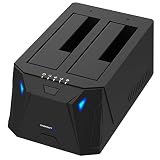
The Sabrent DS-SC4B belongs in the same class. It is a USB-C 10 Gb/s four-bay dock for JBOD use with tray-less hot swap, which is useful when you cycle bare drives in and out, and it is not a hardware RAID box.
Decision matrix: match your situation to an enclosure
| Your situation | Choose | Why |
|---|---|---|
| Mac, 4K or 6K video, Thunderbolt ports | OWC ThunderBay 4 | Thunderbolt bandwidth and SoftRAID fit editing workflows |
| Need controller-based RAID 5/6 on any computer | Promise Pegasus32 R4 | Array lives in the box, not the host |
| USB-C laptop, photo archive, moderate speed | OWC Mercury Elite Pro Quad | 10 Gb/s link and SoftRAID flexibility |
| Tight budget, hard drives only | QNAP TR-004 | Hardware RAID 5 at low cost |
| Eight drives or NVMe plus SATA mix | OWC ThunderBay Flex 8 | Capacity and media card slots |
| Four loose drives, no redundancy needed | TerraMaster D4-320 or Sabrent DS-SC4B | Cheapest route to four mounted volumes |
How much capacity do you actually get?
RAID trades raw capacity for speed or protection. Here is the worked math for four 16 TB drives (decimal terabytes, before formatting overhead).
| RAID level | Usable capacity | Drives that can fail | Typical use |
|---|---|---|---|
| RAID 0 | 64 TB | 0 | Scratch space, speed only |
| RAID 1 / 10 | 32 TB | 1 per mirrored pair | Mirrored safety with good speed |
| RAID 5 | 48 TB | 1 | Balanced capacity and protection |
| RAID 6 | 32 TB | 2 | Large drives, longer rebuilds |
| JBOD | 64 TB across four volumes | 0 | Separate drives, no array |
Real usable space is a little lower after formatting because operating systems report in binary units. Plan on roughly 7 to 9 percent less than the decimal figure on large drives.
Worked calculation: copy and rebuild times
Speed ratings on the box rarely match what a hard-drive array delivers, so do the arithmetic before deciding.
- Copying 10 TB at 227 MB/s (the QNAP TR-004 rating) takes about 10,000,000 MB divided by 227, which is roughly 44,000 seconds, or about 12.2 hours.
- The same 10 TB at about 1,000 MB/s (a fast four-SSD array on a 10 Gb/s link) takes about 10,000 seconds, or about 2.8 hours.
- At 1,550 MB/s, the ThunderBay 4’s quoted peak, it drops to about 6,450 seconds, or about 1.8 hours.
Rebuilds matter more than copies. When one drive in a RAID 5 array fails and you replace it, the controller reads every remaining drive in full to recreate the lost data. For a 16 TB drive at a sustained 200 MB/s, that is 16,000,000 MB divided by 200, or 80,000 seconds, which is about 22 hours of continuous work during which the array has no redundancy. A second failure or an unreadable sector in that window can destroy the volume. This is why large-capacity arrays are better built as RAID 6 or RAID 10, and why you should buy drives in different batches rather than four from the same production run.
Drive choices that make or break an array
- Prefer CMR drives. Conventional magnetic recording hard drives write predictably. Shingled (SMR) models can stall for long periods during a rebuild and are a common cause of arrays dropping drives.
- Use NAS or enterprise-class drives. They are designed for vibration from neighbors and for the error-recovery timing RAID controllers expect.
- Match capacities. An array is limited by its smallest drive. Four identical drives are simpler and safer.
- Check the power supply. Large enterprise drives draw more at spin-up. Budget enclosures with small adapters can struggle with four of them.
- Keep SSDs for Thunderbolt units. Four SATA SSDs saturate a 5 Gb/s USB link, so they only make sense in 10 Gb/s or faster boxes.
Ownership realities: heat, noise and maintenance
Four spinning drives in an aluminum box produce heat and a steady fan sound. Place the enclosure where air can reach the vents and not on a carpet or inside a closed cabinet. Most units use a single 92 mm or 120 mm fan that ramps with temperature; the fan is the part most likely to wear first, and in some models it is user replaceable. Check drive health monthly with the software that ships with the enclosure, watch for reallocated-sector counts, and run a full scrub or consistency check on a schedule your software supports. Keep a spare drive on the shelf so a failure does not turn into a long wait.
Also plan for the cable. Thunderbolt and 10 Gb/s USB ports are sensitive to cable quality. Use the cable supplied by the manufacturer, keep it short, and avoid unpowered hubs between the enclosure and the computer.
Common mistakes to avoid
- Treating RAID as a backup. RAID protects against a drive failing. It does not protect against deletion, ransomware, file corruption, theft, fire or a controller failure. Keep a second copy elsewhere, ideally following the 3-2-1 rule of three copies, two media, one off-site.
- Using RAID 0 for irreplaceable data. One drive failure loses everything.
- Mixing SMR and CMR drives. It leads to unpredictable rebuilds.
- Ignoring the host link. A fast array on a 5 Gb/s port is capped by the port.
- Buying a JBOD dock when you wanted an array. Read the specification page for supported RAID modes, not the retailer headline.
When a RAID array fails: what to do first
If an array shows as degraded, stop writing to it, identify the failed drive from the software or the lights on the bay, and replace it with an identical or larger drive only after you have confirmed your most important files are copied elsewhere. If two drives fail at once, or the controller loses the array configuration, do not initialize the disks or run repair tools blindly. Power down and consult a professional data recovery service, because initialization can overwrite the structures needed to reassemble the array. This is general information, not a guarantee of any specific outcome.
Frequently Asked Questions
What is the difference between a RAID enclosure and a NAS?
A RAID enclosure attaches directly to one computer over USB or Thunderbolt and has no network functions of its own. A NAS is a small computer on your network that serves files to many devices at once. Choose an enclosure for speed and simplicity on one workstation, and a NAS for sharing, remote access and scheduled backups.
Is RAID 5 safe enough for important files?
RAID 5 survives one drive failure, but long rebuild times on large drives create a window of risk. For drives above roughly 12 TB, RAID 6 or RAID 10 is a safer pick. In every case, keep a separate backup, because RAID does not protect against accidental deletion or corruption.
Do I need Thunderbolt, or is USB-C enough?
For hard drives, a 10 Gb/s USB-C port is usually plenty because spinning drives in an array rarely exceed 500 to 700 MB/s. Thunderbolt pays off with SSD arrays, daisy-chaining several devices, or when you need the extra display output some enclosures provide.
Can I move a RAID enclosure to a new computer?
With hardware RAID, the array is stored in the controller and drives, so the box usually works on another computer after you connect it. With software RAID, install the same software on the new computer first. In both cases, confirm the file system is readable by the new operating system, since formats like APFS and NTFS are not natively portable.
Can I use SSDs in a RAID enclosure?
Yes, if the enclosure lists 2.5-inch SATA support. SSDs raise speed dramatically, but they need a 10 Gb/s or faster host link to show it. Four SATA SSDs on a 5 Gb/s USB port will be limited by the port.
How many drives can fail in a four-bay array?
It depends on the level. RAID 0 tolerates none, RAID 5 tolerates one, RAID 6 tolerates any two, and RAID 10 tolerates one in each mirrored pair provided both drives in a single pair do not fail together.






Write Your Review
No reviews yet. Be the first to share your experience!