

Key takeaways
- Look for settings such as M.2 Configuration, NVMe Configuration or PCIe Storage Configuration, and confirm the slot is enabled.
- Check whether the slot is set to SATA mode or PCIe mode if your board offers a choice. A SATA M.2 drive needs SATA mode; an NVMe drive needs PCIe mode, and Auto usually picks correctly.
- Some guides point to CSM or Legacy mode as a cause of NVMe drives going missing. Switching to UEFI boot with CSM disabled can help on modern systems. However, if Windows is installed in Legacy mode, changing this can stop it from booting, so write down your current settings before you change anything and revert if needed.
If your SSD is not showing up, first work out where it disappears: the BIOS or UEFI, Disk Management, or File Explorer. Each stage has a different fix. A drive missing from the BIOS is usually a seating, slot, cable or power problem. A drive visible in the BIOS but missing in Windows is usually an offline, uninitialized or driveless-letter issue. And a drive that shows as RAW or unallocated may still hold your data, so do not format it until you have decided whether you need what is on it.
This guide walks through the diagnosis in order, from the quickest checks to the more involved ones, with the reason for each step. It covers internal NVMe and SATA SSDs, external SSDs over USB, and the special case where the drive holds data you cannot afford to lose. Work top to bottom and stop as soon as the drive appears.
Our top picks

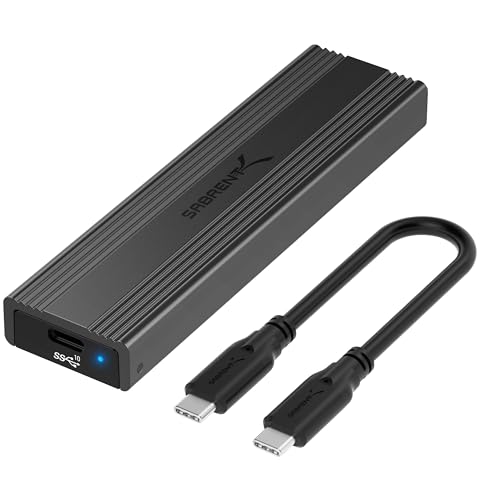
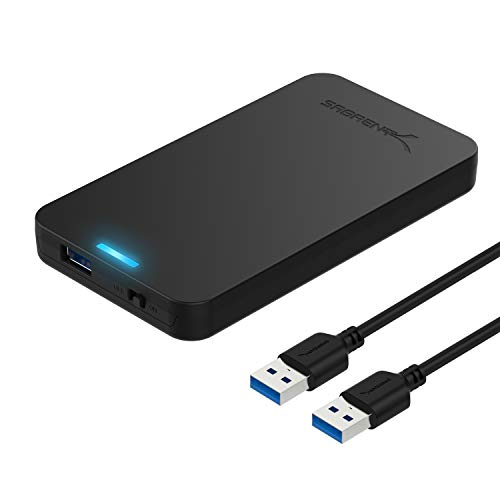
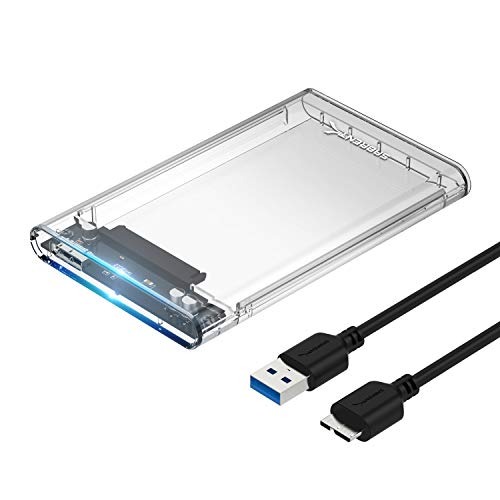
As an Amazon Associate we earn from qualifying purchases at no extra cost to you.
Step 1: find out where the SSD disappears
Use this table to decide which section to read. It saves time because the cause is different at each stage.
| Where is the SSD visible? | Most likely cause | Go to |
|---|---|---|
| Not in BIOS or UEFI | Poor seating, dead slot, disabled port, cable or power fault, failed drive | Section: SSD missing from BIOS |
| In BIOS, not in Disk Management | Driver, controller mode (such as Intel RST or VMD), or Windows setup limitation | Section: In BIOS but not in Windows |
| In Disk Management as Not Initialized or Offline | New drive, damaged partition table, or disk set offline | Section: Initialize or bring online |
| In Disk Management with no drive letter | Letter conflict or missing assignment | Section: Assign a drive letter |
| Shows as RAW or unallocated with data on it | File system corruption or lost partition | Section: When the SSD has data you need |
| External SSD not seen at all | Cable, port, power or enclosure bridge issue | Section: External SSD problems |
Step 2: quick checks that solve many cases
- Restart the computer. A full shutdown and start, not just sleep. Controllers sometimes hang until power is fully removed.
- Power cycle completely. On a desktop, switch off the power supply and unplug the cord for 30 seconds, then press the power button once to drain residual charge. On a laptop, unplug the charger and, if the battery is removable, take it out for a minute.
- Try another port, cable and computer. For external drives, this single step identifies a faulty cable or port in minutes.
- Listen and feel. A drive that is warm to the touch and still not detected may have a dead controller. A drive that is cold with no activity light may not be getting power.
- Note any changes. Did you install a new graphics card, update the BIOS or install new drivers just before the drive vanished? The cause is often the last thing changed.
SSD missing from the BIOS or UEFI
If the drive is not listed in the BIOS, Windows will not find it either. Press the setup key at startup (commonly Delete, F2 or F10) and look at the storage or NVMe configuration page.
Reseat the drive and check the slot
For an M.2 NVMe drive, power off, unplug the system, remove the screw, lift the drive out and reinsert it fully at the correct angle before fastening. Dust or a slightly loose connection is a common cause. Remove any thermal pad protective film and make sure the standoff is in the right hole for a 2280 drive.
For a SATA SSD, replace the SATA data cable and try another SATA port. Connect the power cable from a different connector on the power supply. SATA SSDs need both a data cable and power; one without the other results in a drive that is invisible.
Check for lane sharing
Many motherboards share PCIe lanes between M.2 slots and SATA ports. Installing a drive in one slot can disable a particular SATA port, and the reverse. Consult the motherboard manual for a note such as “M.2_2 shares bandwidth with SATA5/6”. If your drive sits in a shared slot, move it to a different slot or disconnect the SATA drive that conflicts with it.
Check the M.2 configuration and boot mode
- Look for settings such as M.2 Configuration, NVMe Configuration or PCIe Storage Configuration, and confirm the slot is enabled.
- Check whether the slot is set to SATA mode or PCIe mode if your board offers a choice. A SATA M.2 drive needs SATA mode; an NVMe drive needs PCIe mode, and Auto usually picks correctly.
- Some guides point to CSM or Legacy mode as a cause of NVMe drives going missing. Switching to UEFI boot with CSM disabled can help on modern systems. However, if Windows is installed in Legacy mode, changing this can stop it from booting, so write down your current settings before you change anything and revert if needed.
Update the BIOS
Motherboard makers regularly release updates that improve drive compatibility, especially for newer NVMe controllers. Update using the manufacturer’s instructions and never interrupt the process. If your computer is stable otherwise, only update when the vendor release notes mention storage or compatibility fixes that match your issue.
Test the drive in another system or enclosure
Put the SSD in a USB NVMe or SATA enclosure and connect it to a different computer. If it appears there, the original slot, cable or BIOS configuration is at fault. If it still does not appear anywhere, the drive itself has likely failed, and the next step is a warranty claim or professional recovery.
In BIOS but not in Windows
Open Disk Management
Press the Windows key plus X and choose Disk Management. This tool lists every drive Windows can see, even those without a letter. Look at the bottom panel for a disk without a volume or with a status other than Online.
Controller mode and drivers
Some laptops and desktops use Intel Rapid Storage Technology (RST) or Volume Management Device (VMD) modes that hide NVMe drives from a standard Windows installer. If the drive is missing only during Windows setup, load the Intel RST or VMD driver from the manufacturer on a USB stick at the “Where do you want to install Windows” screen. Alternatively, switch the controller mode in the BIOS, but only before the operating system is installed, or Windows may fail to boot.
In Device Manager, expand Disk drives and Storage controllers. A yellow warning triangle means Windows sees the device but has a driver problem. Right-click and update the driver, or download the controller driver from your system maker’s website.
Check for hidden or disabled devices
In Device Manager, choose View, then Show hidden devices. If the drive appears greyed out, right-click and select Enable device. Also confirm that no Group Policy or removable storage policy blocks access, a situation that mainly affects work computers.
Initialize the disk or bring it online
A brand-new SSD has no partition table, so it appears in Disk Management as Not Initialized with unallocated space. This is normal and takes a minute to fix. Warning: never initialize or format a drive that already holds data you need. If the SSD was used before, skip to the data-recovery section.
- In Disk Management, right-click the disk label on the left (for example Disk 1) and choose Initialize Disk.
- Select GPT for modern systems and Windows 11. Use MBR only for very old systems or drives under 2 TB that must be read on legacy hardware.
- Right-click the unallocated space and choose New Simple Volume.
- Follow the wizard: use the full size, assign a letter and format as NTFS with a quick format.
If the disk shows as Offline, right-click it and select Online. If the option is greyed out or returns an error, the disk may be in a protected state, may have a signature collision with another disk, or may be failing. A signature collision happens when a cloned drive is connected next to the original. Disconnect one of them.
Assign a drive letter
If the SSD shows as Healthy with a file system but is missing from File Explorer, it has no letter.
- Right-click the volume in Disk Management.
- Choose Change Drive Letter and Paths.
- Click Add, pick any free letter and confirm.
The drive should show up in File Explorer immediately. If a letter already exists but the drive is still hidden, it may be mapped to a letter that conflicts with a network drive. Choose a letter far from the start of the alphabet, such as R or T, to avoid collisions.
When the SSD has data you need
If the drive previously held files and now appears as RAW, unallocated, or asks you to format it before use, the file system or partition table is damaged. The data may still be intact on the flash chips. What you do next decides whether it stays recoverable.
Do and do not
| Do | Do not |
|---|---|
| Stop using the drive immediately | Format the drive or click “Format disk” when Windows offers |
| Connect it to a second computer or enclosure to check detection | Run repeated disk repair tools on a drive that may be failing |
| Image the drive to another disk first, if it is readable at all | Keep writing new data to the drive |
| Use read-only recovery software that works on the image or the drive | Install recovery software on the drive you are trying to recover |
| Contact a professional lab if the drive is not detected or makes the system freeze | Try freezer tricks or heating, which do not work on SSDs |
Why SSD recovery is different from hard drive recovery
Modern SSDs use TRIM and garbage collection to erase deleted blocks in the background. Once a block is trimmed, its contents are usually gone for good, so the window for recovering deleted files is short. Hardware encryption on many drives also means the data is unreadable if the controller dies and cannot be repaired. This is why a recent backup matters more than recovery tools. If the drive is detected but unstable, creating a sector image as the very first action gives you something to work with even if the drive then fails.
If a drive is not detected at all or the data is critical, a professional lab can sometimes work at the chip level, but the success rate and cost vary widely, so ask about the diagnosis fee and what happens if recovery fails before you send the drive.
External SSD problems
External SSDs add several possible failure points between the drive and the computer.
- Cable. Use the cable that shipped with the drive. High-speed USB-C SSDs often need a data-rated cable, and a charging-only cable will not carry data.
- Port. Plug directly into the computer, not a hub. Try a different port, ideally one on the back of a desktop.
- Power. Some bus-powered drives draw more current than a laptop or a hub can supply. A powered hub or a different port can fix this.
- USB selective suspend. In Windows power options, disable USB selective suspend if the drive drops out when idle.
- Format compatibility. A drive formatted as APFS will not appear on Windows. A drive formatted as NTFS is read-only on a Mac by default. exFAT works on both.
- Enclosure bridge. If you built your own enclosure, a failed bridge chip looks exactly like a failed drive. Move the SSD to another enclosure to check.
On a Mac, open Disk Utility, choose View, then Show All Devices. If the drive appears there but not on the desktop, it may need mounting or First Aid. If it does not appear in Disk Utility or System Information under USB or NVMe, the problem is hardware or cable related.
Mac and Linux notes
On a Mac, an internal SSD that fails to mount often responds to First Aid in Disk Utility, which repairs the directory structure without touching file contents. If the drive is listed but greyed out, select it and choose Mount. On Linux, run lsblk or sudo fdisk -l in a terminal to see whether the kernel detects the device at all. A drive that appears there but not in the file manager usually just needs mounting. A drive missing from both the kernel list and the BIOS points back to hardware: the slot, cable, power or the drive itself.
Whatever the platform, record what you see at each stage and what you changed. If you eventually need a warranty claim or a recovery lab, a clear timeline of symptoms speeds up the diagnosis and avoids repeating steps that already failed.
Preventing the problem in future
- Back up regularly. The only reliable protection is a second copy, ideally two.
- Eject safely. Pulling an external SSD during a write can corrupt the file system or partition table.
- Keep firmware updated. Manufacturer utilities fix known detection and stability bugs.
- Keep the drive cool. Overheating NVMe drives throttle or drop off the bus. Use a heatsink if your slot has no cooling.
- Leave free space. A full SSD slows down and is more prone to filesystem trouble.
- Watch SMART health. Use the drive maker’s tool to check wear, spare blocks and error counts.
- Avoid power loss. A power cut mid-write is a classic cause of corrupted tables. A small UPS on a desktop is cheap insurance.
Frequently Asked Questions
Why is my new SSD not showing up in File Explorer?
A new SSD has no partition or file system, so Windows does not display it until you initialize and format it. Open Disk Management, initialize the disk as GPT, create a new simple volume and assign a letter. This is normal setup, not a fault.
Why is my SSD detected in the BIOS but not in Windows?
The most common reasons are an uninitialized disk, a disk set to offline, a missing drive letter or a controller mode that needs a driver. Check Disk Management first, then Device Manager. If the drive is only missing during Windows setup, load the storage driver for your platform.
Can I recover data from an SSD that is not detected?
Sometimes. If the drive is detected by the BIOS but shows as RAW, recovery software or a sector image may work. If the controller has failed, only a specialist lab can try, and results are not guaranteed. In either case, stop using the drive and avoid formatting it.
Is a dead SSD fixable?
Not by ordinary means. Drives with a failed controller or worn flash usually have to be replaced under warranty. Firmware corruption sometimes responds to a power cycle, a firmware tool from the manufacturer or a secure erase, but each of these can destroy data, so try them only when the data is already backed up or expendable.
Why does my external SSD keep disconnecting?
Typical causes are a damaged cable, an underpowered port or hub, USB power-saving settings and overheating. Try another cable and a direct port, disable USB selective suspend, and let the drive cool down. If the problem follows the drive to a second computer, the drive or its enclosure is the issue.
Should I format the SSD to make it appear?
Only if there is nothing on it that you need. Formatting makes the drive usable again but wipes the file system structure, which makes recovery much harder. If the drive holds important data, try detection fixes and recovery options first, and format last.


Write Your Review
No reviews yet. Be the first to share your experience!