

Key takeaways
- The clearest signs of a failing hard drive are clicking or grinding noises, files that suddenly will not open, repeated freezes.
The clearest signs of a failing hard drive are clicking or grinding noises, files that suddenly will not open, repeated freezes, a drive that vanishes and reappears, and warnings from the drive’s own health monitoring. If you see any of them, stop doing anything else with the drive and copy your most important files to a different disk immediately.
Speed matters, but so does order. Copying the wrong things first, or running repair tools out of habit, can turn a recoverable drive into one that nothing can read. The sections below explain how to read the warning signs, what to do in the first hour, and when to hand the drive to a professional.
Warning Signs You Should Take Seriously
Physical and audible symptoms
A spinning hard disk that clicks, beeps, grinds, or repeatedly spins up and down is telling you that something mechanical is wrong, often with the read-write heads or motor. These noises are the most urgent signal. A drive that feels unusually hot or is suddenly much louder than before also deserves attention.
Performance symptoms
Slow file opening, long freezes while the activity light stays on, and programs that stop responding when they touch the drive are all common before a failure. A computer that takes much longer than usual to start, or that crashes during copying, points the same direction.
Data symptoms
Files that become corrupted, folders that show as empty, repeated disk errors on startup, and photos that open partly are signs of bad sectors spreading across the surface. One damaged file can be a fluke, but a pattern means the disk is losing the ability to hold data reliably.
Connection symptoms
A drive that keeps disconnecting, appears only sometimes, or shows the wrong capacity may have a failing controller board, a bad cable, or a damaged disk. Try a different cable and port first, since cheap fixes are worth ruling out, but do not keep reconnecting a drive that behaves strangely.
Quick Triage Table
| What you notice | Likely meaning | First response |
|---|---|---|
| Clicking, grinding, or beeping | Mechanical damage | Power off, stop using it, consider professional recovery |
| Slow and freezing, no strange noises | Bad sectors or failing health | Back up immediately, in priority order |
| Drive disappears and returns | Cable, port, or controller issue | Try another cable and port, then copy files at once |
| Corrupted files only | Early surface errors or file system damage | Copy what is readable, avoid repair tools until after |
| Health tool shows a warning | Drive reports its own decline | Treat as urgent and replace the drive |
How to Back Up Fast Without Making It Worse
Stop everything else
Close programs, pause cloud sync and automatic updates, and avoid installing anything. Each extra read or write adds wear and increases the chance of a crash in the middle of a copy.
Copy in priority order
Start with what cannot be replaced: family photos and videos, tax and financial records, work documents, and password manager exports. Leave application files, downloads, and anything you can reinstall for last. A short list copied successfully is worth more than a full drive copy that stalls halfway.
Use a healthy destination
Copy to an external drive or another computer with enough free space. Do not copy onto the same failing disk, and do not compress files into an archive on it, which creates more writes and more risk.
Skip repair utilities for now
It is tempting to run disk-checking or repair commands, but on a failing drive they force the disk to read and rewrite every sector. That can push a weak drive over the edge. Copy first, then investigate. If a file refuses to copy, skip it and move on, then return to it once the important items are safe.
Consider making a full image
If the drive still responds well, a sector-by-sector image to a larger drive captures everything in one pass, and you can then work on the copy instead of the original. Imaging utilities that retry gently on read errors are better than a standard drag-and-drop on a damaged disk.
When to Stop and Call a Professional
If the drive makes repeated clicking, will not spin, is not detected at all, or has been dropped, spilled on, or exposed to heat, further home attempts can do permanent harm. Recovery labs work in controlled environments and can often retrieve data that software cannot reach. Ask about their process and pricing before sending the drive, and be wary of anyone who demands payment before diagnosing.
Professional help makes the most sense when the data is truly irreplaceable and you do not have a second copy. If you only have files you could download or recreate, the cost may not be worth it.
After the Scare: Building a Safety Net
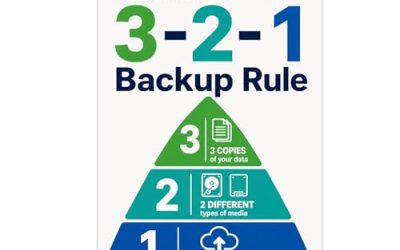
A failing drive is a free lesson in why backups matter. In 2026 a combination of an external drive, a second copy off-site, and an automatic cloud or network backup keeps you from repeating this scramble. Replace the old drive rather than reformatting it and hoping, since a disk that has shown real symptoms rarely gets better.
Immediate Checklist
- Stop using the drive for anything beyond copying files.
- Power off at once if you hear clicking or grinding.
- Copy photos, documents, and financial records first.
- Use a separate, healthy destination with enough free space.
- Avoid repair tools, defragmentation, and reformatting.
- Contact a recovery service if the drive is not detected or keeps clicking.
Related guides
- How To Connect An Old Ide Hard Drive To A Modern Computer
- How To Securely Erase An Old Hard Drive Before Selling
- Hardware Encrypted External Hard Drives
Frequently Asked Questions
How long does a failing hard drive last?
There is no reliable answer. Some drives limp along for months with mild errors, while others die within hours of the first noise. The safe assumption is that you have very little time, so copy important files now.
Do solid-state drives show the same signs?
Not quite. SSDs usually do not click, but they can show freezes, files turning read-only, sudden disappearance from the system, and health warnings. The advice to back up quickly applies equally.
Can free software fix a failing drive?
Software can sometimes repair file system errors, but it cannot repair worn hardware. Use it only after your files are safely copied, and expect to replace the drive anyway.
Is it safe to keep using the drive after copying my files?
It is better not to. A drive that has shown symptoms should be retired from important work. If you keep it, use it only for disposable data and never as your only copy of anything.
More from Amazon
Programs that pair well with the guide above. Offers and eligibility are set by Amazon and may change.
A free business account with business pricing and bulk-buying tools for work, shop or home office.
Create a business accountFree shipping on eligible items, Prime Video and more. Eligible new members can start with a free trial.
Start a Prime free trialAudiobooks and podcasts to listen to on the go. Eligible new members can start with a free trial.
Try Audible freeAd-free music streaming. Eligible new subscribers can start with a free trial.
Try Music Unlimited freeAs an Amazon Associate we earn from qualifying purchases.




Write Your Review
No reviews yet. Be the first to share your experience!