

An NVMe enclosure converts a bare M.2 SSD into a fast external drive. The Sabrent Rocket enclosure and the ORICO M.2 NVMe enclosure are popular choices, UGREEN offers a simple value case, and Plugable and Acasis cover USB4 or Thunderbolt-class needs. Match the enclosure to your SSD type and your computer’s USB port, or you will not get the speed you paid for.
Quick Comparison
| Pick | Best for | Key feature |
|---|---|---|
| Sabrent Rocket NVMe Enclosure | Tool-free, fast everyday use | USB 3.2 Gen 2, aluminum body |
| ORICO M.2 NVMe Enclosure | Budget buyers | Aluminum shell with thermal pad |
| UGREEN M.2 NVMe Enclosure | Simple, compact setups | Small body, USB-C connection |
| Plugable USB-C NVMe Enclosure | Reliable chipset and support | Good compatibility reports, cable included |
| Acasis USB4 NVMe Enclosure | Highest speeds on modern laptops | USB4 or Thunderbolt-class performance |
1. Sabrent Rocket NVMe Enclosure
The Sabrent Rocket NVMe SSD enclosure has a tool-free design, so you can slide in an SSD without a screwdriver. The aluminum body helps draw heat away, which matters on long transfers. It is a solid pick for someone reusing the drive from a laptop upgrade. Its limits are those of the interface: it will not reach the speeds of a top-end internal slot, and some models support only certain SSD lengths. Check the supported sizes before you buy.
2. ORICO M.2 NVMe Enclosure
The ORICO M.2 NVMe SSD enclosure brings a solid aluminum build and a thermal pad at a modest outlay. It is a sensible option for light users who want to turn a spare drive into a backup or transfer device. The trade-off is that the support and documentation are thinner, and quality control stories vary. Buy from a retailer with a good return policy and test the enclosure with a large file copy as soon as it arrives.
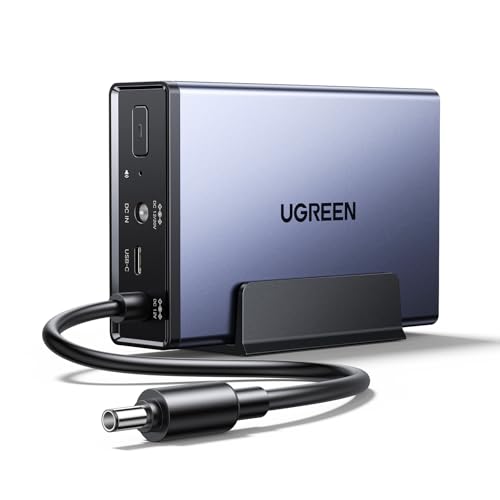
3. UGREEN M.2 NVMe Enclosure
The UGREEN M.2 NVMe SSD enclosure is a compact case that is easy to slip into a pocket. It uses a USB-C connection, comes with a cable, and works with phones and tablets that support external storage. It suits casual users, particularly those moving photos and videos. The drawback is thermal headroom: small enclosures can throttle under sustained load, so very long transfers may slow down. It is more appropriate for everyday copying than for continuous video work.
4. Plugable USB-C NVMe Enclosure
The Plugable USB-C NVMe SSD enclosure is known for compatibility and for the support that comes with the brand. It tends to be a safe pick if you have run into odd disconnects with generic enclosures. It includes the cables you need and works across Windows, Mac and Linux. It costs more than the bargain options and may not hit the very top speeds, but reliability is the selling point here.
5. Acasis USB4 NVMe Enclosure
The Acasis USB4 NVMe SSD enclosure targets owners of modern laptops with USB4 or Thunderbolt-capable ports, offering much higher potential speeds than standard USB 3.2 cases. That makes it attractive for video editors and anyone moving huge files. It needs a fast SSD and a compatible port to make a difference, and these cases generally run hotter and cost more. If your computer has only ordinary USB ports, you will not benefit from paying for it.
NVMe, SATA and Keys
Not every M.2 drive is the same. M.2 is just a shape. Inside, drives may use the NVMe protocol or the older SATA protocol, and the connector notch, called the key, differs between types. Most NVMe drives use M-key, while some SATA M.2 drives use B-key or B+M. An enclosure built for NVMe will not work with a SATA M.2 drive, and vice versa, unless it states dual-protocol support. Check the label on your SSD, then compare it with the compatibility list on the enclosure’s product page. Also check the physical length, since common sizes include 2280 and 2242.
Real-World Speeds and Heat
Spec sheets quote the maximum speed of the interface, but real transfers depend on several things at once: the SSD itself, the controller chip in the enclosure, the cable and your computer’s port. Many NVMe drives are fast for the first few gigabytes and then slow down as their cache fills, particularly when they run hot in a small case. That is why an enclosure with a metal body and a thermal pad is more than a cosmetic upgrade. If you mostly copy documents and photos, you will never notice throttling. If you move very large video files, choose a case with better cooling and keep it out of direct sun and off soft surfaces that trap heat.
A useful habit is to test a new enclosure right away. Copy a large folder, watch the transfer rate over several minutes, and feel the case afterward. Warm is normal. Too hot to touch comfortably is a sign you should look for a better-cooled model or a different SSD. Also keep the drive firmware updated through the maker’s tool when available, since updates can improve stability.
How to Choose
- Protocol support: Confirm NVMe, SATA or both.
- Host speed: Match the enclosure to your port: USB 3.2 Gen 2, USB4 or Thunderbolt. A faster case on a slower port gains nothing.
- Heat control: Metal bodies and thermal pads reduce throttling.
- Size and design: Tool-free cases are convenient. Screws may feel more secure for travel.
- Cables: Look for both USB-C to USB-C and USB-C to USB-A leads in the box.
Who Should Buy What
If you are reusing a spare drive for occasional backups, the ORICO or UGREEN cases do the job at a low cost, and the speed difference to pricier cases will not matter for documents and photos. If you want a dependable daily driver for work files, the Sabrent or Plugable models are the safer choice. If your laptop has USB4 or Thunderbolt and you regularly move big video projects, the Acasis case is the only one here that can take advantage of the extra bandwidth, provided you pair it with a fast SSD. For travel, prefer a case with a metal body and a short cable that will not snag, and keep a spare cable in your bag in case one fails.
Common Mistakes
- Buying an NVMe case for a SATA M.2 drive. The notches and protocols are different.
- Expecting full speed from a slow port. The slowest link sets the pace.
- Ignoring heat. A hot SSD slows itself down to protect the chips.
- Not testing the cable. Cheap cables can limit speed and cause dropouts.
FAQ
Can I use an old laptop SSD in an enclosure?
Yes, if the drive is M.2 and matches the enclosure’s protocol and length. This is a popular way to reuse upgrades.
Will it work with a phone or console?
Many do, but power draw and formatting can be issues. Check the product notes for compatibility.
Do I need a heatsink?
Many enclosures include a thermal pad or metal shell. For heavy, sustained writes, extra cooling is helpful.
Is an enclosure as good as a ready-made portable SSD?
It can be, and it lets you pick the drive. Ready-made drives are simpler and sometimes better tuned.
Conclusion
An NVMe enclosure is an inexpensive way to give a spare SSD a second life. Check the protocol, match the port speed, and prioritize heat dissipation. For most buyers, a well-reviewed USB 3.2 case is the sweet spot.
As an Amazon Associate we earn from qualifying purchases.
More from Amazon
Programs that pair well with the guide above. Offers and eligibility are set by Amazon and may change.
A free business account with business pricing and bulk-buying tools for work, shop or home office.
Create a business accountFree shipping on eligible items, Prime Video and more. Eligible new members can start with a free trial.
Start a Prime free trialAudiobooks and podcasts to listen to on the go. Eligible new members can start with a free trial.
Try Audible freeAd-free music streaming. Eligible new subscribers can start with a free trial.
Try Music Unlimited freeAs an Amazon Associate we earn from qualifying purchases.




Write Your Review
No reviews yet. Be the first to share your experience!