

Key takeaways
- Keeping every copy in the same room. A single event can take them all.
- Syncing instead of backing up. Sync tools copy deletions, so a mistake or ransomware can spread everywhere.
- Leaving the backup drive permanently connected. Malware can encrypt connected drives. Disconnect at least one copy.
- Never checking. A dead drive does not warn you.
- Skipping encryption for offsite copies. If a drive is lost, encryption keeps your files private.
The 3-2-1 rule says keep three copies of your data, on two different types of storage, with one copy stored offsite. At home that can mean your computer, an external drive, and a cloud or offsite drive. It sounds technical, but you can set it up in an afternoon and it protects against failure, theft, fire and ransomware.
Gear That Makes It Easy
| Pick | Best for | Key feature |
|---|---|---|
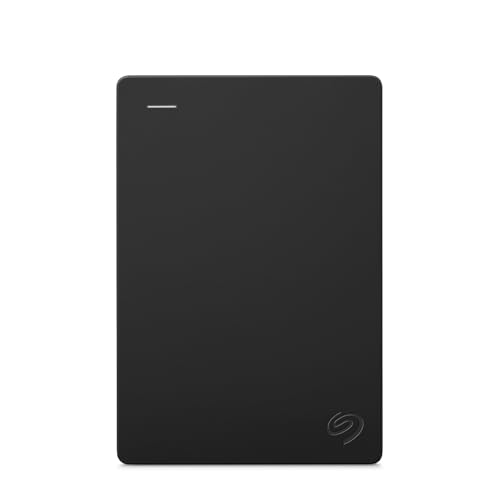
| Seagate Portable External Drive | Your second local copy | Simple plug-in storage |
| Samsung T7 Portable SSD | Fast copies of active projects | Small, quick, no moving parts |
| Synology DiskStation DS223 | Automatic home-wide backups | Network storage with backup apps |
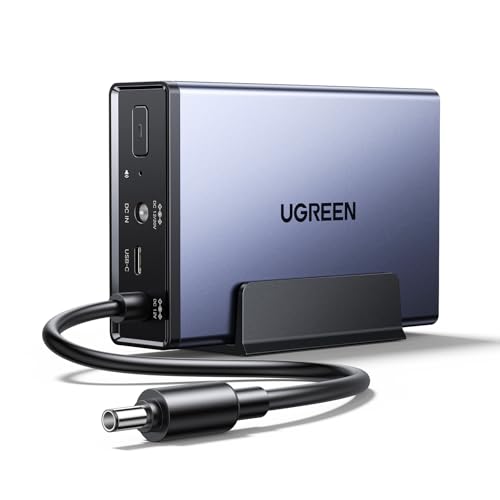
| WD Elements Desktop Drive | Offsite rotation drive | Large capacity at a modest outlay |
| Pelican 1170 Protector Case | Carrying a drive offsite | Hard protective shell |
Step 1: Know What You Are Protecting
Start by listing the files you cannot replace: family photos, tax records, work documents, creative projects, and passwords. Programs and the operating system can be reinstalled, so they matter less. Add up the size of the important folders. That number tells you how much storage each copy needs, and it is usually much smaller than people expect. Be generous and double it to leave room for growth and for older versions.
Step 2: Make the Second Copy Local
Your original data on the computer is copy one. Copy two should live on a separate device in the same home, such as an external drive. A Seagate portable backup drive is a straightforward way to do this. Plug it in, turn on File History on Windows or Time Machine on a Mac, and let it run. If you work with large video or design files and want speed, a Samsung T7 portable SSD finishes backups quicker, although it costs more per terabyte. The key is automation: a backup that depends on you remembering will eventually be skipped.
Step 3: Consider a NAS for Everyone in the House
If several people share computers, a network storage box simplifies everything. A Synology DiskStation DS223 can receive scheduled backups from each computer and phone over the network, so nobody has to plug anything in. It is diskless, so budget for drives. The drawback is complexity and cost compared with a single external drive. A NAS also counts as the same location as your computers, so it does not replace the offsite step.
Step 4: Create the Offsite Copy
This is the step people skip, and it is the one that saves you from a fire, flood or burglary. You have two reasonable choices. One is a cloud backup service, which uploads encrypted copies automatically. The other is a second drive that lives somewhere else, such as a relative’s house or your office desk. A WD Elements desktop drive works well for the rotation method: back up to it every month, then take it away and bring back the older one. Transport it in a hard case such as a Pelican 1170 protector case if it will travel in a car or a bag.
Step 5: Use Two Different Media Types
The “two” in the rule is about avoiding a shared weakness. If every copy sits on the same kind of device from the same batch, a common defect can hit them all. A hard drive plus a cloud service, or a hard drive plus an SSD, counts as two types. This is also why a RAID mirror alone is not a backup: both disks live in one box and share the same power supply, software and location.
Step 6: Test Your Restores
A backup is only real once you have restored from it. Every few months, pick a random folder, restore it to a temporary location and open a few files. Check that photos open, documents are readable and the dates look right. Watch for silent failures such as a backup job that stopped weeks ago because the drive was full. Many backup tools offer email alerts, which are worth enabling.
Common Mistakes
- Keeping every copy in the same room. A single event can take them all.
- Syncing instead of backing up. Sync tools copy deletions, so a mistake or ransomware can spread everywhere.
- Leaving the backup drive permanently connected. Malware can encrypt connected drives. Disconnect at least one copy.
- Never checking. A dead drive does not warn you.
- Skipping encryption for offsite copies. If a drive is lost, encryption keeps your files private.
What Each Threat Looks Like
It helps to picture the failures the rule is designed to survive. A drive failure is the most common: the disk simply stops responding one morning. With a second local copy, you swap the drive and carry on. Theft or a house fire takes everything in the building, including your backup drive sitting beside the computer. That is exactly what the offsite copy is for. Ransomware encrypts every file it can reach, including connected backup drives and mapped network folders. An offline or versioned copy that malware cannot reach is the answer. Finally, human error, such as deleting a folder or overwriting a document, is solved by keeping older versions rather than a single mirror that reflects every change instantly.
Thinking in these terms also helps you decide where to spend money. If your data is mostly family photos, a cloud service plus an external drive may be all you need. If you run a small business with client files, add a NAS with snapshots and a rotation of offsite drives. Match the plan to the value of the data and the time you are willing to put in.
A Simple Schedule
You can keep the routine small. Let the local backup run automatically every night or whenever the drive is connected. Do a monthly offsite swap or confirm that the cloud job has completed. Do a quarterly restore test. Replace drives every few years, before they fail, and label each with its purchase date. Put these four jobs in a calendar and they take under an hour per month.
Budgeting for the Rule
The rule does not require buying everything at once. Begin with the cheapest high-impact step: one external drive and automatic backups. Add a cloud subscription or a rotated offsite drive next, since that closes the biggest gap. A NAS, a second drive and a protective case can follow when your budget allows. Every layer you add makes a total loss less likely, and even a partial version of the rule beats a single copy.
FAQ
Is cloud storage alone enough?
It counts as one offsite copy, but you still want a local copy for fast restores. Cloud-only means a slow, difficult recovery if you lose a large library.
How often should I back up?
Daily automatic backups suit most people. If you create new work constantly, continuous or hourly versions are even better.
Does 3-2-1 apply to phones?
Yes. Enable your phone’s cloud backup and periodically copy photos to your computer or NAS, so you have more than one place.
What about 3-2-1-1-0?
That is an extended version adding one offline or immutable copy and zero errors after testing. It is good practice, and your regular restore tests cover the zero-error part.
Conclusion
The 3-2-1 rule is easy to follow once you break it into steps: back up to a second device, send a copy offsite, and test it occasionally. You do not need expensive gear, only a plan you will actually keep.
As an Amazon Associate we earn from qualifying purchases.
More from Amazon
Programs that pair well with the guide above. Offers and eligibility are set by Amazon and may change.
A free business account with business pricing and bulk-buying tools for work, shop or home office.
Create a business accountFree shipping on eligible items, Prime Video and more. Eligible new members can start with a free trial.
Start a Prime free trialAudiobooks and podcasts to listen to on the go. Eligible new members can start with a free trial.
Try Audible freeAd-free music streaming. Eligible new subscribers can start with a free trial.
Try Music Unlimited freeAs an Amazon Associate we earn from qualifying purchases.




Write Your Review
No reviews yet. Be the first to share your experience!