

Key takeaways
- Learn how to set up a Plex media server on a NAS: install the app, name files for clean metadata, open remote access, and set user accounts safely.
As an Amazon Associate we earn from qualifying purchases.
Every device in the house shows a different mess. One television sees half the collection, a tablet cannot find the new season, and the laptop plays files named FINAL_v3. A media server fixes that by giving the whole household one library, one set of artwork, and one place where playback picks up where it left off. Plex is the most common way to build that library, and it runs well on a network storage box that is already on all day.
This guide is for a household that already owns a NAS and wants Plex running on it. It covers installing the app, organising folders, naming files so metadata matches, opening remote access, and setting up accounts for the people who will watch. It assumes Plex is the choice and does not argue for another system, and it does not argue about which drive belongs where, because that decision belongs to a separate guide. Follow the steps in order and the server will be usable the same evening.
How to Choose
Where the Server Should Run
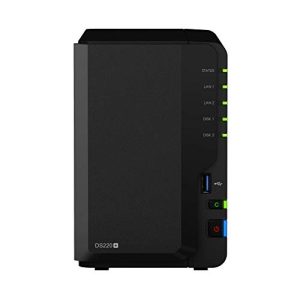
A NAS is the natural home for a media server because it is always on, it already holds the files, and it sips power. Most modern NAS units offer Plex as an installable package, and the install takes minutes from the package centre. A desktop computer works too and is often faster at converting video, but it must stay awake whenever anyone wants to watch, and its fans and power draw add up over a year. A single-board computer is the weakest option: it handles direct playback fine but struggles the moment a file needs converting. Choose the NAS when the goal is a quiet box that serves the household around the clock.
How to Organise Libraries and Folders
Plex matches files to its database by folder and file name, so the folder layout is a decision worth making before a single file is added. Keep films, television, and music in separate folders, and give television one folder per show with one subfolder per season. Mixed folders confuse the matcher: a film sitting inside a television folder will either fail to match or appear under the wrong title, and fixing it later means moving files and rescanning. Use one folder per library type and point each Plex library at one folder. A shared folder that holds both films and home videos belongs in its own library, because Plex treats home videos differently and will not fetch posters for them.
How to Handle Remote Access
Remote access is the difference between a server that works at home and one that works everywhere. Plex offers two paths: a direct connection through a port on the router, or a relay that tunnels through Plex servers when no port is open. The direct path is faster and gives full quality, but it requires opening a port and keeping it open. The relay needs no router changes and works immediately, yet it caps quality and can stutter on a slow upload connection. Decide early which path the household will use, because the choice shapes the router work that follows. A household that only watches at home needs neither path and can skip this part, which is simpler and safer.
How to Plan Transcoding and Playback
Transcoding is the conversion of a file into a format a player can handle, and it is the heaviest load a server faces. A file that plays directly needs almost no effort from the server, while a file that must be converted can use every core the box has. The answer is to keep files in formats the household players already support, so conversion rarely happens. Check which formats the household players accept. Hardware conversion, where the processor has video support, changes everything: a box with it can convert several streams at once, while a box without it may choke on one. Know which kind of box is in use before promising smooth playback.
Step-by-Step
Begin by updating the NAS firmware, then open the package centre and install the Plex Media Server package from the official source. Do not install a copy from an unknown download page, because an unofficial package can be out of date or tampered with. Once installed, open the Plex web page and sign in to a Plex account to claim the server and link players. Name the server for the household.
Next, prepare the folders. Create one folder each for films, television, and music, and move files into them before adding anything to Plex. Name film files with the title followed by the year in brackets, for example Film Title (2024). Name television episodes with the show name, season, and episode number, for example Show Name S01E01. Keep the year on films, since two films often share a title. Place each show in its own folder with one subfolder per season, and leave resolution tags out of file names.
Now create the libraries in Plex. Add one library for films, one for television, and one for music, each pointed at its folder. Let the first scan finish before judging the result, because a large collection can take an hour or more. When the scan is done, walk through the library and look for unmatched items, wrong posters, and duplicate entries. Fix mismatches with the match tool, and rename the file first so the fix lasts.
Then set up remote access if the household needs it. In the Plex settings, open the remote access page and let Plex try to open the port automatically. If that fails, forward the port Plex requests to the NAS address in the router settings, then check the Plex page again until it reports a successful connection. Test remote access from a phone on mobile data, not home Wi-Fi. If the port cannot be opened, leave the relay on and accept lower quality.
After that, tune playback. Open the server settings and set transcoder quality to automatic. Turn on hardware conversion if the NAS supports it, and keep the transcoder temporary folder on the fastest volume. Check the dashboard while a film plays and confirm that it says direct play or direct stream rather than converting, because a direct stream means the server is barely working. If a file keeps converting, look at its format and consider keeping a second copy in a widely supported format for the device that struggles.
Finally, set up the people who will watch. Create a managed user for each member of the household, give each a PIN, and set content limits for children so they only see the libraries meant for them. Share the server with a friend only after deciding which libraries they may see, because sharing the whole server shares everything by default. Ask each person to sign in and confirm they can resume a film where they left off. When everyone can watch from their own device, the setup is done.
Which One Fits Your Situation
You Watch Only at Home
Keep the setup simple and skip remote access entirely. Install Plex on the NAS, build the libraries, and let every device in the house connect over the local network. Nothing needs to leave the house, no port needs opening, and playback quality is limited only by the home network. Use the saved effort to name files properly, because clean metadata is what makes the library pleasant to browse.
You Want to Watch Away From Home
Turn on remote access and test it before the first trip. Forward the port for full quality when the router allows, and fall back to the relay only when the port cannot be opened. Check the home upload speed, because that limits remote playback. Keep a film or two in a widely supported format for weak connections. Set a PIN on every account, so a lost phone cannot open the library.
Several People Watch at Once
Plan for conversion load before promising smooth playback to the whole household. Confirm the NAS has hardware conversion support, and keep files in formats the players accept so most streams play directly. Give each person their own managed user so watch history, resume points, and parental limits stay separate. If two people regularly watch different films at the same time and the box struggles, move the most-watched files into a widely supported format rather than buying a bigger box.
You Share With Family Outside the House
Share deliberately and in small steps. Create a managed user or invite a friend account for each person, and share only the libraries they actually want, such as films and television, not the home video library. Set content limits for children in the other household so they see only age-appropriate titles. Tell each person to test playback from their own home before the first family film night, and ask them to report stuttering rather than suffering through it.
Common Mistakes
- Adding files to Plex before naming them properly, then spending an evening fixing mismatched titles and wrong posters that clean names would have prevented.
- Opening remote access and never testing it from outside the house, so the first trip away reveals that nothing plays.
- Sharing the whole server with a friend by default, including home videos and personal libraries that were never meant to leave the house.
- Ignoring the upload speed of the home connection and blaming Plex when remote playback stutters on a slow line.
- Skipping user accounts and PINs, so one person’s viewing history, resume points, and parental limits are mixed with everyone else’s.
Frequently Asked Questions
Do I need a Plex Pass to run a server at home?
No. The free tier runs a full server, builds libraries, fetches metadata, and streams to devices on the home network. A paid pass adds mobile sync, hardware conversion on some setups, and live television with a tuner. Most households never need those extras, so begin free and add the pass only when a missing feature blocks something the household wants to do.
Why do some films show the wrong poster or title?
The matcher reads the file name, and a name it cannot parse leads to a wrong guess. Rename the file with the exact title and year in brackets, then use the match tool to pick the correct entry. Fixing the file name matters more, because a bad name will mismatch again on the next scan. Clean names are the permanent fix.
Why does playback stutter on one device but not another?
The device that stutters is usually asking the server to convert the file, while the smooth device plays it directly. Check the dashboard during playback to see if the stream is converting. If it is, the file format does not suit that device, so keep a copy in a widely supported format. A file that plays directly on every device is the goal.
Can I watch my library when I am away from home?
Yes, when remote access is set up and working. Open the remote access page in the server settings and confirm it reports a successful connection, then test from a phone on mobile data before leaving. A direct port connection gives full quality, while the relay works without router changes but caps quality. Either way, the home upload speed limits how smooth remote playback feels.
More from Amazon
Programs that pair well with the guide above. Offers and eligibility are set by Amazon and may change.
A free business account with business pricing and bulk-buying tools for work, shop or home office.
Create a business accountFree shipping on eligible items, Prime Video and more. Eligible new members can start with a free trial.
Start a Prime free trialAudiobooks and podcasts to listen to on the go. Eligible new members can start with a free trial.
Try Audible freeAd-free music streaming. Eligible new subscribers can start with a free trial.
Try Music Unlimited freeAs an Amazon Associate we earn from qualifying purchases.
Write Your Review
No reviews yet. Be the first to share your experience!