

Key takeaways
- Learn how to protect your backups from ransomware with the 3-2-1 rule, offline and immutable copies, and restore tests that prove your backups work.
As an Amazon Associate we earn from qualifying purchases.
Ransomware does not only lock the files on your computer. It hunts for your backups too. Modern attacks scan for connected drives, network shares, and cloud folders, then encrypt every copy they can reach. A person who backed up faithfully for years can still open the drive and find the same locked files. The loss is not caused by laziness. It is caused by a backup plan built for a dead hard drive, not for an attacker who wants the safety net gone.
This guide is for home users who keep photos, documents, and work files on one or two computers and want a backup plan that can survive an attack. It covers how to judge whether a backup would hold up, how offline and immutable copies work, and how to check a restore before you need one. No backup method guarantees recovery, and paying a ransom does not guarantee decryption, so the goal is to build layers that make recovery likely.
How to Choose
Judge a Backup by How It Survives an Attack
A backup earns its keep only when it is still usable after the worst day, so judge every copy by one question: could the malware on your computer reach it? A drive that stays plugged in, a folder that syncs automatically, and a network share with your login saved are all within reach. A copy that survives is one the attacker cannot touch from the infected machine, either because it is physically disconnected, because it sits behind different credentials, or because its storage locks files against changes for a set period. Count how many of your copies meet that test. One surviving copy beats three copies that all live on the same exposed path.
Make at Least One Copy Offline
An offline copy is the simplest defense in the whole plan. A hard drive that is plugged in only during a backup and then unplugged and put away cannot be encrypted by malware running later, because the malware has no path to it. The habit matters more than the hardware. Pick a regular schedule, such as once a week or after a big batch of new photos, connect the drive, run the backup, verify it finished, and disconnect it. Keep the drive somewhere separate from the computer, ideally in a different room. The trade-off is real: an offline drive holds a snapshot from its last backup, not every file you changed yesterday, so pair it with a fresher copy elsewhere.
Use Immutability or Versioning Where You Can
Immutability means a file cannot be changed or deleted until a set time passes, and versioning keeps older versions even when the newest one is overwritten. Both blunt the same attack: ransomware that encrypts the latest version still leaves an earlier clean version to restore. Look for these features in the storage you already use, such as object-lock settings on cloud storage, snapshots on a network drive, or version history in a cloud folder. Turn them on with a retention window that fits how fast you would notice an attack, commonly thirty days. Versioning only helps if the attacker cannot reach the settings and switch it off, so protect the account with a strong unique password and two-factor authentication.
Weigh Cloud Storage Against a Local Drive
Cloud storage and local drives protect against different failures, which is why the strongest plans use both. A cloud copy survives a fire, a flood, or a stolen laptop, because it lives far from your house. A local drive restores large amounts of data much faster and works without an internet connection. The cloud has one weakness to check: many sync folders mirror deletions and changes, so an encrypted file can sync upward and replace the good copy unless version history is turned on. A local drive has the opposite weakness: it sits in the same building as the computer it protects. Choose the combination that covers both risks rather than betting everything on one side.
Step-by-Step Protection
Begin by listing everything you cannot afford to lose: family photos, tax records, work documents, email archives, and anything you have no other copy of. Sort the list into two groups, files that change often and files that rarely change, because the two groups need different backup rhythms. Irreplaceable photos and records that never change can be copied to an offline drive once and checked twice a year, while active documents need a copy that updates at least daily.
Next, build the 3-2-1 backbone: three copies of your data, on two different types of media, with one copy offsite. In practice that often means the original files on your computer, a copy on an external drive, and a copy in cloud storage or on a second drive kept at another location. If three copies feel like too much to manage, begin with two copies on different media and add the third within a month. The point is separation: copies that share one failure, such as two folders on the same drive, do not count as two copies.
Then disconnect one copy on purpose. Choose the external drive or the second drive and make it your offline copy. Give it a fixed place to live when it is not backing up, such as a drawer in another room or a shelf at a relative’s house. Write the backup day on a calendar and stick to it. After each backup, open a few files from the drive to confirm they open cleanly, then unplug it before you do anything else. This single habit is what turns an ordinary drive into a ransomware survivor.
After that, harden the accounts that guard your backups. Change the password on your cloud storage and network drive to a long, unique one, and turn on two-factor authentication wherever it is offered. Create a separate account for backup tasks if your system allows it, and do not save its credentials on the everyday computer. Attackers who steal a logged-in session can reach every share that session can reach, so a backup account that only the backup job uses closes that path.
Finally, schedule a restore test and put it on the calendar every three months. Pick a folder at random, restore it to a separate location, and open the files to confirm they are intact. Note anything that failed, such as a missing folder or a file that would not open, and fix the backup before the next test. A restore test is also the moment to check that your offline drive still spins up and that your cloud version history still holds older copies. A backup that has never been proven by a restore is an unproven backup, so treat the check as part of the backup itself, not an optional extra.
Which One Fits Your Situation
For a Family With Years of Photos
Your main risk is losing decades of irreplaceable pictures in one attack, so weight the plan toward offline copies. Keep one external drive that is only connected during a weekly backup, plus a cloud copy with version history turned on. A drive in a drawer cannot be encrypted by an attack that hits on a Tuesday, and a cloud copy with thirty days of versions survives an attack you do not notice for a week.
For Someone Who Works From Home
Your active documents change every day, so a weekly offline copy alone leaves too much recent work exposed. Pair a daily cloud copy with versioning against a weekly offline drive, and make the offline copy the one you trust for a full restore. Set cloud version history to at least thirty days, and keep the backup account separate from your everyday login. After a big project finishes, copy it to the offline drive the same day.
For a Household With One Shared Computer
Shared computers are riskier because every user is a possible entry point for a bad download, so design the plan around that reality. Give the backup job its own account that nobody uses for browsing or email, and keep the offline drive in a place only the household backup keeper handles. Explain the rule to everyone: the backup drive is plugged in only during a backup, and nobody opens attachments from unknown senders on the shared machine.
For a Small Home Office With a Network Drive
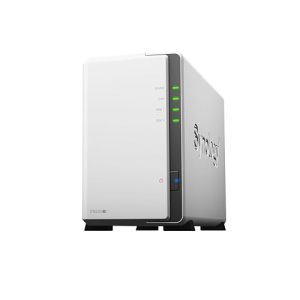
A network drive is convenient, but convenience is the danger: if every computer can write to it, so can the malware on any one of them. Turn on snapshots or versioning so older versions survive an encryption event, and keep one copy separate from the network, such as an external drive attached only during backups or a cloud copy under different credentials. Check a restore from the snapshots, not the live folders, because an unproven snapshot is only a promise.
Common Mistakes
- Keeping the backup drive plugged in all the time, which leaves it within reach of the same attack that encrypts the computer.
- Treating a sync folder as a backup, when syncing can copy encrypted files upward and replace the good versions.
- Running backups only to one place, so a single failure or a single attack takes out the original and the copy together.
- Never testing a restore, then discovering during a real attack that the backup is incomplete, corrupted, or missing the files that mattered most.
- Reusing the same password across the computer, the cloud account, and the network drive, so one stolen login opens every copy at once.
Frequently Asked Questions
Does a backup guarantee I can recover from ransomware?
No. No backup method guarantees recovery from ransomware, because an attack can reach any copy that is connected, encrypt files before you notice, or corrupt the backup job itself. A good plan raises the odds sharply: an offline copy the attacker could not reach, plus versioned copies holding clean older files, gives you realistic paths back. Recovery also depends on restoring from a copy made before the encryption began.
Should I pay the ransom if my backups are encrypted?
Paying a ransom does not guarantee decryption, and it does not guarantee the attackers will leave you alone afterwards. Victims have paid and received broken decryption tools, partial files, or nothing, and payment can mark you for a second demand. Before considering payment, check every copy you have, including version history, snapshots, and drives you set aside, because a clean version often hides where the attack could not reach.
Is a cloud backup enough on its own?
A cloud backup is a strong offsite layer, but alone it has gaps. A sync folder can mirror encrypted files upward, and an attacker with your cloud credentials can delete or encrypt the copies. A cloud copy works best as one layer among three, with version history turned on and two-factor authentication protecting the account. Add an offline drive and the plan covers both a house fire and an attack.
How often should I test my backups?
Check a restore at least every three months, and again after any big change, such as a new computer or drive. A check means restoring real files to a separate location and opening them, not seeing that a backup job reported success. If the check finds missing folders or files that will not open, fix the backup right away. A backup never proven by a restore is an unproven backup.
More from Amazon
Programs that pair well with the guide above. Offers and eligibility are set by Amazon and may change.
A free business account with business pricing and bulk-buying tools for work, shop or home office.
Create a business accountFree shipping on eligible items, Prime Video and more. Eligible new members can start with a free trial.
Start a Prime free trialAudiobooks and podcasts to listen to on the go. Eligible new members can start with a free trial.
Try Audible freeAd-free music streaming. Eligible new subscribers can start with a free trial.
Try Music Unlimited freeAs an Amazon Associate we earn from qualifying purchases.



Write Your Review
No reviews yet. Be the first to share your experience!