

Our Top Picks


Every household eventually faces the same fork in the road: buy a box that sits on a shelf at home, or rent space on somebody else’s servers. A NAS keeps your photos, documents, and media library on drives you own, reachable over your home network and, with the right setup, from anywhere. Cloud backup moves those same files off-site, where a provider guards them against fire, theft, and a dead hard drive. Neither answer is wrong, but they solve different problems, and picking the wrong one means paying twice or discovering the gap only after a loss.
This guide is for families sorting out photo and document backup, home-office workers who need files both at the desk and on the road, and media collectors who have outgrown a stack of external drives. The five products below were chosen from names and specifications on Amazon listings, and each one is labelled with the side it represents, so you can see exactly how the two approaches compare in real hardware.
Quick Picks
As an Amazon Associate we earn from qualifying purchases.
| Product | Best for | Key spec from title |
|---|---|---|
| Synology DS223j | First-time NAS owners who want a simple setup | 2-bay diskless NAS with 1GB DDR4 memory |
| TerraMaster F2-212 | Budget buyers who want flexible drive options | 2-bay NAS supporting up to 44TB of raw storage |
| UGREEN NASync DXP2800 | Power users who want fast networking and apps | Intel N100 CPU with 2.5GbE and 8GB DDR5 RAM |
| WD My Cloud Home 8TB | Households that want cloud access without setup | 8TB personal cloud drive with mobile app access |
| WD My Cloud EX2 Ultra 8TB | Families who want mirrored drives plus cloud backup | 2-bay NAS with 2 x 4TB WD Red drives included |
How to Choose
Where your files physically live
The core difference is location. A NAS stores files on drives inside your home, so a copy exists only where you put it; if the house floods, both the computer and the NAS can go together unless a second copy lives elsewhere. Cloud backup stores files in a provider’s data centre, far from your home, which protects against local disaster but puts your data on hardware you will never see. Ask yourself which loss worries you more: a drive failing on your desk, or a burglary taking every device in the house. Many households end up keeping both, using the NAS for daily access and the cloud for the irreplaceable subset.
Speed when you actually need a file
Restoring from a NAS over a home network usually runs at the speed of your router and drives, so pulling back a whole photo library can finish in an afternoon. Cloud restores depend on your internet download speed, and a slow connection turns a full restore into a multi-day job, especially with large video files. Upload speed matters even more at the start, because the first full backup can take days or weeks on a typical home connection. If you regularly work with large video or photo files, local speed wins; if you mostly back up documents and phone photos, cloud speed is rarely a problem.
Ongoing cost versus one-time cost
A NAS asks for money up front: the enclosure plus drives, and later a replacement drive when one wears out. After that, there is no monthly bill for the storage itself, which makes a NAS cheaper over several years for large libraries. Cloud backup charges a recurring fee that never stops, and the bill grows as your library grows, so a decade of cloud storage can cost several times the price of a NAS. On the other hand, a cloud plan needs no hardware purchase and no maintenance, which suits people who would rather pay a little each month than buy and manage a box.
Privacy, control, and who holds the keys
With a NAS, your files stay on your own drives behind your own router, and you decide who gets an account, which folders sync, and when the box updates. Cloud backup means trusting a provider’s encryption, terms of service, and account security; a breached password or a service shutdown can lock you out of your own files. Some cloud services encrypt files before upload, which helps, but you still depend on their servers being online. Households with sensitive documents, work files, or children’s photos often prefer the control of a NAS, while casual users accept a provider’s safeguards in exchange for convenience.
The 5 Best Options
Synology DS223j
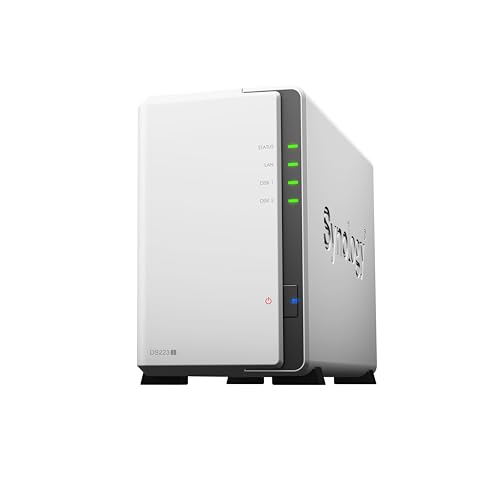
Side: NAS. The DS223j is the gentlest entry point into the NAS side of this comparison, built for a household that wants its files in one place without learning server administration. It runs Synology’s DSM software, which turns the two drive bays into shared folders, automatic phone photo backup, and a private media library that streams to the television. Setup is guided, the interface feels like a normal app, and it quietly handles the daily backup jobs that most families never think about until a phone is lost.
Specs
- 2-bay diskless NAS enclosure for 3.5-inch SATA drives
- Realtek RTD1619B quad-core processor running at 1.7GHz
- 1GB DDR4 memory
- 1 x Gigabit Ethernet port
- 2 x USB 3.2 Gen 1 ports
- Runs Synology DiskStation Manager (DSM) software
- Supports RAID 0, RAID 1, JBOD, and Basic drive configurations
Best for: A first household NAS for shared folders, phone photo backup, and media streaming.
Watch out for: Drives are sold separately, so check that the drives you buy are on Synology’s compatibility list before ordering.
TerraMaster F2-212
Side: NAS. The F2-212 is the budget-minded NAS in this lineup, aimed at buyers who want to choose their own drives and grow storage over time rather than pay for a pre-filled box. Its two bays accept large modern drives, and the TRAID flexible array tool lets a household start with one drive and add a second later without rebuilding everything from scratch. It also syncs two ways with public cloud services, so a family can keep a local copy on the NAS and a second copy in the cloud, which is the closest thing to having both sides of this debate at once.
Specs
- 2-bay diskless NAS enclosure for 3.5-inch SATA hard drives
- Realtek RTD1619B quad-core Cortex-A55 processor
- 1GB DDR4 memory
- Supports up to 44TB of raw storage (2 x 22TB drives)
- 1 x Gigabit Ethernet port
- Runs TerraMaster TOS 5.1 operating system
- Supports TRAID flexible array, BTRFS file system, and snapshots
- Two-way sync with Google Drive, Amazon S3, Dropbox, and OneDrive
Best for: Buyers who want a low-cost NAS they can expand later and sync with a public cloud.
Watch out for: The software is less polished than the big-name NAS brands, so expect a steeper learning curve on first setup.
UGREEN NASync DXP2800
Side: NAS. The DXP2800 is the performance pick on the NAS side, for households where several people stream, back up, and work from the same box at once. Its Intel N100 processor and 8GB of DDR5 memory handle more simultaneous tasks than the entry-level models here, and the 2.5GbE network port moves large files noticeably faster when the home router supports it. Two M.2 NVMe slots add fast cache or extra storage, and the 4K HDMI output lets the box double as a media player connected straight to a television.
Specs
- 2-bay diskless desktop NAS enclosure
- Intel N100 quad-core processor
- 8GB DDR5 memory
- 2.5GbE Ethernet port
- 2 x M.2 NVMe slots
- 4K HDMI output
- Runs UGREEN UGOS operating system
- Private cloud storage with automatic backup for phones and PCs
Best for: Households that need faster transfers, several users at once, and a NAS that also plays media.
Watch out for: Drives are sold separately, and the 2.5GbE speed only shows up with a compatible router or switch.
WD My Cloud Home 8TB
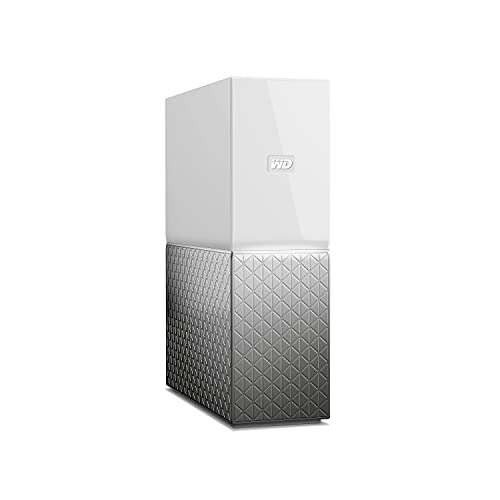
Side: Cloud. The My Cloud Home is the cloud side of this comparison in hardware form, because pure cloud backup subscriptions are not sold as Amazon products, so this device is how the cloud approach shows up on Amazon. It plugs into the home router and gives every phone and computer in the house a personal cloud: files upload automatically, and everyone reaches them through a mobile app from anywhere. There is no RAID and no drive to choose, which is the point — it trades the control of a real NAS for the simplicity of a service, with the drive itself sitting at home.
Specs
- 8TB single-drive personal cloud storage device
- Plugs directly into a home Wi-Fi router via Ethernet
- Gigabit Ethernet connectivity
- USB 3.0 port for attaching extra external storage
- Automatic backup from phones, tablets, and computers
- Mobile and desktop apps for remote access from anywhere
- Central place for photos, videos, and files from all household devices
Best for: Families who want cloud-style access to their files without configuring a NAS or paying a monthly subscription.
Watch out for: A single drive means no mirrored copy, so a drive failure can still mean data loss without a second backup.
WD My Cloud EX2 Ultra 8TB

Side: Cloud. The EX2 Ultra sits on the cloud side because its strongest feature is how it connects local storage to off-site backup services. It arrives with two 4TB WD Red drives already installed and mirrored, so one drive can fail without losing the family archive, and its My Cloud OS includes built-in backup to Amazon S3 and ElephantDrive, which puts a copy of the household’s files in the cloud automatically. For a family that wants the safety of mirrored local drives and the disaster protection of the cloud in a single box, this is the most complete answer here.
Specs
- 2-bay NAS with 2 x 4TB WD Red drives pre-installed (8TB total)
- Marvell ARMADA 385 dual-core processor running at 1.3GHz
- 1GB DDR3 memory
- 2 x 3.5-inch hot-swap drive bays
- Gigabit Ethernet port
- Runs My Cloud OS
- Supports RAID 0, RAID 1, and JBOD
- Built-in cloud backup to Amazon S3 and ElephantDrive
Best for: Families who want mirrored drives at home plus automatic cloud backup in one device.
Watch out for: The processor is older and slower than the newer NAS models here, so large restores and heavy multitasking take longer.
Which One Fits Your Situation
You want the simplest possible setup
Pick the WD My Cloud Home 8TB. It plugs into the router, the app finds it, and the household’s phones start backing up with almost no decisions to make. There is no RAID to configure, no drive to buy, and no monthly bill, which makes it the easiest first step for a family that has never owned network storage. Accept that it is a single drive, and keep a second copy of the truly irreplaceable photos somewhere else.
You want full control and no monthly bill
Pick the Synology DS223j or the TerraMaster F2-212. The Synology suits buyers who value polished software and guided setup, while the TerraMaster suits buyers who want to spend less and add drives later. Both keep every file on your own hardware, both cost nothing per month once bought, and both can sync a copy to a public cloud later if disaster protection becomes a priority.
You have a big media library and several users
Pick the UGREEN NASync DXP2800. Its faster processor, larger memory, and 2.5GbE port handle several streams and backups at once without slowing down, and the M.2 slots give it room to grow. Pair it with a cloud backup plan for the files you cannot afford to lose, since even a fast NAS is still a single point of failure sitting in one room.
You want local mirroring and off-site backup together
Pick the WD My Cloud EX2 Ultra 8TB. It is the only option here that arrives with mirrored drives and built-in cloud backup in the same box, so a failed drive and a house fire are both covered. It is slower than the newer models, but for a family archive that mostly needs to be safe rather than fast, that trade is usually worth making.
Common Mistakes
- Buying a NAS and treating it as a backup on its own, when a single box in one house is still one point of failure.
- Choosing cloud backup without checking upload speed, then abandoning the first backup halfway because it takes weeks.
- Picking a single-drive device for irreplaceable files and never making a second copy anywhere.
- Ignoring RAID and drive health, so a second drive fails during the rebuild after the first one dies.
- Forgetting that a cloud account needs strong passwords and two-factor authentication, since a breached account exposes every backed-up file.
Frequently Asked Questions
Is a NAS safer than cloud backup?
Neither is safer on its own. A NAS protects against drive failure and keeps files under your control, but a fire or burglary can take the whole box. Cloud backup protects against local disaster, but depends on the provider’s security and your account staying in good standing. The safest home setup pairs the two: a NAS for daily access and a cloud copy of the files you cannot replace.
Do I need to buy hard drives separately for a NAS?
It depends on the model. Diskless enclosures such as the Synology DS223j, TerraMaster F2-212, and UGREEN DXP2800 ship without drives, so you buy them separately and choose the capacity yourself. Pre-populated models such as the WD My Cloud Home 8TB and the WD My Cloud EX2 Ultra 8TB arrive with drives already installed, which costs more up front but removes the guesswork.
How long does the first cloud backup take?
The first backup is almost always the slowest part of cloud backup, because every file has to travel up your internet connection. A photo library of a few hundred gigabytes can take several days on a typical home upload speed, and a multi-terabyte media collection can take weeks. Let the first backup run in the background, and afterwards only changed files upload, which is usually quick.
Can a NAS back up to the cloud too?
Yes, most modern NAS systems can. The TerraMaster F2-212 syncs two ways with services such as Google Drive, Dropbox, and Amazon S3, and the WD My Cloud EX2 Ultra has built-in backup to Amazon S3 and ElephantDrive. This hybrid approach is popular because the NAS gives fast local access while the cloud copy guards against fire, theft, and flood at home.
More from Amazon
Programs that pair well with the guide above. Offers and eligibility are set by Amazon and may change.
A free business account with business pricing and bulk-buying tools for work, shop or home office.
Create a business accountFree shipping on eligible items, Prime Video and more. Eligible new members can start with a free trial.
Start a Prime free trialAudiobooks and podcasts to listen to on the go. Eligible new members can start with a free trial.
Try Audible freeAd-free music streaming. Eligible new subscribers can start with a free trial.
Try Music Unlimited freeAs an Amazon Associate we earn from qualifying purchases.
Write Your Review
No reviews yet. Be the first to share your experience!