

Our Short List of 3
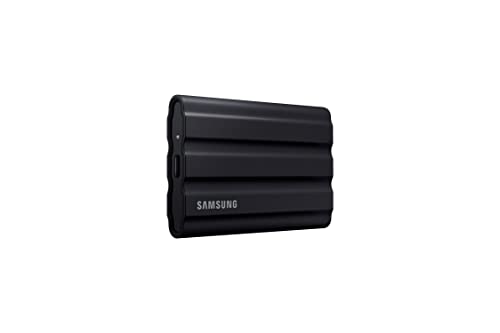
- Best for: Everyday backups and file transfers on any Linux laptop.
- Capacity: 1 TB
- Read speed: up to 1,050 MB/s
- Interface: USB 3.2 Gen 2
- Rating: IP65 water and dust resistant
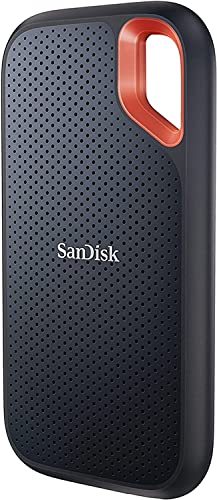
- Best for: Travel, field work, and carrying a fast drive in a pocket.
- Capacity: 1 TB
- Read speed: up to 1,050 MB/s
- Write speed: up to 1,000 MB/s
- Interface: USB-C, USB 3.2 Gen 2

- Best for: Carrying sensitive files with hardware password protection.
- Capacity: 1 TB
- Read speed: up to 1,050 MB/s
- Write speed: up to 1,000 MB/s
- Interface: USB 3.2 Gen 2, USB-C
All 4 Picks at a Glance
| Product | Specs | Action |
|---|---|---|
| Samsung T7 Shield 1TB |
| Check price on Amazon |
| SanDisk Extreme Portable SSD 1TB |
| Check price on Amazon |
| WD My Passport SSD 1TB |
| Check price on Amazon |
 Samsung T9 1TB |
| Check price on Amazon |
Key takeaways
- Compare the best external SSDs for Linux, from the rugged Samsung T7 Shield to the fast T9, with TRIM, formats, ports and USB speeds explained.
Buying an external SSD for a Linux machine looks simple until the details show up. No drive on this list is sold as Linux certified, and none of the five makers prints a Linux support claim on its Amazon listing. Every drive here works through USB mass storage, so it mounts and reads on any modern distribution, but the differences that matter are the ones the box rarely explains: whether TRIM reaches the drive over USB, whether your port can feed the headline speed, which format the drive ships with, and what happens to the encryption software that only runs on Windows and Mac.
This guide is for Linux desktop and laptop users who need fast portable storage for backups, large file transfers, photo and video work, and carrying a system image between machines. The five drives below were chosen from the names and specifications printed on their Amazon listings, with the Linux-specific checks — TRIM, USB generation, format, and software — spelled out for each one.
Quick Picks
As an Amazon Associate we earn from qualifying purchases.
| Product | Best for | Key spec from title |
|---|---|---|
| Samsung T7 Shield 1TB | Everyday backups on any Linux laptop | Up to 1,050 MB/s, IP65 |
| SanDisk Extreme Portable SSD 1TB | A pocket drive for travel and field work | Up to 1,050 MB/s read, IP65 |
| Crucial X9 Pro 1TB | A plain, fast drive for daily transfers | Up to 1,050 MB/s read and write |
| WD My Passport SSD 1TB | Hardware password protection | Up to 1,050 MB/s, AES 256-bit encryption |
| Samsung T9 1TB | The fastest transfers on a Gen 2×2 port | Up to 2,000 MB/s, USB 3.2 Gen 2×2 |
How to Choose
TRIM Keeps the Drive Fast Over Time
TRIM tells an SSD which blocks are free so it can clear them in advance, and a drive without working TRIM writes more slowly as it fills up. Over USB, TRIM only works when the drive, the bridge chip, and the kernel agree, so it is not automatic on Linux the way it is on an internal drive. Samsung lists the T7 and T9 families and SanDisk lists its Extreme Portable drives as TRIM-capable, while the Crucial X9 Pro and the WD My Passport SSD print no TRIM claim. Check any drive with lsblk --discard, and run fstrim -v on the mount point to confirm the discard path works before trusting the drive with a year of writes.
Match the Drive to Your USB Port
A 5 Gbps port caps any drive near 500 MB/s, a 10 Gbps port caps it near 1,000 MB/s, and only a USB 3.2 Gen 2×2 port at 20 Gbps can feed a 2,000 MB/s drive. Most Linux laptops top out at 10 Gbps, which makes the 1,050 MB/s drives the practical ceiling, while the Samsung T9 only earns its headline speed on a Gen 2×2 port that few machines have. Check the port before the drive, and the cable counts too: a USB-C to USB-A cable still runs at Gen 2 speed, while a cheap cable on a Gen 2×2 port can quietly drop the link to half speed.
Pick the Format Before You Copy Anything
Almost every portable SSD ships formatted exFAT, which Linux reads and writes out of the box and which Windows and Mac machines read too, so it is the right default when the drive moves between systems. NTFS also reads and writes on Linux, but file permissions do not carry the way they do on ext4, so a drive full of scripts and executables can lose its permission bits on the trip. Ext4 is the native Linux choice and the best pick for a Linux-only backup drive, but switching to it means reformatting, and reformatting erases everything on the drive, so copy the files off first and confirm the copy opens before wiping the original.
Encryption and Software Work Differently on Linux
The backup and encryption tools bundled with these drives run on Windows and Mac only, and installing them on Linux is not an option. That matters twice: the WD My Passport SSD and the Samsung drives offer a hardware password that must be set through the maker’s Windows or Mac software, and a password set on Windows keeps the drive locked on Linux until it is unlocked on a Windows or Mac machine. Linux users should plan around native tools instead, using rsync for file copies, Timeshift or Deja Dup for system and home backups, BorgBackup for encrypted deduplicated archives, and LUKS for full-disk encryption that Linux itself manages and unlocks.
The 5 Best Options
Samsung T7 Shield 1TB
- Best for: Everyday backups and file transfers on any Linux laptop.
- Capacity: 1 TB
- Read speed: up to 1,050 MB/s
- Interface: USB 3.2 Gen 2
- Rating: IP65 water and dust resistant
Everyday backups and file transfers on any Linux laptop.
This ASIN covers the black 1 TB model only; blue and beige sit under separate listings, so confirm the colour and capacity before ordering.
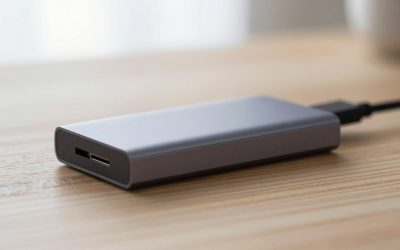
The T7 Shield is the safest everyday pick for a Linux user who wants a drive that simply works and keeps working. It connects over USB 3.2 Gen 2, so it hits its rated speed on the 10 Gbps ports most Linux laptops actually have, and its rugged rubberised body and IP65 rating mean rain, dust, and a knock off a desk are not emergencies. Samsung lists the T7 family as TRIM-capable, which is the single most important Linux check in this guide, and the drive mounts on any modern distribution with no driver and no setup beyond formatting it the way you want it.
SanDisk Extreme Portable SSD 1TB
- Best for: Travel, field work, and carrying a fast drive in a pocket.
- Capacity: 1 TB
- Read speed: up to 1,050 MB/s
- Write speed: up to 1,000 MB/s
- Interface: USB-C, USB 3.2 Gen 2
Travel, field work, and carrying a fast drive in a pocket.
Some listing copies label this the old model; confirm the exact model number and a current seller, since a newer generation sits under different listings.
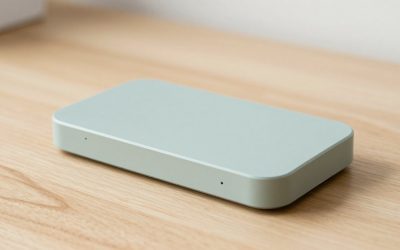
The SanDisk Extreme is the lightest drive here at 1.76 ounces, and its small flat shape slips into a jacket pocket or a camera bag. It reads up to 1,050 MB/s and writes up to 1,000 MB/s over USB-C, carries an IP65 rating against water and dust, and SanDisk lists its Extreme Portable drives as TRIM-capable, so it holds its speed on Linux the way the T7 Shield does. The listing record for this model is older than the others, and some copies of the listing label it the old model, so confirm the listing shows model SDSSDE61-1T00-G25 and a current seller before buying.
Crucial X9 Pro 1TB
The X9 Pro is the plainest drive, and that is its appeal: a 1 TB SSD that reads and writes at up to 1,050 MB/s over USB-C, with no software to install and nothing to configure. It is the right pick for a Linux user who moves files between machines and wants the drive to behave like a fast folder rather than a project. The gap is TRIM, because the X9 Pro listing prints no TRIM claim, so a buyer who fills and refills the drive for months should check the discard path with lsblk --discard and run fstrim -v rather than assuming it keeps its speed.
Specs
- Capacity: 1 TB
- Read speed: up to 1,050 MB/s
- Write speed: up to 1,050 MB/s
- Interface: USB 3.2, USB-C
- Model number: CT1000X9PROSSD902
Best for: Daily file transfers between Linux machines with no setup fuss.
Watch out for: The listing prints no TRIM claim, so verify the discard path yourself; also confirm the exact model number, since the X9 Pro for Mac sits under a different listing.
ASIN: B0C9WKGXHD
WD My Passport SSD 1TB
- Best for: Carrying sensitive files with hardware password protection.
- Capacity: 1 TB
- Read speed: up to 1,050 MB/s
- Write speed: up to 1,000 MB/s
- Interface: USB 3.2 Gen 2, USB-C
Carrying sensitive files with hardware password protection.
This ASIN covers the gold 1 TB model only, and the listing prints no TRIM claim, so check the discard path and confirm the colour and capacity before ordering.
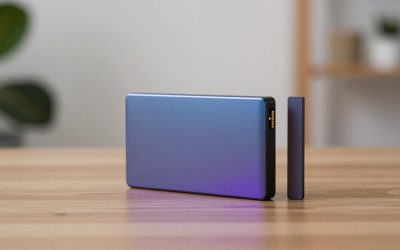
The My Passport SSD is the pick for a Linux user who wants drive-level security, because it offers password protection with 256-bit AES hardware encryption built in. It reads up to 1,050 MB/s and writes up to 1,000 MB/s over USB 3.2 Gen 2, and it is drop resistant up to 2 metres, so it survives a knock in a bag. The catch: the password must be set through WD software for Windows and Mac only, and a password set on Windows keeps the drive locked on Linux until unlocked on a Windows or Mac machine, so set it first.
Samsung T9 1TB
- Best for: Large daily transfers on a Linux machine with a Gen 2×2 port.
- Capacity: 1 TB
- Read speed: up to 2,000 MB/s
- Write speed: up to 2,000 MB/s
- Interface: USB 3.2 Gen 2×2
Large daily transfers on a Linux machine with a Gen 2×2 port.
The headline speed needs a 20 Gbps Gen 2×2 port and cable; on a 10 Gbps port this drive runs no faster than the 1,050 MB/s picks.
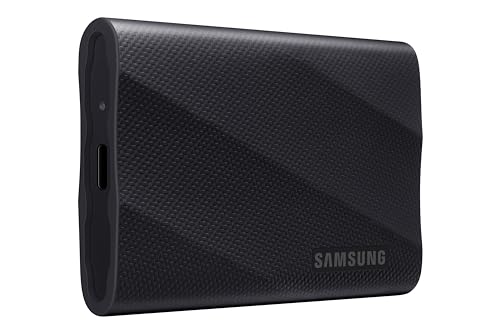
The T9 is the fastest drive here, reading and writing at up to 2,000 MB/s, and it is the right pick for a Linux user who moves large files and owns a machine with a USB 3.2 Gen 2×2 port to feed it. It carries AES 256-bit hardware encryption, Dynamic Thermal Guard, and drop resistance up to 9.8 feet, and Samsung lists the T9 family as TRIM-capable. The warning: on a 10 Gbps connection the T9 runs near 1,000 MB/s like the rest, so buying it for a laptop without a Gen 2×2 port pays for speed the machine cannot use.
Which One Fits Your Situation
You Want One Drive for Everyday Backups
Pick the Samsung T7 Shield, because it is the most forgiving drive in this guide for ordinary Linux use. Its 1,050 MB/s speed matches the 10 Gbps ports most laptops have, its IP65 rating covers rain and dust, and Samsung lists the T7 family as TRIM-capable, so it keeps its speed over months of backups without extra attention from you.
You Edit Video or Move Big Files Daily
Pick the Samsung T9, but only if your machine has a USB 3.2 Gen 2×2 port, because that port is the only way to reach its 2,000 MB/s headline speed. On a Gen 2×2 machine it halves the wait on multi-gigabyte video files and disk images, while on a 10 Gbps machine it offers nothing over the cheaper 1,050 MB/s drives.
You Carry the Drive Everywhere
Pick the SanDisk Extreme Portable SSD, because at 1.76 ounces it is the lightest drive here and its flat shape fits a pocket, a camera bag, or a laptop sleeve without bulk. Its IP65 rating and TRIM support mean it survives travel and keeps its speed, though you should confirm the listing shows model SDSSDE61-1T00-G25 before ordering.
You Need a Hardware Password on the Drive
Pick the WD My Passport SSD, because its 256-bit AES hardware encryption protects the files even if the drive is lost, and no software needs to run on Linux to keep that protection in place. Set the password on a Windows or Mac machine first, since the WD software does not run on Linux, and remember that a forgotten password locks the drive for good.
Common Mistakes
- Buying a Gen 2×2 drive like the T9 for a 10 Gbps laptop and expecting 2,000 MB/s, when the port caps every drive near 1,000 MB/s.
- Reformatting a new drive to ext4 before copying the files off it, which erases everything the drive shipped with.
- Assuming the bundled backup or encryption software runs on Linux, when it is Windows and Mac only.
- Setting a hardware password on Windows and then moving the drive to a Linux-only machine without a way to unlock it.
- Never checking TRIM with
lsblk --discardorfstrim -v, then wondering why write speeds fall after a year of heavy use.
Frequently Asked Questions
Do external SSDs work on Linux without extra drivers?
Yes, every drive in this guide works on Linux through USB mass storage, and no extra driver is needed on any modern distribution. The drive mounts like any USB device, and exFAT works out of the box for sharing files with Windows and Mac machines, while ext4 is the native Linux choice for a Linux-only backup drive.
Does TRIM work on an external SSD over USB on Linux?
It depends on the drive and the USB bridge, because TRIM over USB needs UASP support and a bridge chip that passes the discard command through. Samsung lists the T7 and T9 families and SanDisk lists its Extreme Portable drives as TRIM-capable, while the Crucial X9 Pro and WD My Passport SSD print no TRIM claim. Check with lsblk --discard and run fstrim -v on the mount point.
Which format should I use for an external SSD on Linux?
Use exFAT when the drive moves between Linux, Windows, and Mac machines, since all three read and write it without extra software. Use ext4 when the drive stays on Linux only, because it keeps file permissions intact for scripts, executables, and backups. Use NTFS only when Windows compatibility matters and permissions do not, since NTFS permissions do not carry like ext4.
Can I use a drive’s password protection on Linux?
A hardware password set through the maker’s Windows or Mac software stays active on Linux, and the drive stays locked until it is unlocked on a Windows or Mac machine. That makes the WD My Passport SSD and the Samsung drives usable for protected storage on Linux, but the password must be set before the drive moves to Linux-only use. For Linux-native encryption, LUKS is the better choice.
More from Amazon
Programs that pair well with the guide above. Offers and eligibility are set by Amazon and may change.
A free business account with business pricing and bulk-buying tools for work, shop or home office.
Create a business accountFree shipping on eligible items, Prime Video and more. Eligible new members can start with a free trial.
Start a Prime free trialAudiobooks and podcasts to listen to on the go. Eligible new members can start with a free trial.
Try Audible freeAd-free music streaming. Eligible new subscribers can start with a free trial.
Try Music Unlimited freeAs an Amazon Associate we earn from qualifying purchases.
Write Your Review
No reviews yet. Be the first to share your experience!