

Key takeaways
- Compare the best hard drive docking stations by bay count, USB interface, offline cloning and drive size support for SATA HDDs and SSDs.
The SABRENT EC-HD2B dual-bay dock is the best overall hard drive docking station in this group: it takes 2.5-inch and 3.5-inch SATA drives, runs over USB 3.0, supports UASP, and clones one drive to another without a computer. It suits anyone who regularly swaps bare drives for backup, recovery or migration. A hard drive docking station is a powered cradle that lets you slot a bare SATA drive in and out like a cartridge, with no screws, no case and no internal install. If you only ever need one drive at a time, the single-bay SABRENT EC-DFLT is the simpler pick.
Quick List
- SABRENT EC-HD2B – best overall dual-bay dock with offline cloning over USB 3.0
- SABRENT EC-DFLT – best for quick, one-drive-at-a-time access on a budget-minded desk
- SABRENT DS-U3B4 (4-bay) – best for batches of drives and multi-drive cloning sessions
- FIDECO Dual Bay Dock – best for an alternative dual-bay dock with offline clone support
- SABRENT EC-CH2B – best for USB-C laptops that need a dual-bay dock and cloner
- WAVLINK Dual Bay Dock – best for fixed-bezel drive guides with offline duplication
Which One Is Right for You?
| If you… | Choose |
|---|---|
| have a modern laptop with only USB-C ports and want a dual-bay dock with cloning | SABRENT EC-CH2B |
| work on two drives at once and want a proven USB-A dock with cloning | SABRENT EC-HD2B |
| handle many drives in a session and want four slots on a single desk footprint | SABRENT DS-U3B4 |
| just need to read or copy one drive occasionally | SABRENT EC-DFLT |
| prefer a different brand of dual-bay dock with a clone button | FIDECO Dual Bay Dock |
| like drive bays with a fixed bezel guide that holds both 2.5-inch and 3.5-inch drives steady | WAVLINK Dual Bay Dock |
The choice mostly comes down to bay count and connector. One bay is enough for casual use, two bays unlock cloning, and four bays make sense only if you process drives in batches. Match the cable to your computer, because most of these docks use a USB 3.0 Type-B or Type-A connection that needs an adapter on USB-C-only machines, apart from the EC-CH2B, which is built for USB-C.
All 6 Picks in Detail
1. SABRENT EC-HD2B – Best Overall Dual-Bay Dock with Offline Cloning
As an Amazon Associate we earn from qualifying purchases at no extra cost to you.

The EC-HD2B is a two-bay USB 3.0 dock and cloner that takes both 2.5-inch and 3.5-inch SATA HDDs and SSDs. It suits home users, technicians and photographers who want to read two drives at once or duplicate a drive without involving the computer. Sabrent lists support for 20TB-plus drives, while some retailers cite a lower figure, so confirm for very large disks.
- Two bays for 2.5-inch and 3.5-inch SATA drives, top-loading
- USB 3.0 interface rated at 5Gbps, with UASP support
- Offline sector-by-sector clone function, with the source in bay A and target in bay B
- Clone speed is commonly quoted at about 60MB/s
- No RAID function
Cloning works only while the dock is disconnected from the computer, and the target must be the same size or larger than the source. It also copies sector by sector, so a failing source drive can stall the process. Because the connection is USB 3.0, it fills a common need without extra cost.
In practice, this is the dock you reach for when a friend hands you two old drives and a request to move everything onto a new one. Slot the old drive into one bay, the new one into the other, and either copy through the operating system or use the standalone clone button. Because it has been on the market for years, it is also the model most guides, forums and troubleshooting threads refer to, which helps if something behaves oddly. Keep the power adapter connected before the USB cable, and eject volumes properly before pulling a drive.
Pros
- Cloning with no computer involved
- Works with both drive sizes and with HDDs and SSDs
Cons
- Clone speed is capped well below the USB link speed
- USB-B port may need an adapter for USB-C laptops
Next to the EC-CH2B, it offers the same core idea but uses a legacy connector instead of USB-C.
2. SABRENT EC-DFLT – Best for Simple One-Drive Access

This is a single-bay, lay-flat dock for people who occasionally need to read a bare drive. It suits someone retrieving files from an old internal disk or checking a drive before reuse. The listing states plainly that it supports SATA HDDs and SSDs only: it is not USB-C and it does not take M.2 NVMe drives.
- One bay for 2.5-inch and 3.5-inch SATA drives, lay-flat design
- USB 3.0 interface at 5Gbps with UASP support
- Does not do cloning, since it has a single bay
- 3.5-inch drives need the included external power adapter
- Maximum capacity varies by source; confirm on the listing
Daily use is as uncomplicated as it gets. You place the drive flat, connect the power adapter if it is a 3.5-inch disk, plug in the USB cable and wait for the volume to appear. There is no clone button or mode switch to confuse anyone sharing the toolbox. That simplicity is also the limit: if you later decide you want to image drives or work on two at once, you will outgrow it. For recovery of files from an old PC disk, though, it does the job with very little fuss.
Pros
- Simple to use with no buttons or modes
- Small footprint on a desk or toolbox
Cons
- Cannot clone or read two drives at once
- Not suited to NVMe or IDE drives
Compared with the EC-HD2B, you give up the second bay and cloning in exchange for simplicity. The lay-flat style makes it quicker to use than a vertical dock for single transfers, but the bare drive sits exposed on the desk, so handle it gently and keep it off metal surfaces.
3. SABRENT DS-U3B4 4-Bay – Best for Batches of Drives
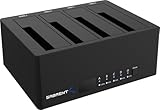
The DS-U3B4 is a four-bay trayless dock with offline cloning. It suits technicians, IT staff and archivists who process several drives in one sitting. According to the listing it accepts 2.5-inch and 3.5-inch SATA HDDs and SSDs and connects over USB 3.0 at 5Gbps.
- Four trayless bays for 2.5-inch and 3.5-inch SATA drives
- USB 3.0 at 5Gbps
- Offline clone function; confirm the exact clone modes on the listing
- Trayless design means you drop drives straight into slots
- Per-bay capacity limits are not stated in the listing name; confirm on the page
Four bays on one USB 3.0 connection mean the drives share bandwidth, so reading all four at once will be slower per drive. The value here is organization: you can stage source and destination drives and move through a queue without unplugging cables.
A four-bay dock changes how you organize the work. Instead of swapping one drive at a time, you can load a source drive and several targets, then move through the jobs without touching cables. Trayless slots are fast to load but expose the drive connectors to repeated insertions, so insert drives straight and gently. Since the dock connects over a single USB 3.0 link, the best use is staged cloning and spot checks rather than copying from all four bays simultaneously.
Pros
- Four drives mounted at once
- Offline cloning for routine duplication jobs
Cons
- Larger and heavier than dual-bay docks
- Shared USB bandwidth across all four bays
It is the batch-processing alternative to the EC-HD2B, which handles two drives at a time and takes less space.
4. FIDECO Dual Bay Dock – Best Alternative Dual-Bay Dock

FIDECO makes several dual-bay docks, and this listing is for a USB 3.0 model that supports 2.5-inch and 3.5-inch SATA HDDs and SSDs. It suits users who want the dual-bay-plus-clone formula from a different brand. Maker pages for FIDECO docks generally describe offline cloning as holding the clone button for about five seconds until the LED flashes.
- Two bays for 2.5-inch and 3.5-inch SATA drives
- USB 3.0 interface at 5Gbps
- Offline clone support, with slot 1 as source and slot 2 as target on FIDECO docks
- Power adapter required for operation
- Capacity limit differs between FIDECO models and listings; confirm on the page
Using this dock follows the familiar dual-bay pattern: drive in slot one is the source, drive in slot two is the target, then you press and hold the clone button until the lights respond. That is the procedure FIDECO describes across its dual-bay range, but model details differ, so read the manual that ships with this exact unit. It is a reasonable fit for users who are comparing brands and care more about availability and fit than about the particular logo on the front.
Pros
- Dual bays with cloning at a similar feature level to the SABRENT docks
- No drivers needed on Windows, macOS or Linux, per the maker
Cons
- Stated capacity limits vary across FIDECO’s range
- Cloning requires the target to be the same size or larger
It competes most directly with the WAVLINK and the EC-HD2B, and the choice among them often comes down to build feel and the exact capacity listed.
5. SABRENT EC-CH2B – Best for USB-C Laptops

The EC-CH2B is the USB-C dual-bay dock and cloner in the SABRENT line. It suits owners of thin laptops with only USB-C ports who still need to work with bare SATA drives. The listing states a USB-C cable is included, and the dock supports offline one-to-one cloning of 2.5-inch and 3.5-inch SATA HDDs and SSDs.
- Two bays, tool-free and hot-swappable
- USB-C connection with a cable included, running at USB 3.0 speeds of 5Gbps
- Offline 1-to-1 clone, typically quoted at about 60MB/s
- Does not support IDE drives or M.2 NVMe drives
- Supports drives of 20TB or more according to the maker
For someone with a recent ultrabook, the practical benefit is skipping the adapter pile. You connect the dock with the USB-C cable provided, plug in power, and both bays appear as separate drives. The clone function works the same as on the older EC-HD2B, including the requirement that the target match or exceed the source in capacity. Remember that the per-bay LEDs show activity, so wait for them to go quiet before you hot-swap a drive.
Pros
- Native USB-C cable removes the need for adapters
- LED indicators for each bay
Cons
- Link speed is still 5Gbps, so USB-C does not mean faster
- Cloning is limited to straight 1-to-1 duplication
It is functionally the EC-HD2B with a modern connector, so the choice between them depends on your computer’s ports.
6. WAVLINK Dual Bay Dock – Best for a Fixed-Bezel Dual-Bay Design

This WAVLINK dock is a dual-bay USB 3.0 to SATA I/II/III station for 2.5-inch and 3.5-inch drives with a fixed bezel, and it supports offline clone or duplication. It suits users who want the cloning feature in a sturdy-feeling housing with guides that hold both drive sizes in place.
- Two bays for 2.5-inch and 3.5-inch SATA HDDs and SSDs
- USB 3.0 interface rated at 5Gbps, with UASP support
- Offline clone and duplicator function; the dock must not be connected to a computer during cloning
- 3.5-inch hard drives need the external 12V power supply
- Capacity ranges from 16TB to 20TB per drive depending on the version; confirm on the listing
The fixed bezel is the feature that sets this dock apart visually. Rather than a floating slot, the bezel holds the drive at a consistent angle, which makes it easier to seat a 2.5-inch SSD without it tilting. Cloning follows the standard rule: run it with the USB cable disconnected, with the source in the first bay and the target in the second, and accept that the target will be wiped. Because Wavlink sells several versions with different capacity limits, verify the one you buy matches the drives you own.
Pros
- Cloning without a computer
- Works with Windows, macOS and Linux per the maker
Cons
- Wavlink notes it is not compatible with IDE drives
- Different versions list different capacity limits
It sits closest to the FIDECO in features, with the fixed bezel as its main visible difference.
Specs Compared
| Model | Bays | Drive sizes | Host interface | Offline clone | Stated capacity |
|---|---|---|---|---|---|
| SABRENT EC-HD2B | 2 | 2.5″ / 3.5″ SATA | USB 3.0 (5Gbps), UASP | Yes | 20TB+ per Sabrent; confirm |
| SABRENT EC-DFLT | 1 | 2.5″ / 3.5″ SATA | USB 3.0 (5Gbps), UASP | No | Confirm on listing |
| SABRENT DS-U3B4 | 4 | 2.5″ / 3.5″ SATA | USB 3.0 (5Gbps) | Yes | Confirm on listing |
| FIDECO Dual Bay | 2 | 2.5″ / 3.5″ SATA | USB 3.0 (5Gbps) | Yes | Confirm on listing |
| SABRENT EC-CH2B | 2 | 2.5″ / 3.5″ SATA | USB-C cable, 5Gbps | Yes (1-to-1) | 20TB+ per Sabrent |
| WAVLINK Dual Bay | 2 | 2.5″ / 3.5″ SATA | USB 3.0 (5Gbps), UASP | Yes | 16TB-20TB per drive by version; confirm |
How We Chose These
We worked from the six products supplied for this topic and compared what manufacturers and retailers publish about them. The criteria were bay count, supported drive sizes and interface types, the presence and limits of offline cloning, host connection and speed ceiling, power requirements, and stated capacity limits. We also looked at what each listing explicitly rules out, such as NVMe, IDE or RAID support, so that no product is described as doing something it does not. We did not run our own measurements. Where specifications differed between sources, we marked the value as “confirm on listing” rather than choosing one. We also cross-checked overlapping fields, such as bay counts, capacity limits and interface names, across more than one source whenever possible.
What to Look For
Number of bays and what you will do with them
A single-bay dock is enough for reading one drive at a time, which covers most data-rescue and old-drive-retrieval jobs. A dual-bay dock adds two things: you can mount two drives together for copying through the computer, and most dual-bay models add a standalone cloning function. Four-bay docks suit repeat workflows such as imaging a stack of drives. If you rarely touch more than one disk, extra bays are wasted desk space. If you clone often, dual-bay is the sweet spot.
Offline cloning: what it does and its limits
Offline cloning copies the contents of a source drive to a target drive directly, without the computer. The usual rules apply: the target must be the same size or larger, everything on the target is overwritten, and the dock must be disconnected from the computer while cloning. Clone speeds on docks of this type are quoted at around 60MB/s, so a 4TB drive can take most of a day. Cloning copies sector by sector, so it will also copy errors from a damaged source. For a failing drive, specialized recovery software is usually a better tool than a hardware clone button.
Interface, speed and compatibility
USB 3.0 at 5Gbps is the common ceiling for these docks, which tops out around 400-450MB/s in practice. That is enough for a single hard drive, which reads at roughly 150-250MB/s, and for most SATA SSDs only slightly below their rated speed. UASP, where listed, reduces overhead and helps with many small files. Connector type matters more than speed: USB-C laptops need either the EC-CH2B or a USB-A to USB-C adapter. Also remember that these are SATA docks only; M.2 NVMe, IDE and some proprietary laptop drives need different hardware.
Capacity limits, power and handling
Dock makers state maximum drive sizes, and the figures vary by model and sometimes by retailer, from 16TB to 20TB or more. Use the listing for your exact model, because a drive larger than the controller supports may show the wrong size or fail to mount. 3.5-inch drives need a separate power adapter, so a dock that says “bus-powered” for 3.5-inch use is unlikely. Plan for handling too: bare drives are fragile, so ground yourself, avoid dropping them, and never remove a drive while the activity light is blinking. A worked example is a 6TB hard drive: at 60MB/s, a clone takes about 28 hours, so schedule it overnight with a stable power source.
Choosing between cloning on the dock and cloning in software
Both approaches copy a drive, but they suit different situations. A dock’s built-in clone is convenient because it needs no computer and no software, which is ideal for a repair bench or a quick one-off. Software imaging runs through the computer and can resize partitions, skip empty space, verify the copy and work from a mounted image file. If your new drive is larger than the old one, software cloning also lets you extend the main partition afterward, while a sector-by-sector hardware clone leaves the extra space unallocated until you extend it manually. A good rule of thumb is to use the dock for identical or larger drives of the same type, and software when you need flexibility.
Finally, think about how the dock will live on your desk. Vertical docks save space but can topple if bumped while a drive is in motion, while lay-flat and fixed-bezel designs are steadier. Keep the power adapter on a surge-protected strip, because an unexpected power cut during a clone can leave the target drive unusable. Label your source and target drives with tape before you start, and never swap them mid-job.
Questions
Can a docking station replace an external hard drive?
It can for storage that you keep on shelves, since bare drives are cheaper per terabyte than finished external drives. The trade-off is protection: a bare drive has no case, so store it in an anti-static sleeve or box. For daily portable use, a finished enclosure is more convenient.
Do docking stations support NVMe SSDs?
The docks in this guide are for SATA drives only. The EC-DFLT listing explicitly says it does not support M.2 NVMe, and the EC-CH2B maker notes the same limit. NVMe needs a dedicated enclosure or dock.
Is cloning through a dock safe for my data?
Cloning overwrites the target completely, so double-check which bay holds which drive before pressing the button. Keep the original untouched until you verify the copy opens correctly. Cloning is not a backup strategy on its own.
Why is my clone so slow?
Standalone clone engines on these docks are commonly quoted at around 60MB/s, which is slower than the USB link. Large drives therefore take many hours. Cloning through the computer with imaging software is often faster.
Do I need drivers?
Makers generally state that these docks are plug and play on Windows, macOS and Linux. WAVLINK notes that some versions are not compatible with certain newer Mac chips, so check the listing if you use Apple silicon.
Can I leave drives in a dock permanently?
Docks are designed for temporary access, and most have no real cooling or drive-retention features. For permanent use, an enclosure with a fan and a closed case is safer for the drive.
Update History
- October 20, 2026 – Initial publication; product set drawn from current catalog listings.
- Check the product page for current specifications and availability before buying.
Sources
- Manufacturer product and specification pages for SABRENT, FIDECO and WAVLINK docks
- Retailer listing titles and specification fields for each dock
- User manual summaries describing cloning procedures and capacity limits


Write Your Review
No reviews yet. Be the first to share your experience!