

Key takeaways
- Shock: an SSD has no moving parts and survives drops that kill a spinning drive. Hard drives are most at risk while powered.
- Recovery odds: when a hard drive fails mechanically, a lab can often recover data from it. A failed SSD controller or chip is much harder to recover, and deleted data on an SSD is usually gone for good once the drive clears it. That makes a second backup more important for SSD users.
- Capacity: hard drives deliver 5TB or 6TB in a pocket-size case at a budget tier, while SSDs top out at 4TB in most models here.
- Longevity: unpowered SSDs can lose data over years if left in a drawer, so power them up occasionally. Hard drives age mechanically.
- Best practice: follow the 3-2-1 rule: three copies, two media types, one off-site. No single external drive is a backup strategy.
The best USB-C external drive for most people in 2026 is the Samsung T7 Shield for rugged everyday use, the SanDisk Extreme Portable SSD for the lightest tough option, and the WD My Passport for the most capacity for the money when speed is not critical. A USB-C connector on a drive does not guarantee USB-C speed, though, because some hard drives still use a micro-B port and ship with an adapter, so check the interface rating as well as the plug.
USB-C describes the shape of the plug. Speed comes from the protocol behind it: 5Gbps for USB 3.2 Gen 1, 10Gbps for Gen 2, and 20Gbps for Gen 2×2. This guide compares seven real portable drives, three hard drives and four solid-state drives, by interface, rated speed, durability, capacity and warranty. It also explains how to match a drive to your port, how long a typical backup takes, and which failure signs mean you should copy data off at once.
Our top picks
As an Amazon Associate we earn from qualifying purchases at no extra cost to you.
Quick Comparison of the Seven Drives
| Drive | Type | Best for | Rated speed | Interface | Capacities | Durability note |
|---|---|---|---|---|---|---|
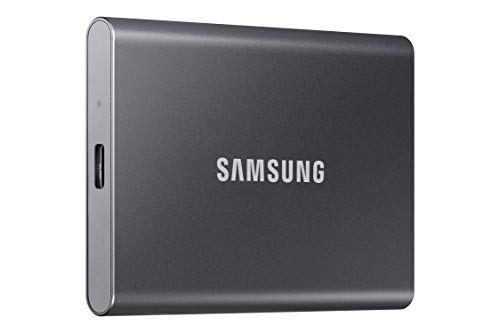
| Samsung T7 Shield | SSD | Rugged all-rounder | 1,050 / 1,000 MB/s | USB 3.2 Gen 2, 10Gbps | 1, 2, 4TB | IP65, 3 m drops, 98 g |
| SanDisk Extreme Portable SSD V2 | SSD | Light and tough | 1,050 / 1,000 MB/s | USB 3.2 Gen 2, 10Gbps | 500GB up to 4TB and larger | IP65, 3 m drops, 52 g, 5-year warranty |
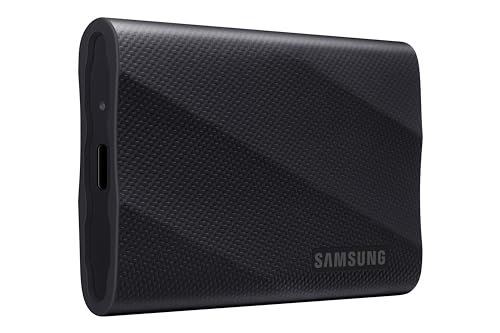
| Samsung T9 | SSD | Fastest transfers | Up to 2,000 MB/s | USB 3.2 Gen 2×2, 20Gbps | 1, 2, 4TB | 3 m drops, 122 g, 5-year warranty |
| Crucial X9 Pro | SSD | Compact and affordable speed | 1,050 / 1,050 MB/s | USB 3.2 Gen 2, 10Gbps | 1, 2, 4TB | IP55, 2 m drops |
| WD My Passport HDD | HDD | Cheapest capacity | About 120 MB/s | USB 3.2 Gen 1, 5Gbps | 2 to 6TB | Encryption, 3-year warranty |
| Seagate One Touch with Password | HDD | Capacity with recovery cover | HDD-class | USB 3.0, micro-B (newer: USB-C) | 1 to 5TB | AES-256, Rescue services |
| LaCie Rugged Mini | HDD | Shock-resistant backups | Up to about 130 MB/s | USB 3.2 Gen 1 | Up to 5TB | 1.2 m drops, orange bumper |
Price tiers: the hard drives sit in the budget tier, the Crucial X9 Pro and SanDisk Extreme in the mid-range, the Samsung T7 Shield in the mid-range to upper tier, and the T9 in the premium tier. Listed capacities and speeds come from manufacturer pages and retailer spec sheets and may vary by capacity and production revision.
Best Overall: Samsung T7 Shield
Samsung’s T7 Shield uses USB 3.2 Gen 2 at 10Gbps and is rated for up to 1,050MB/s sequential read and 1,000MB/s sequential write across its 1TB, 2TB and 4TB sizes. It wraps the SSD in a rubberized shell with IP65 dust and water resistance and a 3 meter drop rating, and Samsung’s datasheet lists a weight of 98 grams. Hardware AES 256-bit encryption is built in, the box contains both USB-C to USB-C and USB-C to USB-A cables, and the warranty is three years. IP65 means protection against jets of water, not immersion, so keep it out of a bucket.
Who it is for: photographers, students, field workers and anyone who carries a drive in a backpack.
Pros: fast, rugged, both cables included, well-known brand, 4TB option.
Cons: mid-range to upper tier, and the rubber shell attracts pocket lint.
Best Lightweight Tough Drive: SanDisk Extreme Portable SSD V2
The SanDisk Extreme Portable SSD (model family SDSSDE61) reads at up to 1,050MB/s and writes at up to 1,000MB/s over USB 3.2 Gen 2. SanDisk lists IP65 protection and three meter drop resistance on current packaging, a five-year warranty, 256-bit AES encryption and a silicone shell. It measures about 100.8 by 52.6 by 9.6 millimeters and weighs only 52 grams, roughly half of the Samsung. Capacities start at 500GB and reach 4TB, with larger sizes listed by some retailers.
One caveat: earlier production units were rated for two meter drops and IP55, and some retail variants still show those figures. Check the packaging of the exact SKU you buy. SanDisk also sells a newer Extreme Portable SSD that uses 20Gbps USB 3.2 Gen 2×2 at up to 2,000MB/s, which is a different product.
Who it is for: travelers and creators who want the smallest tough drive with a long warranty.
Pros: very light, five-year warranty, IP65 and 3 meter drop rating on current units, wide capacity range.
Cons: may thermal-throttle in long copies, and revisions differ.
Best for Speed: Samsung T9
The T9 is the fastest drive here. It uses USB 3.2 Gen 2×2 at 20Gbps and Samsung rates the 4TB version at up to 2,000MB/s read and write, with 1TB and 2TB versions writing at about 1,950MB/s. Samsung’s datasheet lists 3 meter drop resistance, a weight of 122 grams, dimensions of 88 by 60 by 14 millimeters, AES 256-bit encryption and a five-year limited warranty, and the box includes USB-C to C and C to A cables. To reach full speed you need a Gen 2×2 or faster port, such as USB4 or Thunderbolt. On a standard 10Gbps port, speeds fall to the Gen 2 level of roughly 1,000MB/s. Retailer listings indicate that sustained writes on the 4TB model are lower than the burst figure once the fast cache fills.
Who it is for: video editors and anyone moving hundreds of gigabytes to a laptop with a 20Gbps or faster port.
Pros: double the speed of 10Gbps drives, five-year warranty, rugged shock rating, thermal management.
Cons: premium tier, heavier, and the extra speed is wasted on ports that top out at 10Gbps.
Best Compact Value: Crucial X9 Pro
Crucial’s X9 Pro is a small aluminum SSD rated at up to 1,050MB/s read and write over USB 3.2 Gen 2 in 1TB, 2TB and 4TB capacities. Crucial lists IP55 dust and water resistance and a two meter drop rating (some reviewers cite 6.5 feet), 256-bit AES encryption with password protection, and a five-year warranty or until the total bytes written limit is reached. Independent benchmarks recorded sequential speeds around 1,039MB/s read and 975MB/s write. Availability has been patchy in some regions, so check stock before building a plan around it.
Who it is for: shoppers who want 1,000MB/s speeds and a compact body without paying for IP65.
Pros: small footprint, strong benchmark results, long warranty.
Cons: lower drop and water ratings than the Samsung and SanDisk drives, and the warranty is capped by total bytes written.
Best Everyday Capacity: WD My Passport HDD
The My Passport is a 2.5 inch bus-powered hard drive with capacities from 2TB to 6TB on the current Silicon Gray model. Western Digital specifies USB 3.2 Gen 1 at 5Gbps, 256-bit AES hardware encryption with password protection and Acronis True Image for WD backup software, plus a three-year warranty. The standard version has a micro-B port, and the version labeled works with USB-C includes a micro-USB cable and a USB-A to USB-C adapter, while some Ultra versions use a native USB-C connector. The 6TB unit measures 4.22 by 2.95 by 0.81 inches and weighs about 8.3 ounces. Sustained transfers sit around 120MB/s.
Who it is for: people who need to back up a laptop or photo library at the lowest cost per terabyte.
Pros: large capacity, simple, hardware encryption, three-year warranty.
Cons: slow compared to SSDs, sensitive to drops while spinning, and the adapter dependence on a micro-B cable is a weak point.
Best with Recovery Cover: Seagate One Touch with Password
Seagate’s One Touch hard drive comes in capacities up to 5TB, with password protection, AES 256-bit hardware encryption and Seagate Toolkit software. Many versions include Rescue Data Recovery Services, which is rare among portable drives and relevant to a recovery-focused buyer, but check the length of cover for the capacity you choose, as it varies by model and region. The password version uses USB 3.0 with a micro-B port, so a USB-C laptop needs an adapter or cable. Seagate’s current page also lists a newer One Touch with native USB-C in 2TB and 4TB, with a two-year warranty. The 2TB drive is a 5400 RPM 2.5 inch model of about 4.5 by 3.2 by 0.8 inches, and it works with Windows, macOS and Chromebook.
Who it is for: users who want a hard drive with recovery services bundled.
Pros: up to 5TB, encryption, recovery cover.
Cons: micro-B on many versions, shorter warranty on the USB-C model, HDD speeds.
Best Shock-Resistant Hard Drive: LaCie Rugged Mini
LaCie’s Rugged Mini is a 2.5 inch hard drive in an orange rubber bumper, listed at up to about 130MB/s with capacities up to 5TB. Retailers describe USB 3.0 or USB 3.2 Gen 1 with a micro-USB connector on the drive and a micro-USB to USB-C cable in the box. Drop protection is listed at 1.2 meters (4 feet) and the box typically includes Rescue Data Recovery Services, though terms depend on region. Several sources mention IP54 splash resistance, but retailers disagree, so treat it as splash-resistant at best.
Who it is for: those who want a cheap, shock-absorbing backup drive for a bag.
Pros: bumper protection, big capacities, recovery cover.
Cons: hard drive speed, micro-B port, bulkier than SSDs.
How to Choose: Decision Matrix
| Your situation | Choose | Reason |
|---|---|---|
| Carry it daily, drop it occasionally | Samsung T7 Shield | IP65 and 3 m drop rating |
| Want the lightest tough SSD | SanDisk Extreme V2 | 52 g, five-year warranty |
| Edit 4K or larger video from the drive | Samsung T9 (on a 20Gbps port) | Twice the bandwidth of 10Gbps drives |
| Want speed in a small package | Crucial X9 Pro | 1,050 MB/s in a compact body |
| Archive terabytes cheaply | WD My Passport | Highest capacity per cost |
| Want recovery services bundled | Seagate One Touch or LaCie Rugged Mini | Rescue Data Recovery cover on many models |
Worked Example 1: How Long Does a Backup Take?
Suppose you back up 500GB of photos and documents. At a sustained 120MB/s, a hard drive needs 500,000 divided by 120, or about 4,170 seconds, which is roughly 69 minutes. A 10Gbps SSD sustaining 900MB/s needs about 555 seconds, or 9 minutes. A Gen 2×2 SSD that sustains 1,800MB/s needs about 280 seconds, under 5 minutes. Real results vary with file size, because thousands of small files slow every drive, and with how full the SSD is. For a first full backup, the hard drive is acceptable overnight. For daily working copies, the SSD saves hours per month.
Worked Example 2: Match the Port to the Drive
Port labels on laptops are often unclear. A USB-C port with no symbol is usually 5Gbps. A port marked with SS 10 is 10Gbps. A port marked 20 supports Gen 2×2, and a lightning-bolt icon means Thunderbolt or USB4 at 40Gbps. If your laptop only has 5Gbps ports, a 10Gbps SSD will still run at about 400MB/s, which is more than three times a hard drive. If your port is 10Gbps, paying for the T9 gains nothing, so choose the T7 Shield or SanDisk instead.
Understanding the USB Names on the Box
| Marketing name | Link speed | Practical ceiling | Drives in this guide |
|---|---|---|---|
| USB 3.2 Gen 1 (also USB 3.0) | 5Gbps | About 400 MB/s | WD My Passport, LaCie Rugged Mini, Seagate One Touch |
| USB 3.2 Gen 2 | 10Gbps | About 1,000 MB/s | Samsung T7 Shield, SanDisk Extreme V2, Crucial X9 Pro |
| USB 3.2 Gen 2×2 | 20Gbps | About 2,000 MB/s | Samsung T9 |
| USB4 or Thunderbolt | 40Gbps | Above 2,000 MB/s with a matching enclosure | Backward compatible with all of the above |
Hard drives never come close to their link ceiling, because the spinning platter limits them to roughly 100 to 130MB/s, so a 5Gbps link is plenty for them. SSDs are the drives that benefit from faster links. The standards were renamed several times, so a box reading USB 3.1 Gen 2 and a box reading USB 3.2 Gen 2 describe the same 10Gbps speed.
Formatting and Using the Drive with Time Machine or File History
Most portable drives ship formatted as exFAT, which both Windows and macOS read and write. That is convenient for moving files between machines, but it does not support Time Machine, and it lacks the journaling that helps a file system survive a pulled cable. If the drive is for a Mac backup only, reformat it as APFS in Disk Utility and point Time Machine at it. If it is for a Windows laptop only, NTFS and File History work well. For a drive that moves between both systems, keep exFAT and eject carefully every time. Whatever you choose, copy the data off before reformatting, because formatting erases the drive.
SSD or Hard Drive for Backups and Recovery
- Shock: an SSD has no moving parts and survives drops that kill a spinning drive. Hard drives are most at risk while powered.
- Recovery odds: when a hard drive fails mechanically, a lab can often recover data from it. A failed SSD controller or chip is much harder to recover, and deleted data on an SSD is usually gone for good once the drive clears it. That makes a second backup more important for SSD users.
- Capacity: hard drives deliver 5TB or 6TB in a pocket-size case at a budget tier, while SSDs top out at 4TB in most models here.
- Longevity: unpowered SSDs can lose data over years if left in a drawer, so power them up occasionally. Hard drives age mechanically.
- Best practice: follow the 3-2-1 rule: three copies, two media types, one off-site. No single external drive is a backup strategy.
Warning Signs and Care
- Clicking, grinding or repeated disconnects mean copy your data immediately and stop using the drive.
- Eject the drive before unplugging it, because pulled cables are the most common cause of corrupted file systems.
- Use the supplied cable. A cheap charge-only cable can limit speed or cause dropouts.
- Format as exFAT for sharing between Windows and macOS, APFS for Mac-only backups with Time Machine, or NTFS for Windows-only use.
- Keep the drive cool, since SSDs throttle when hot.
- Never keep important data on only one drive, and never run a repair tool on a failing drive before copying what you can.
Frequently Asked Questions
Does a USB-C port mean my drive will be fast?
No. USB-C is only the connector. Speed depends on the protocol, from 5Gbps on older hard drives to 20Gbps on Gen 2×2 SSDs. Check the interface rating on the box and your laptop’s port rating.
Is an SSD or a hard drive better for backups?
An SSD is faster and tougher, and a hard drive is cheaper per terabyte. Use an SSD for working files and travel, and a hard drive for large archives, with a second copy of anything important.
Can I use a USB-C drive with a phone or tablet?
Often yes, particularly with bus-powered SSDs and recent iPhones, iPads and Android phones with USB-C. Bus-powered hard drives may draw more power than the phone supplies, so an SSD is the safer choice.
Why is my new SSD slower than the rated speed?
Ratings are peak sequential speeds under ideal conditions. Small files, a slow port, a long cable, heat and a nearly full drive all reduce speed. Sustained writes on some drives fall once the fast cache fills.
What does IP65 mean on a portable SSD?
The first digit says dust-tight, and the second says protected against low-pressure water jets. It does not mean waterproof for swimming. Keep the drive dry and let it dry off if it gets wet.
What should I do if my external drive stops working?
Stop using it, try another cable and port, and check the drive on a second computer. If it is not recognized or makes noises, power it down and consult a professional data recovery service, because repeated power-ups can make recovery harder.
Write Your Review
No reviews yet. Be the first to share your experience!